
32 KiB
Media Command™ — End-to-End Operational Guide & System Manual
PDF edition: Media-Command-Guide.pdf
System Version: Media Command™ v0.91 (Dragonflight Architecture)
Target Environment: Broadcast Management Group (BMG) Production Infrastructure
Reference Project: Broadcast Management Group (12,353indexed broadcast assets)
Document Status: Production Complete · Tool-Verified with Real Media
Table of Contents
- Executive Overview & System Architecture
- Authentication & Workspace Access
- Global Operations Dashboard
- Live Ingest & Control (LIVE Section)
- Media Asset Management (MEDIA Section)
- Operations & Post-Production (OPERATIONS Section)
- System Administration & Infrastructure (ADMIN Section)
- NLE Plugins & Desktop Applications
- Operational Runbooks & Safety Protocols
1. Executive Overview & System Architecture
Media Command™ is an enterprise-grade broadcast Media Asset Management (MAM), live capture, signal routing, and playout automation platform developed by Wild Dragon LLC for high-velocity broadcast environments such as Broadcast Management Group (BMG).
┌──────────────────────────────────────────────────────────────────────────────┐
│                              MEDIA COMMAND™                                  │
│                       Web UI (React 18 / Nginx)                              │
└──────────────────────────────────────┬───────────────────────────────────────┘
                                       │ REST / WebSocket (Port 47432 / HTTPS)
┌──────────────────────────────────────┴───────────────────────────────────────┐
│                           MAM-API Cluster Gateway                            │
│                     (Node.js / Express / BullMQ / pg)                        │
└──────┬───────────────────────────────┬───────────────────────────────┬───────┘
       │                               │                               │
┌──────┴──────────────┐ ┌──────────────┴──────────────┐ ┌──────────────┴───────┐
│  Distributed Worker │ │     Database Cluster        │ │  Playout & Ingest    │
│  Fleet (GPU / CMAF) │ │  PostgreSQL 16 / Redis 7   │ │  CasparCG / Deltacast│
│  dragon2, 3, 4, 6   │ │       (dragon1)             │ │  SDI / SRT / WebRTC  │
└─────────────────────┘ └─────────────────────────────┘ └──────────────────────┘
System Architecture & Technology Stack
- Frontend Interface: React 18 Single-Page Application (SPA) with dark/light themes, HLS.js adaptive streaming, MediaPipe AI segmentation, WebRTC Adaptor for sub-second multiviewing, and broadcast timecode parsers (
timecode.js). - Core Backend (
mam-api): Distributed Node.js / TypeScript microservice architecture usingexpress-session, PostgreSQL 16 persistence, Redis 7 caching, and BullMQ worker queue orchestration. - Worker Pipeline: High-throughput GPU-accelerated transcoding engine (NVIDIA NVENC/NVDEC) handling stream-copying, proxy generation, audio waveform extraction, and HLS packaging.
- Playout Engine: CasparCG Server fork with custom NDI playout pipelines, HTML graphics overlay layers, and SW-P-08 / BCS router protocol bridges.
TAMS CMAF/fMP4 Master Flow Paradigm
Media Command leverages Fragmented MP4 (fMP4 / CMAF) master flows. Unlike monolithic MP4 or QuickTime MOV files that require finalization before reading:
- Live Growing Ingest: Segments are written to NVMe storage sequentially, allowing NLE editors (Adobe Premiere Pro and DaVinci Resolve) to mount and edit live incoming feeds seconds behind real-time broadcast.
- Stream-Copy Efficiency: H.264 and HEVC feeds bypass expensive transcode stages, stream-copying directly into master containers.
- Padded In/Out Trimming: Non-destructive sub-clipping and in/out point trimming enable storage reclamation without re-encoding source video.
Storage Hierarchy & Trust Domains
Media Command distinguishes between two primary environments:
- Homelab / Staging (
10.0.0.25): Rapid feature development and testing bed. - Production Hitchcock (
172.18.210.5/172.18.91.x): Enterprise BMG broadcast core with 10GbE/40GbE network fabric, 6 cluster compute nodes (dragon1throughdragon6), and hardware Deltacast SDI capture arrays.
2. Authentication & Workspace Access
Media Command enforces strict tenant isolation and Role-Based Access Control (RBAC).
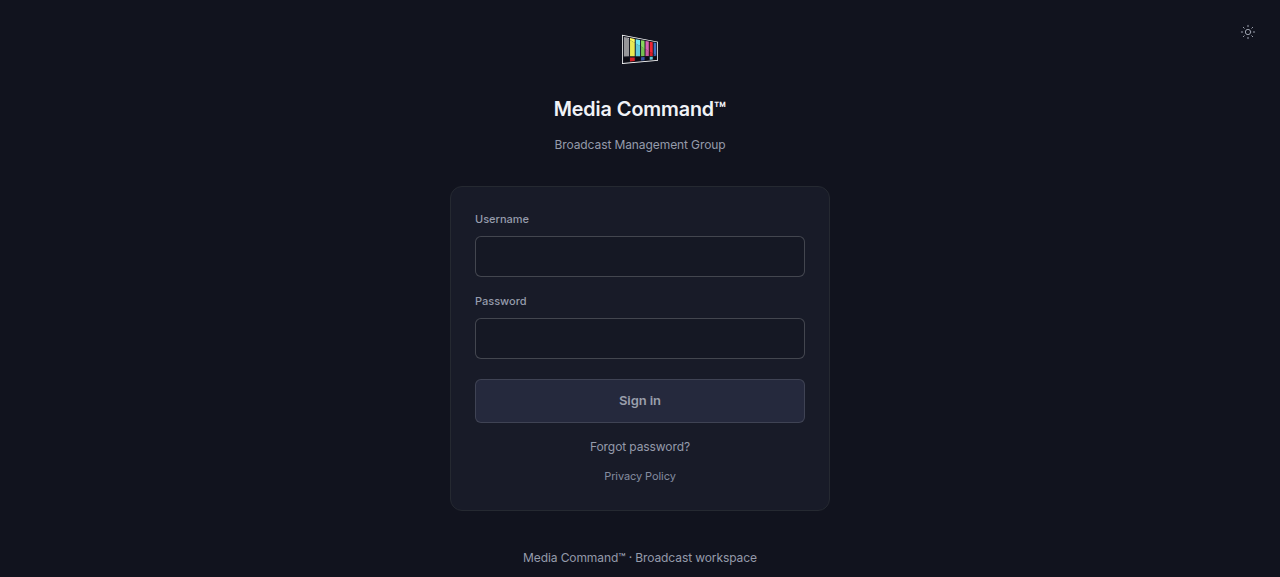
Login & SSO Authentication
- Authentication Channels:
- Local Credentials: Secure PBKDF2/Argon2-hashed credential authentication.
- Enterprise SSO (Authentik): Federated OAuth2/OIDC integration brokering
@broadcastmgmt.com(Microsoft 365) and@bmgremi.com(Google Workspace) identities. - Multi-Factor Authentication (MFA): Time-based One-Time Password (TOTP) enforcement for administrative tiers.
- Session Security: Session tokens are cryptographically signed (
dragonflight.sid) with HMAC-SHA256, bound to origin domains, and guarded by anti-CSRF request headers (X-Requested-With: dragonflight-ui).
Role-Based Access Control (RBAC)
| Role | Scope & Permissions |
|---|---|
Admin (platform_admin) |
Full cluster control, user/token provisioning, container restart, S3 bucket and cluster-wide storage configuration. |
| Operator | Live recorder control, schedule automation, master control playout queue manipulation, graphics triggering, and ingest approvals. |
| Editor | Media Library browsing, project bin curation, rough-cut editor access, Premiere/Resolve plugin connectivity, upload/import permissions. |
| Viewer | Read-only access to asset metadata and proxy player streams. Cannot modify bins, trigger recordings, or delete content. |
3. Global Operations Dashboard
The Operations Dashboard is the command center of Media Command, offering a unified overview of system vitals, recent ingest activity, and quick access tiles.
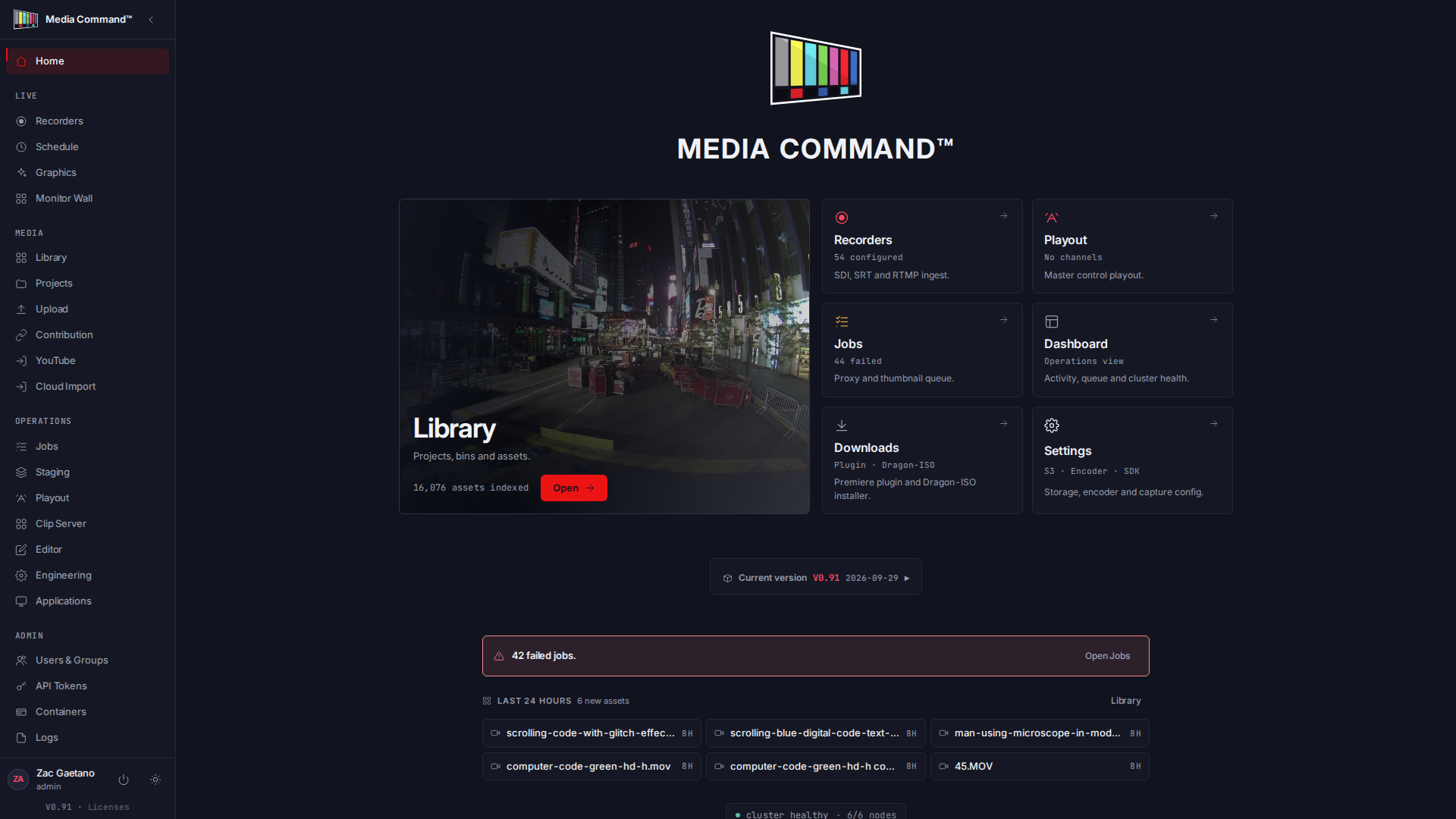
System Vitals & Cluster Health
- Cluster Status Indicator: Displays live aggregate node state (e.g.,
cluster healthy · 6/6 nodes). - Asset Indexing Counter: Real-time counter of all registered broadcast assets (e.g.,
16,076 assets indexed). - Active Queue Metrics: Displays running and failed worker tasks (e.g.,
42 running · 2 failedin BullMQ). - Physical Ingest Port Summary: Reports online capture channels (e.g.,
24 enabled · 29 configured).
Recent Activity & Asset Indexing
The Last 24 Hours stream lists all newly ingested files with format indicators, duration tags, and direct links to the Media Library.
Quick Navigation Tiles
- Library: Direct link to the Media Library and Projects hierarchy.
- Recorders: Link to multi-channel physical capture port control.
- Playout: Link to master control channel runlists.
- Jobs: Direct view into BullMQ background transcode workers.
- Downloads: One-click access to NLE plugins (Premiere UXP, Resolve) and desktop companion apps.
- Settings: Central configuration for S3 storage, encoders, and SDK bridges.
4. Live Ingest & Control (LIVE Section)
Recorders
The Recorders interface controls the physical SDI capture ports and network ingest engines across the cluster.
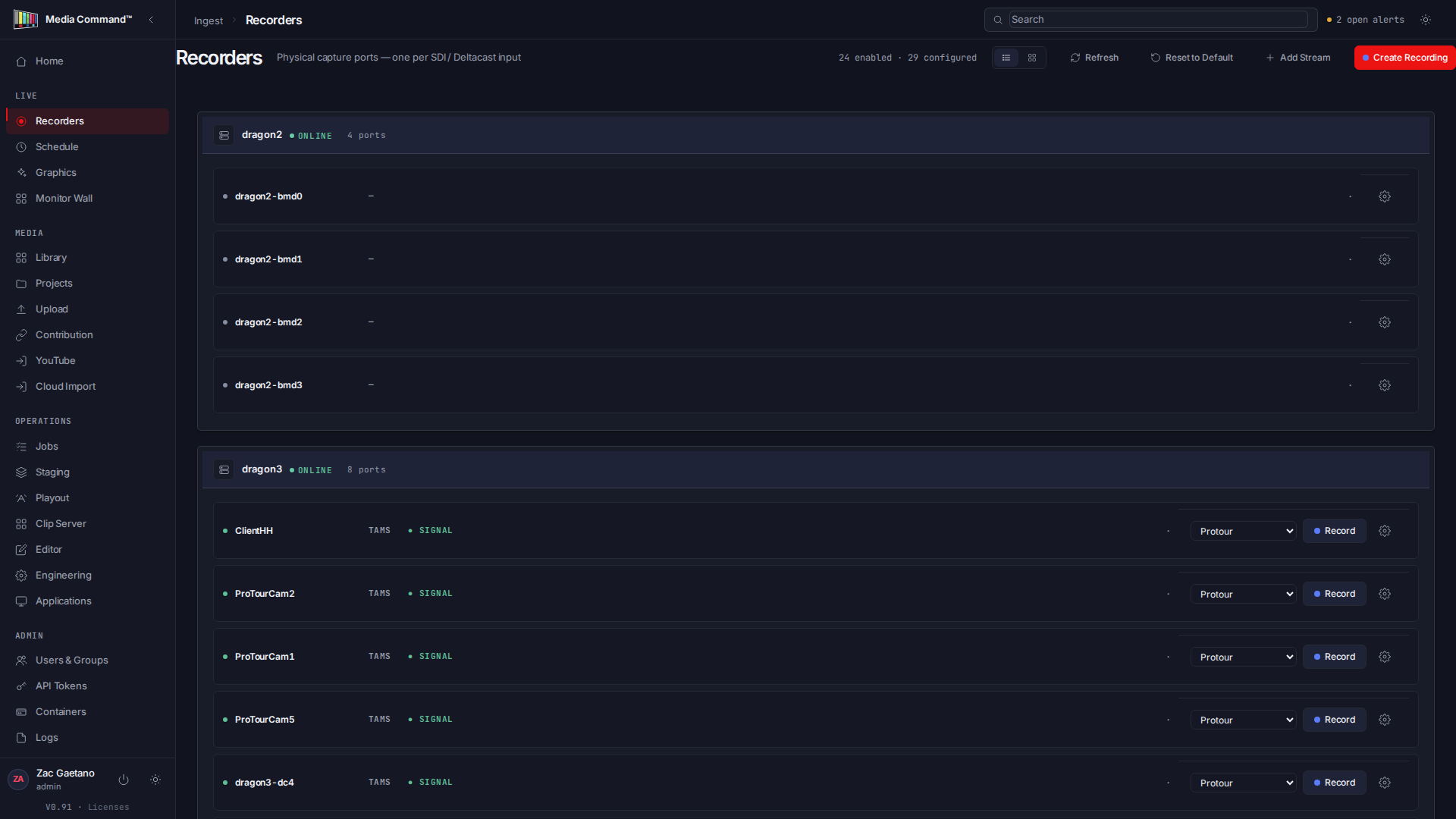
- Port Matrix: Each card represents a physical Deltacast SDI port or network ingest worker (e.g.,
dragon4-dc0throughdragon4-dc7,dragon6-dc0throughdragon6-dc7). - Signal Status: Real-time detection of input video format (
1080i59.94,1080p29.97,720p59.94,2160p59.94). - Codec Profile Selection: Independent configuration per port:
- ProRes 422 / ProRes 422 HQ: High-end master archive recording.
- DNxHD / DNxHR: Avid-native post-production workflows.
- H.264 / HEVC (fMP4): Stream-copy low-latency proxy and web distribution.
- Actions:
Create Recording: Start an immediate manual recording on selected ports.Add Stream: Provision a network stream receiver (SRT Caller/Listener, RTMP, NDI).Reset to Default: Restore factory SDI port configurations.
Schedule
The Schedule module automates recurring broadcast captures and satellite/fiber ingest events.
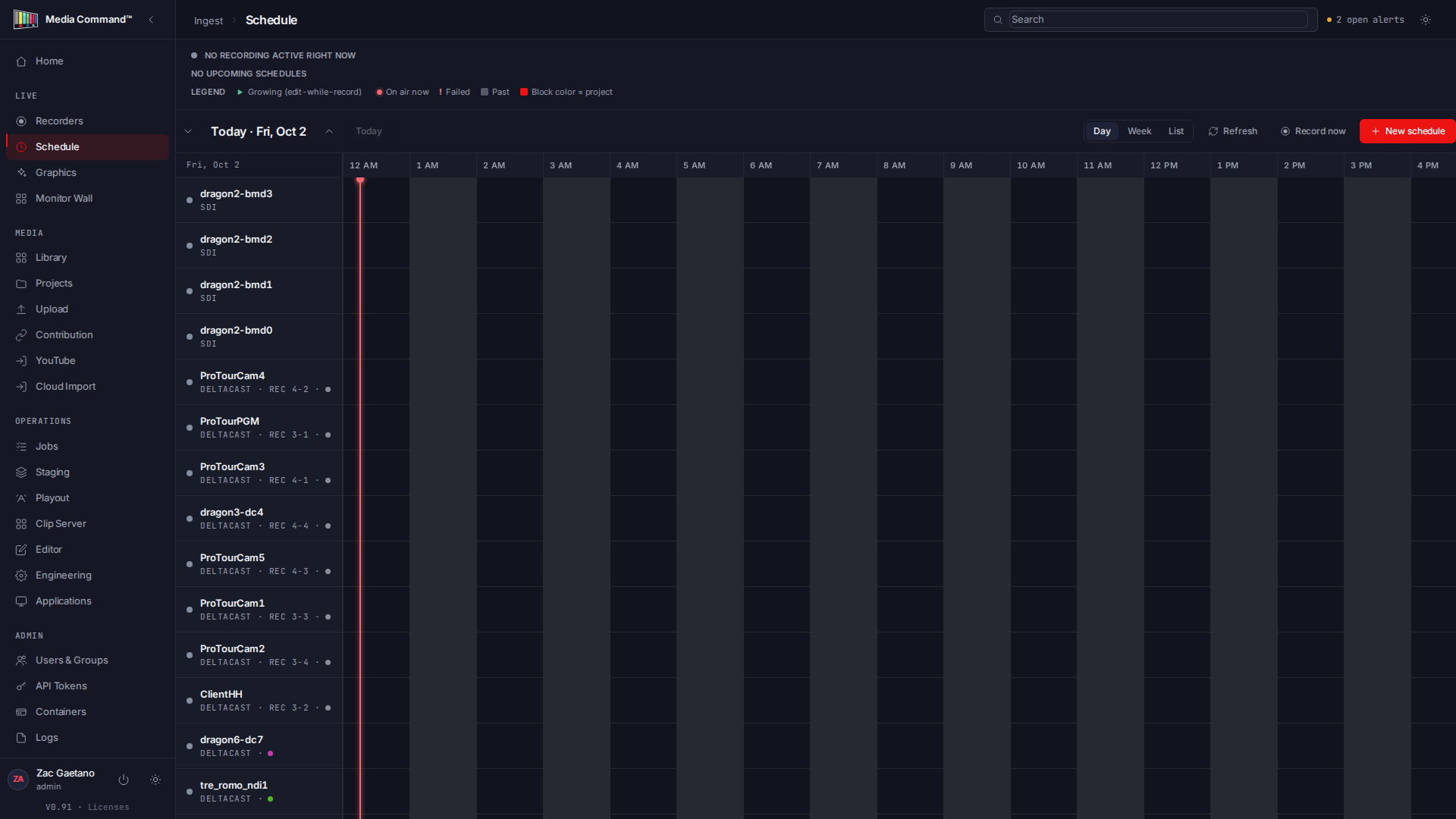
- Automated Event Calendar: Grid-based timeline showing upcoming scheduled recordings.
- Traffic / Schedule Import: Support for importing broadcast traffic schedules and CSV run-sheets.
- Auto-Routing: Automatically matches scheduled events to available recorder ports and target project bins.
- Pre-Roll / Post-Roll Padding: Configurable safety buffer times before and after scheduled window.
Live Graphics & HTML Overlays
The Live Graphics engine renders real-time broadcast graphics, scoreboards, lower-thirds, and bug overlays.
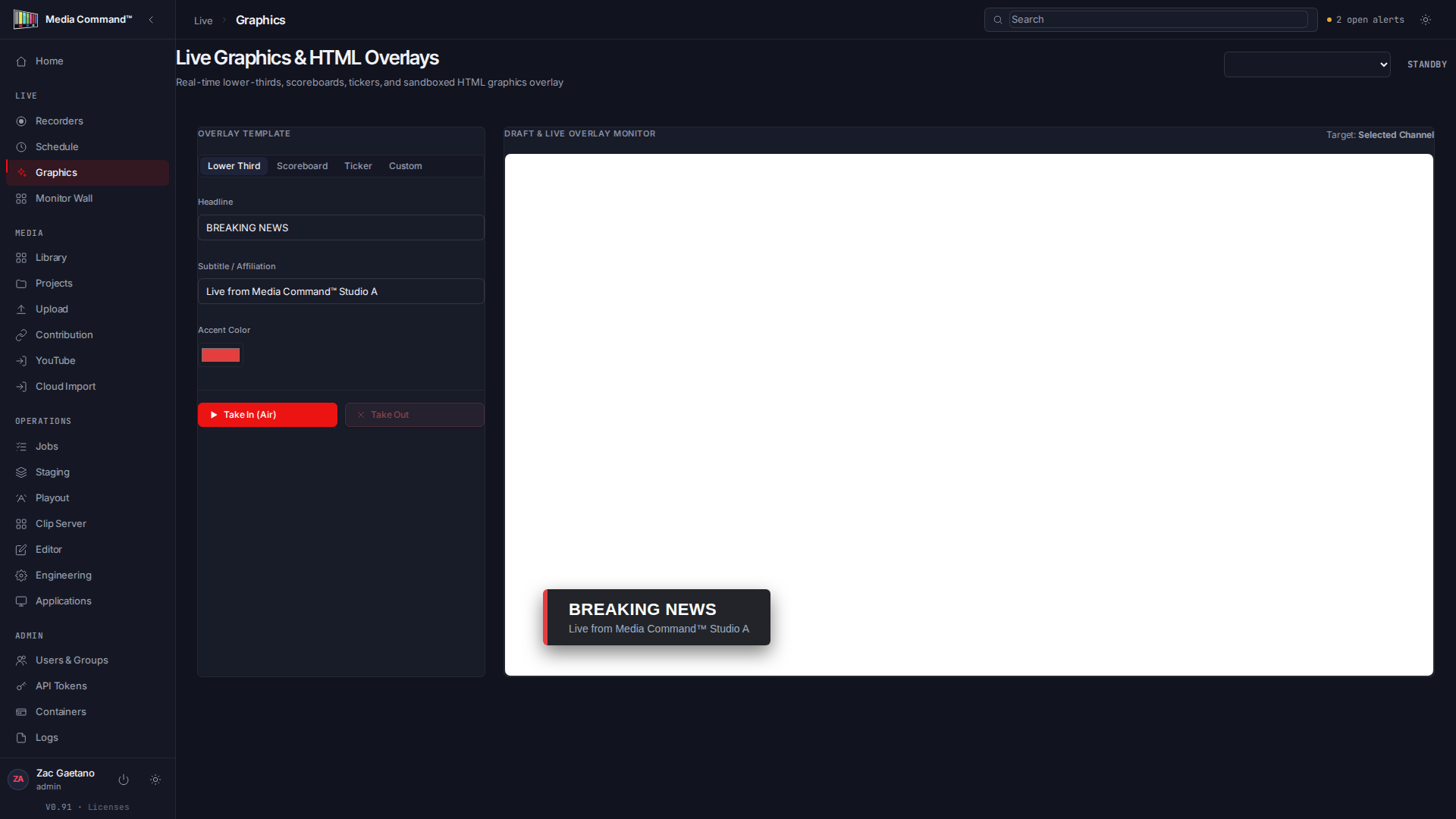
- Sandboxed HTML5 Engine: Uses Chromium-backed offscreen rendering to generate dynamic graphics packages.
- DataLinq / REST Live Feeds: Connects live XML/JSON sports scoreboards and lower-third data to graphics templates.
- Layer Stacking: Controls downstream keying (DSK 1-4) over live playout or recorder preview streams.
Monitor Wall
The Monitor Wall provides a high-density, low-latency WebRTC multiviewer for control rooms and remote directors.
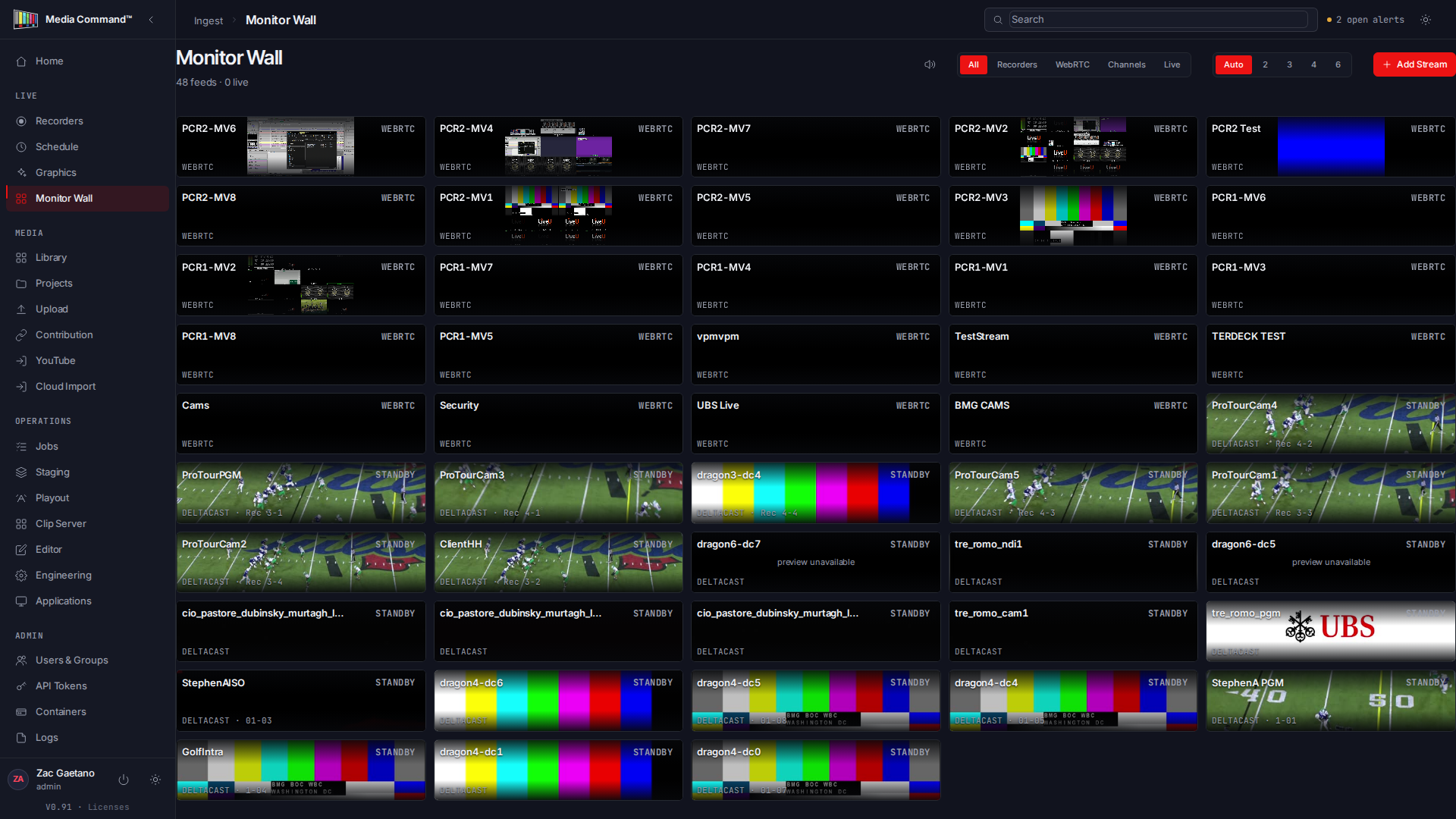
- Dynamic Layouts: Flexible grid switching (
Auto,2x2,3x3,4x4,6x6). - Filter Feeds: Filter between
Recorders,WebRTC,Playout Channels, orLive Feeds. - Sub-Second Latency: WHEP/WebRTC streaming delivers video with under 300ms latency to web browsers without plugins.
- Audio Meters: Multi-channel VU meters overlaying active video tiles.
5. Media Asset Management (MEDIA Section)
Projects Management
Projects are the top-level workspaces in Media Command, isolating media, user permissions, bins, and storage quotas.
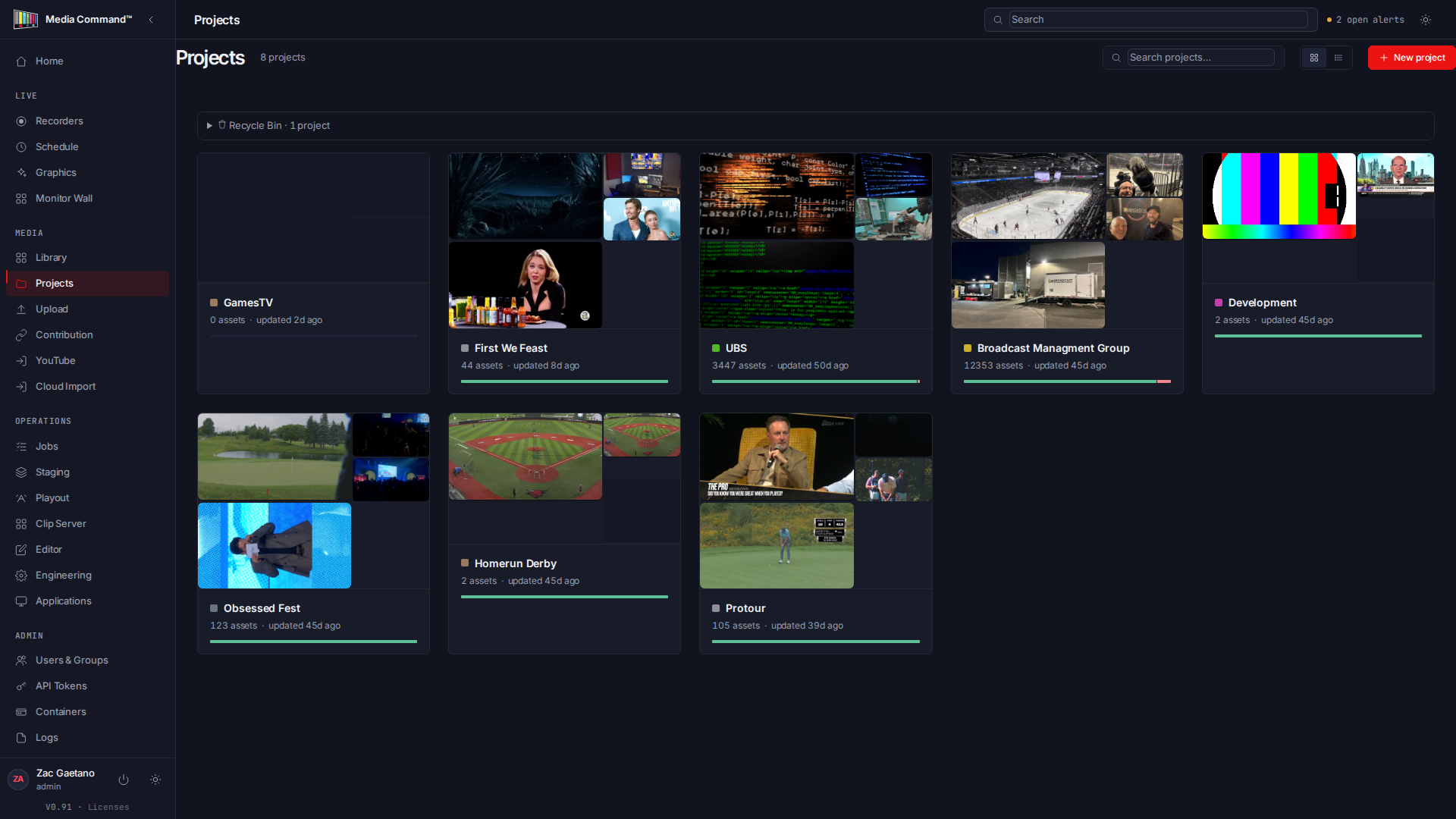
- Project Directory: Displays all active projects (e.g.,
Broadcast Management Groupwith12,353 assets,UBSwith3,447 assets,First We Feast,Protour). - Project Creation:
New Projectmodal allows defining project name, storage allocation, default codec preset, and assigned user groups. - Recycle Bin Isolation: Deleted assets and archived bins are quarantined in the project's Recycle Bin to prevent accidental data loss.
Media Library
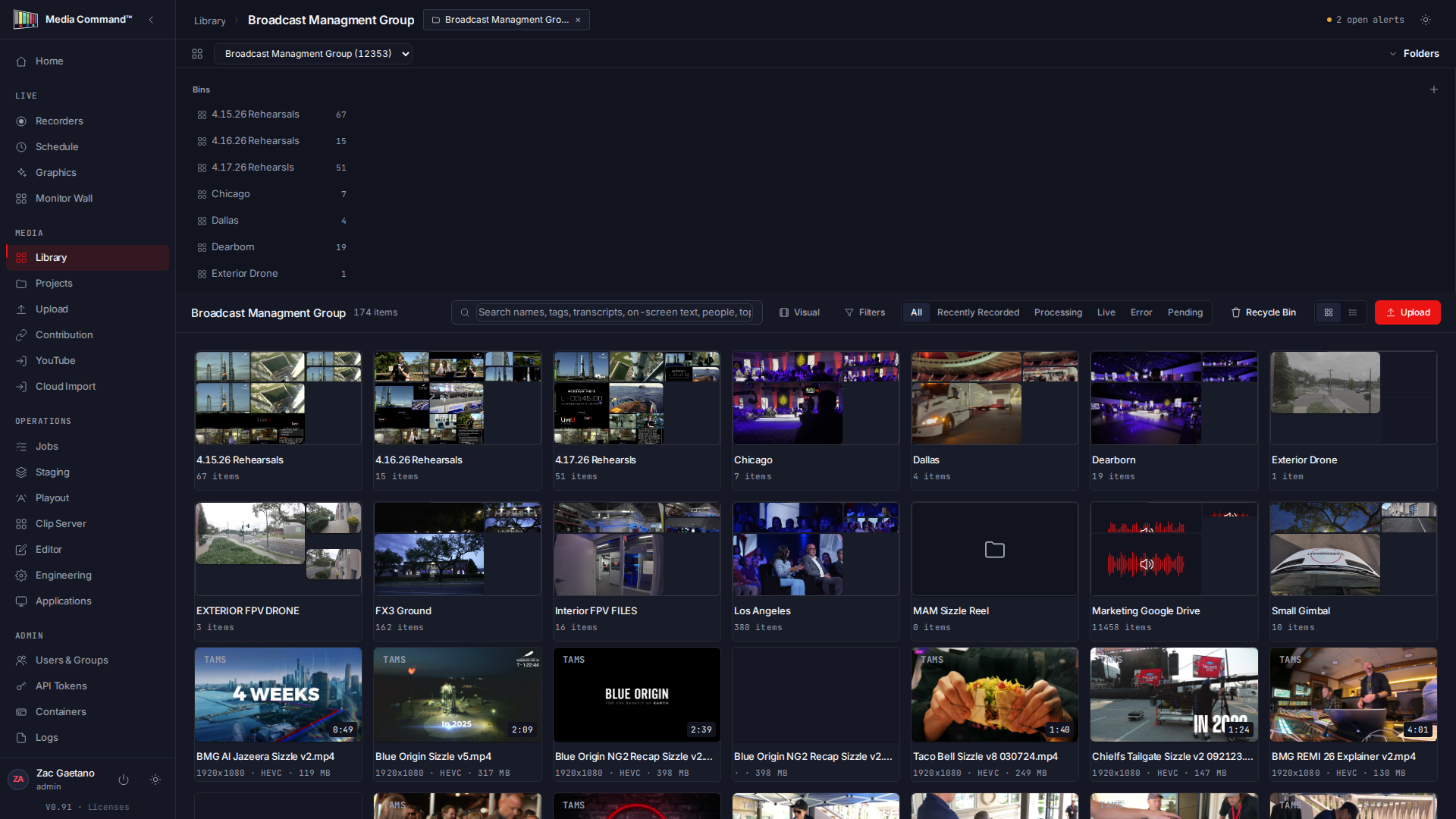
The Media Library provides deep search, metadata filtering, and bin organization for all media within a project.
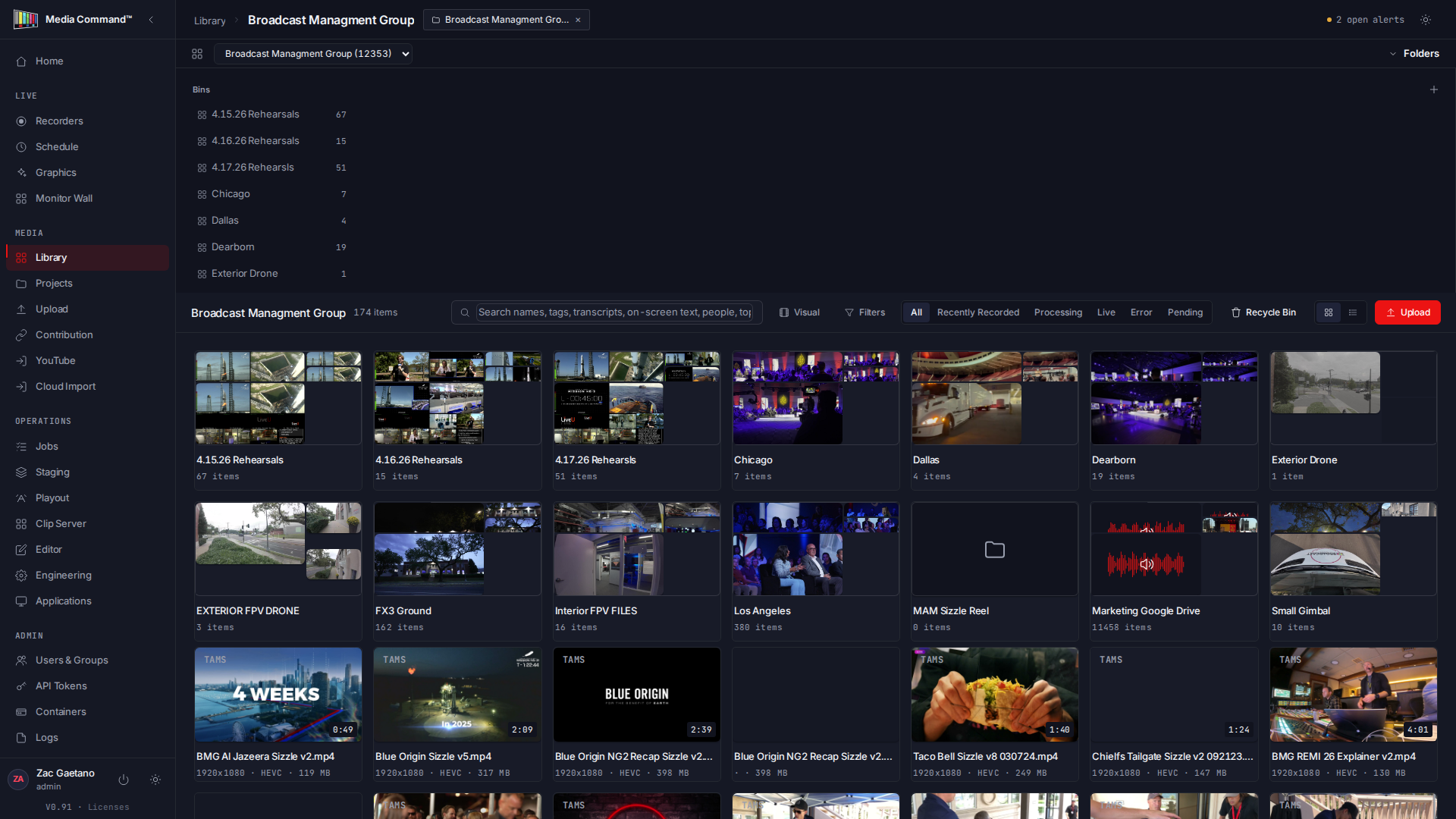
- Project Workspace Switcher: Quick dropdown to toggle between assigned projects or the master
★ All Projects (Admin View). - Search & Filter Bar:
- Full-text search across filenames, tags, tape IDs, and custom metadata fields.
- Faceted filters: File Type (Video, Audio, Image, Document), Codec (HEVC, H.264, ProRes, DNx), Resolution, Date Range.
- Display Modes: Toggle between high-density List View, Thumbnail Grid, and Filmstrip Scrub View.
- Bin Navigation: Folder and smart-bin tree for structural project asset organization.
Asset Inspector & Player
Clicking any asset opens the comprehensive Asset Inspector:
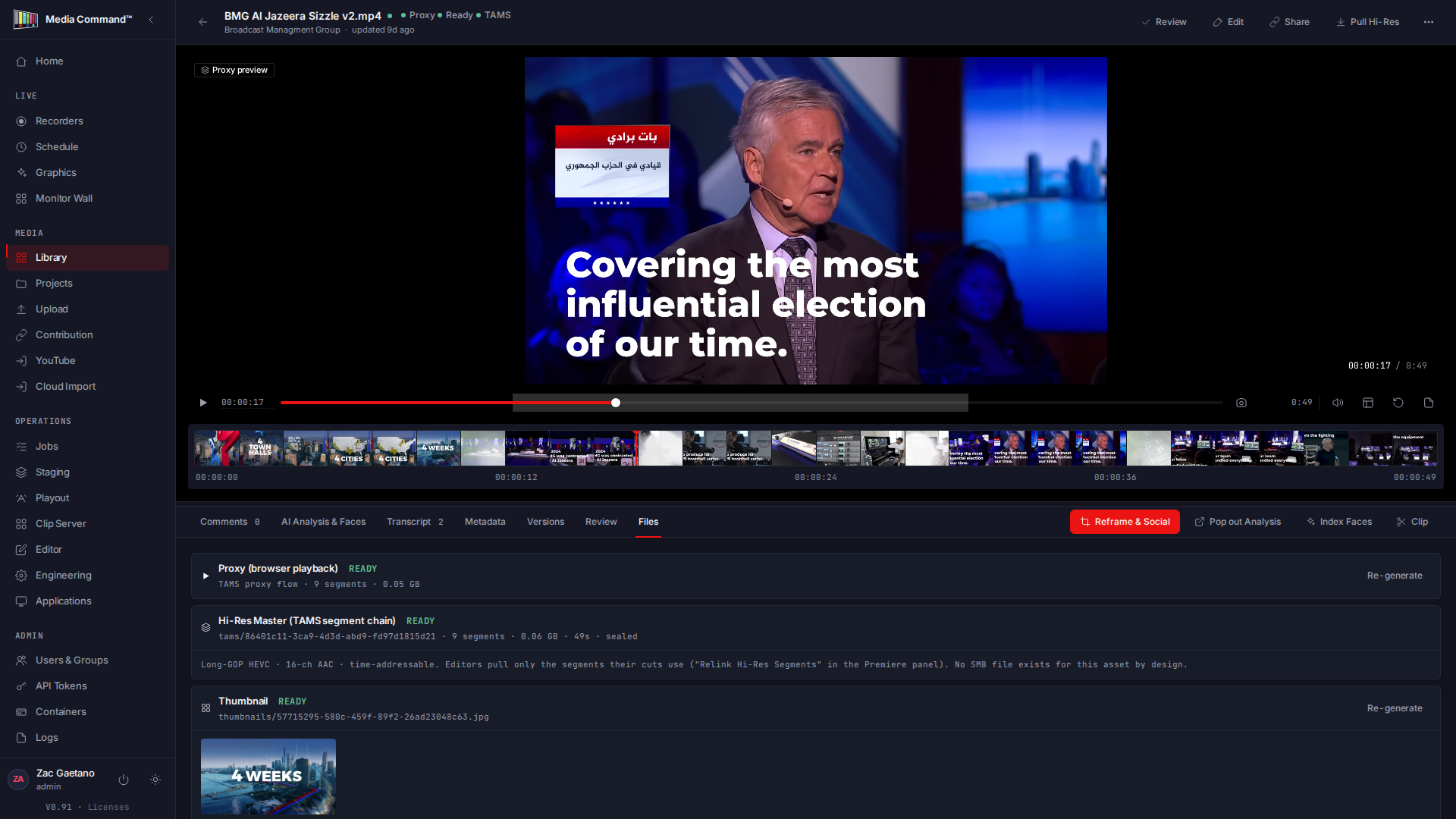
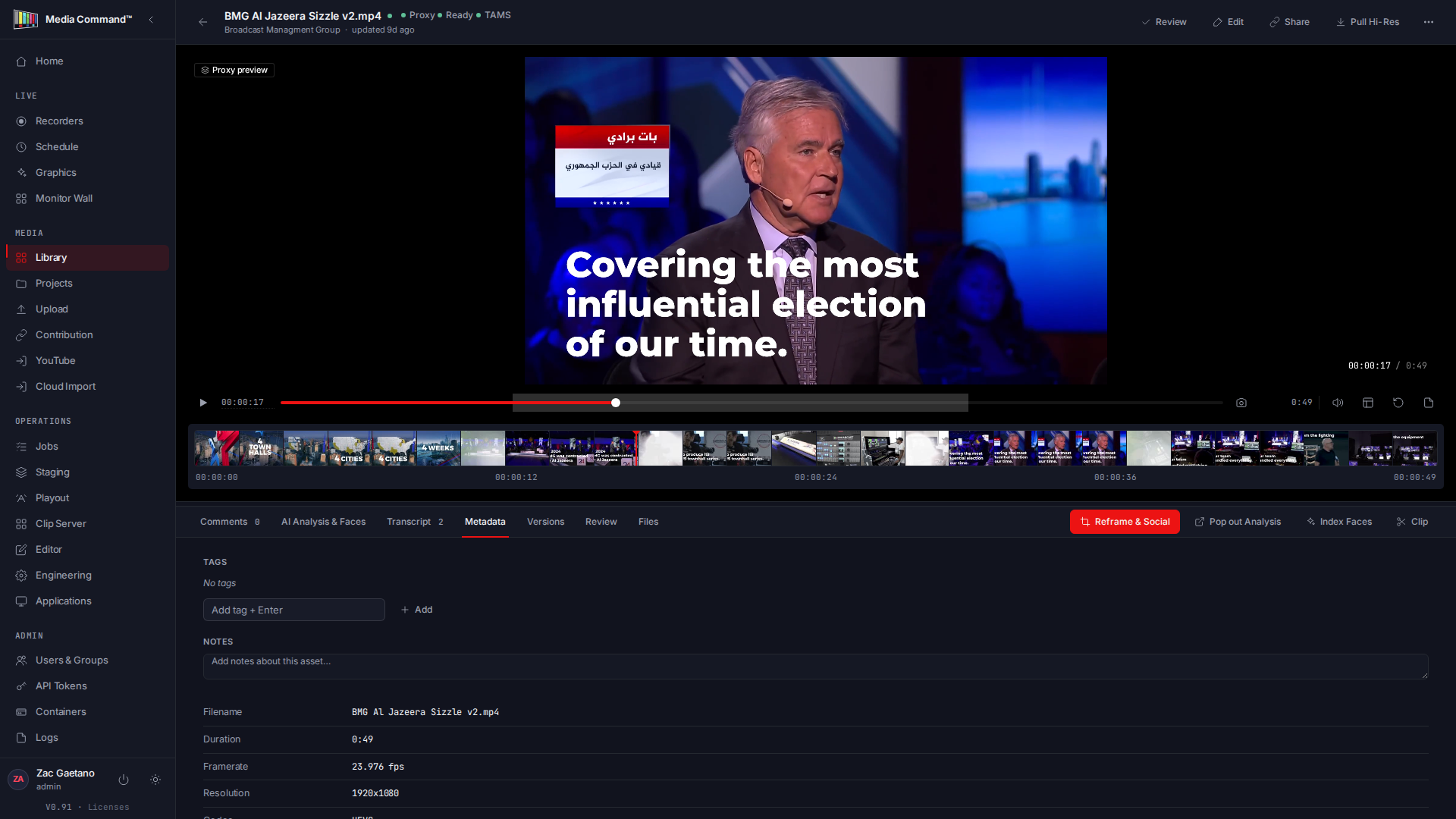
- Broadcast Timecode Player: Accurate frame-by-frame scrubbing, J-K-L shuttle controls, and SMPTE timecode readout (
00:00:00:00). - TAMS CMAF/fMP4 Adaptive Playback: Smooth scrubbing and playback even on multi-hour growing capture files.
- Multi-Track Audio Channel Matrix: Visual waveform display with individual channel solo, mute, and level monitoring (up to 16 discrete channels).
- Technical Metadata Panel:
- Container format, stream profile, resolution (
1920x1080), frame rate (29.97fps/59.94fps), bit rate, color space (Rec.709,BT.2020). - Storage location path, S3 object key, MD5/SHA256 checksum.
- Container format, stream profile, resolution (
- Markers & In/Out Sub-clipping: Set In/Out points (
I/Okeys) to export subclips or dispatch render jobs directly to NLE bins.
Media Upload
The Media Upload interface enables high-speed web ingest directly into target project bins.
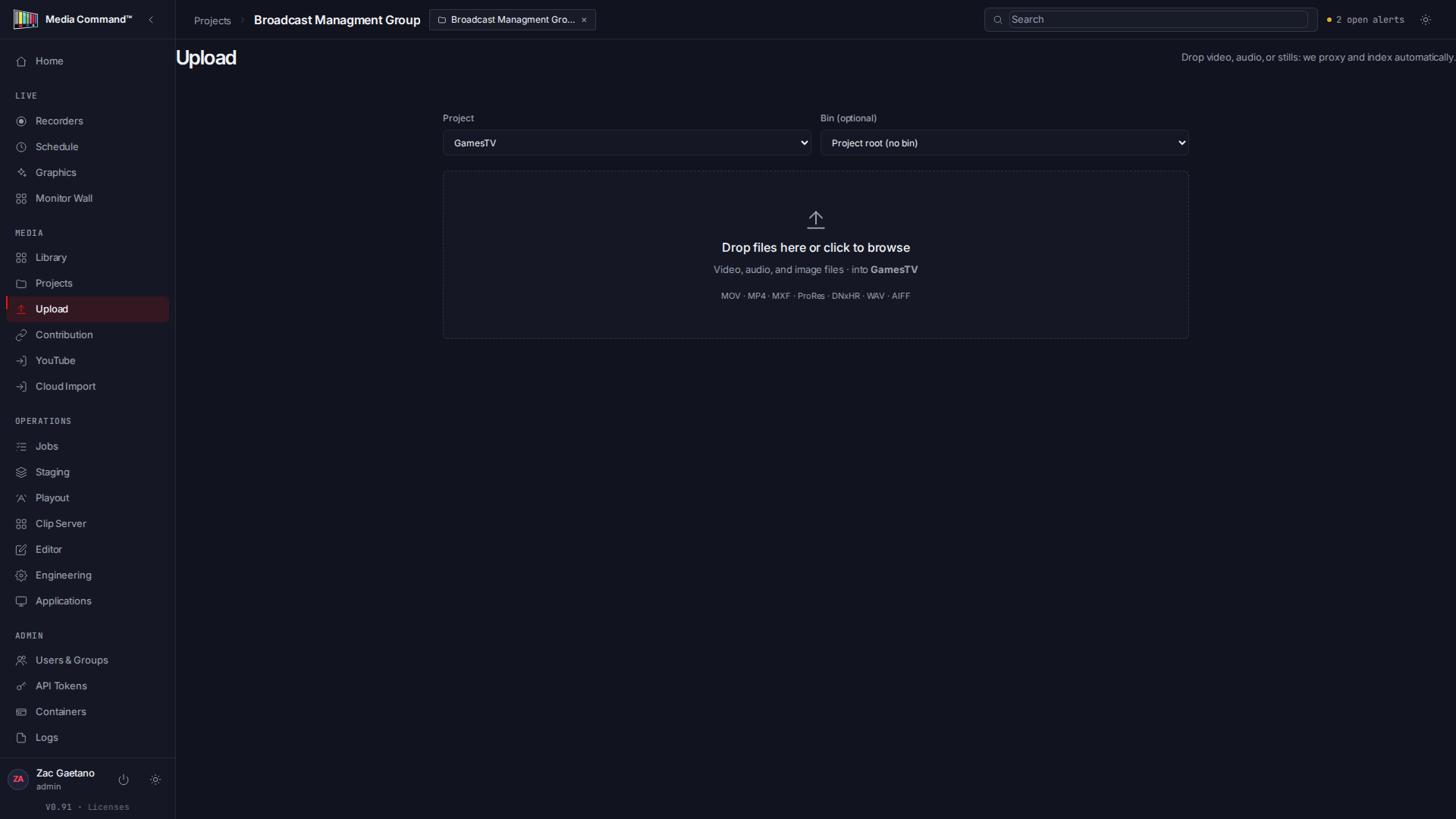
- Chunked Resumable Upload: Uses chunked HTTP multipart upload with pause/resume support for massive 100GB+ files.
- Target Bin Selector: Directly assigns uploaded files to specific project folders.
- Automated Ingest Tasks: Automatically triggers proxy creation, thumbnail extraction, and audio waveform generation upon upload completion.
Contribution Feeds
The Contribution portal manages incoming broadcast feeds from remote trucks, field units, and cellular backpacks.
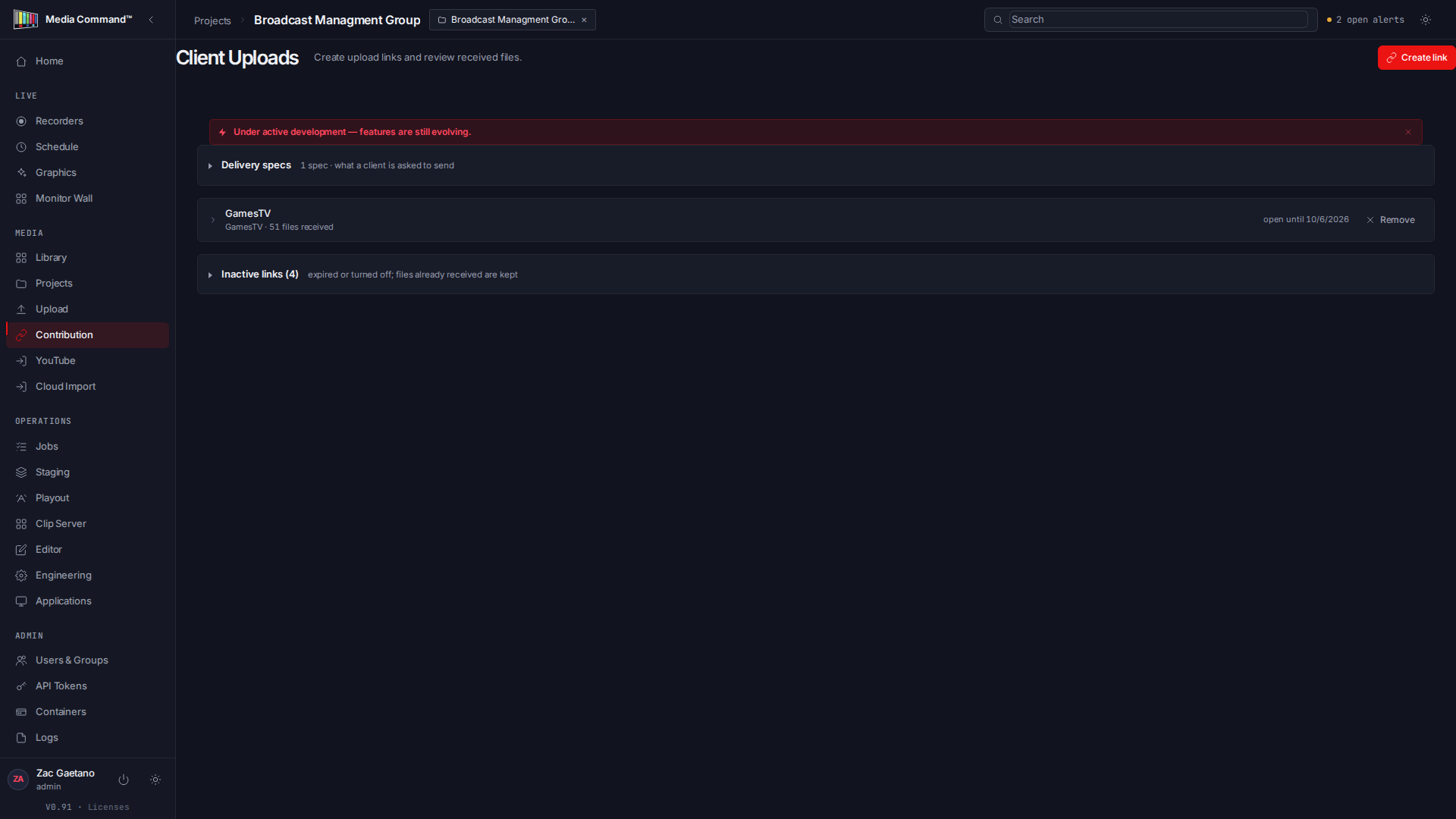
- SRT Caller / Listener: Configure passphrase-protected SRT streams with adjustable latency buffers (20ms - 2000ms).
- RTMP / RTMPS Ingest: Custom streaming keys for software encoders (OBS, vMix, Wirecast).
- Auto-Recording Rules: Automatically initiate TAMS master flow recording whenever a contribution stream connects.
YouTube Direct Ingest
The YouTube Ingest module allows archiving and live capturing of public and unlisted YouTube streams.
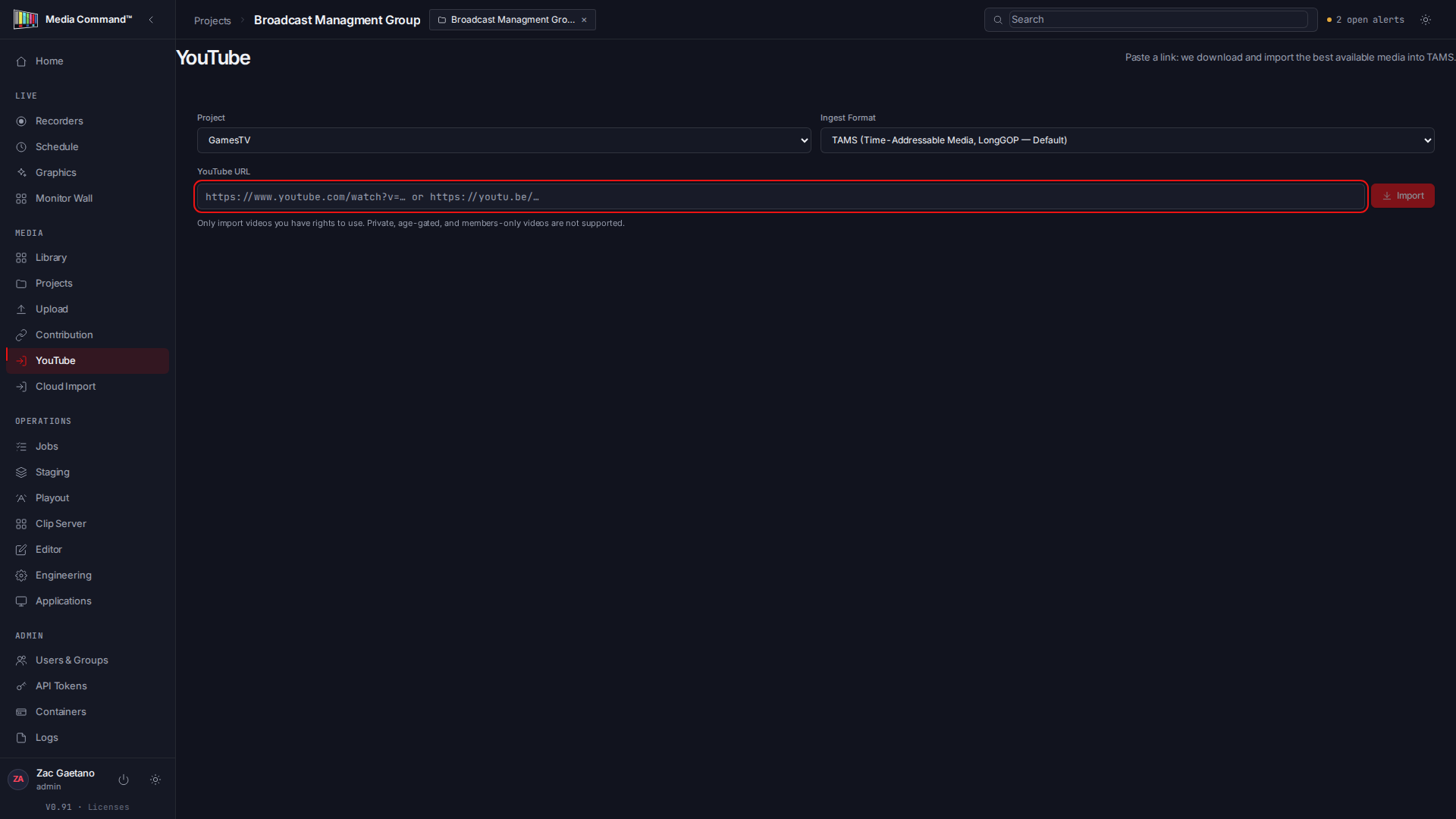
- URL Capture: Paste any YouTube video or live broadcast URL for automated background download into the Media Library.
- Live Stream Ripping: Records live YouTube feeds into TAMS fMP4 files for immediate editing.
Cloud Import
The Cloud Import engine mirrors and synchronizes remote cloud buckets and collaboration platforms.
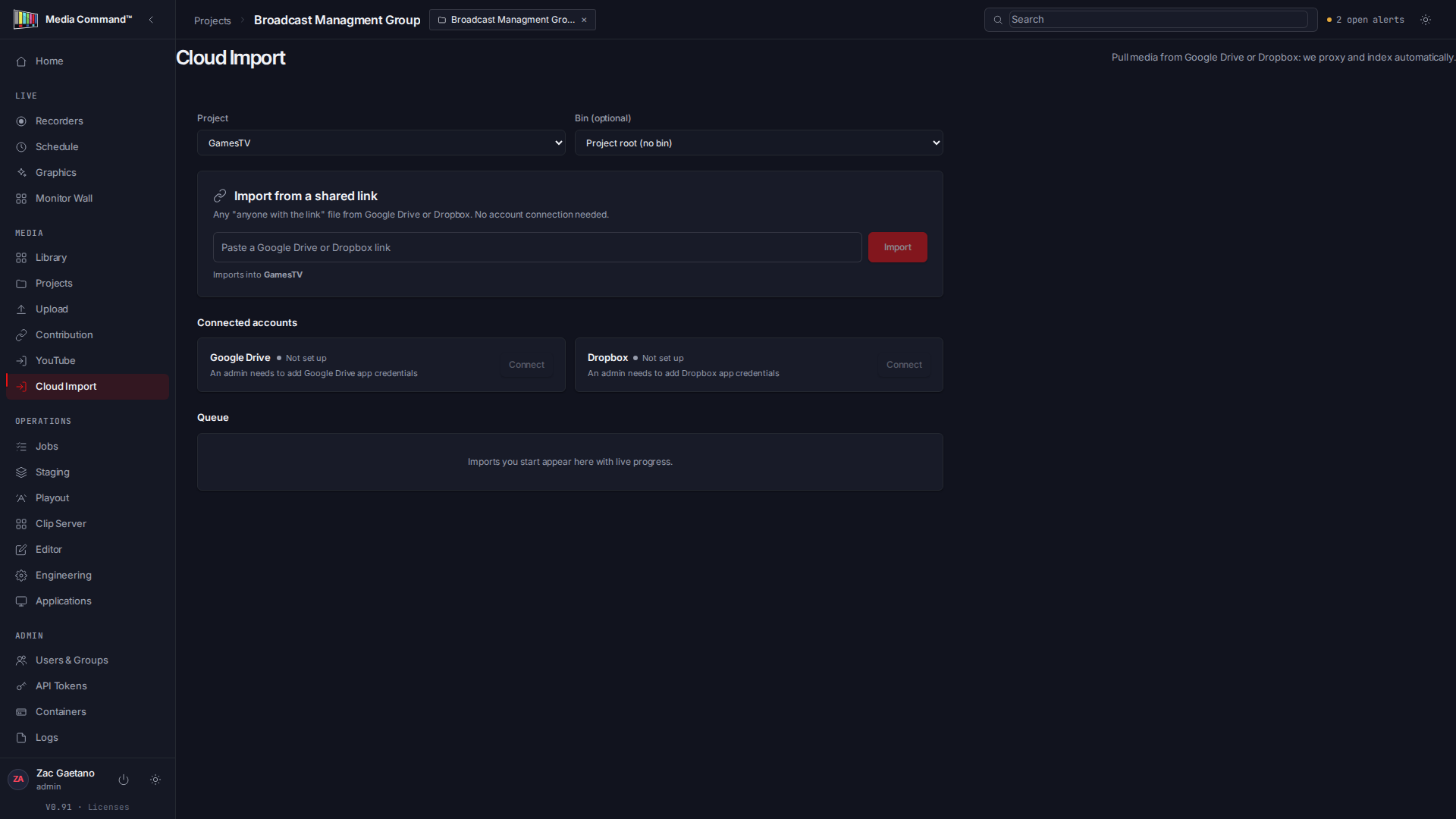
- S3 Bucket Sync: Ingest from Amazon S3, Wasabi, Backblaze B2, or custom MinIO storage.
- Frame.io Synchronization: Automatically imports approved sequences, review comments, and dailies from Frame.io projects.
6. Operations & Post-Production (OPERATIONS Section)
Background Jobs
The Jobs module provides real-time monitoring and control over the distributed BullMQ task pipeline.
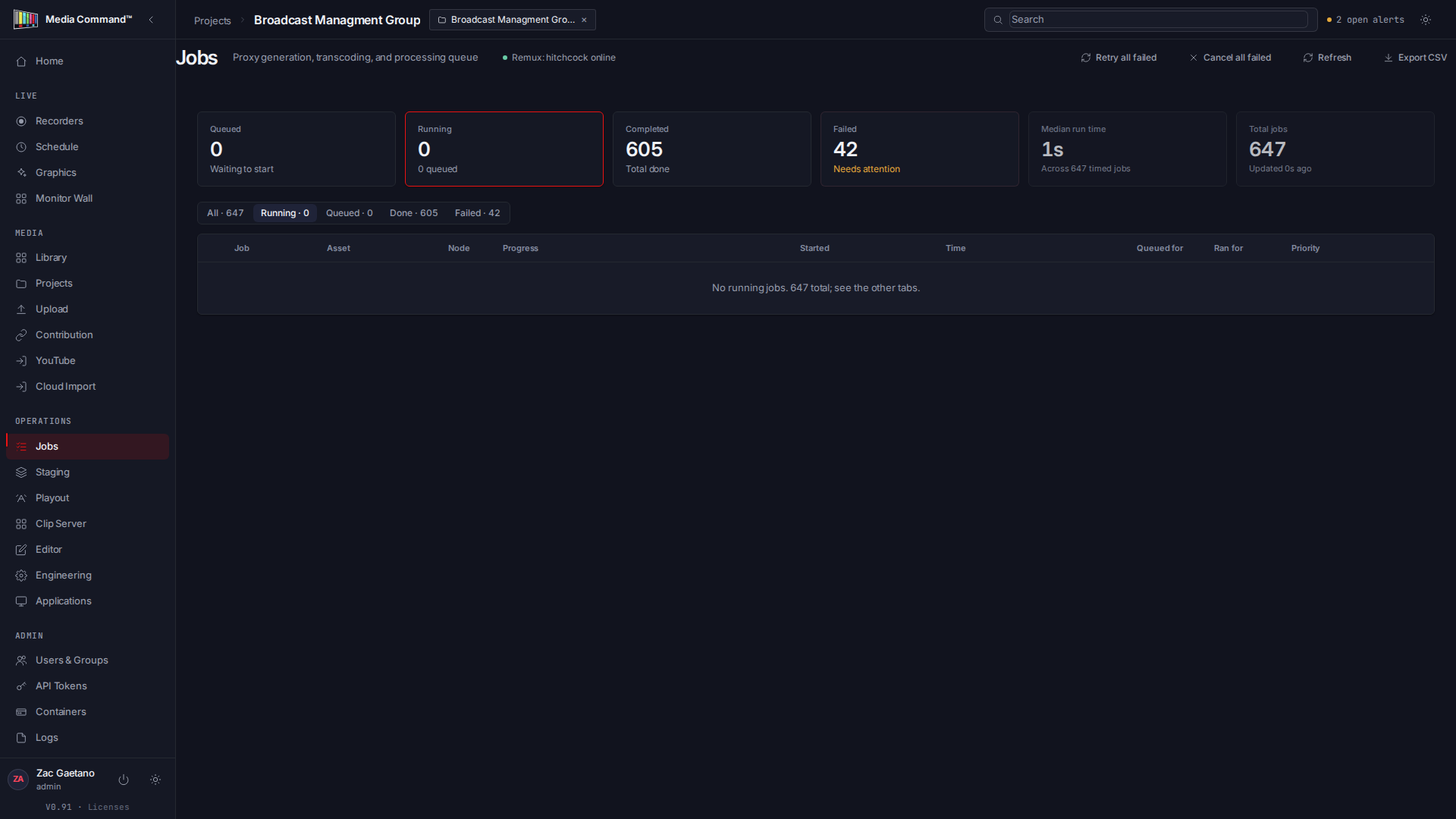
- Queue Categorization:
Transcode Queue: GPU video transcoding and proxy generation.Thumbnails & Waveforms: Audio peak extraction and filmstrip sprite generation.Conform & Export: NLE sequence renders and master exports.Cloud Sync & Transfer: S3 uploads and offsite replication.
- Job Controls: Live progress bar, error log inspection, job retry, priority adjustment, and failed job flushing.
Staging
The Staging pane monitors fast local NVMe scratch storage across the compute cluster.
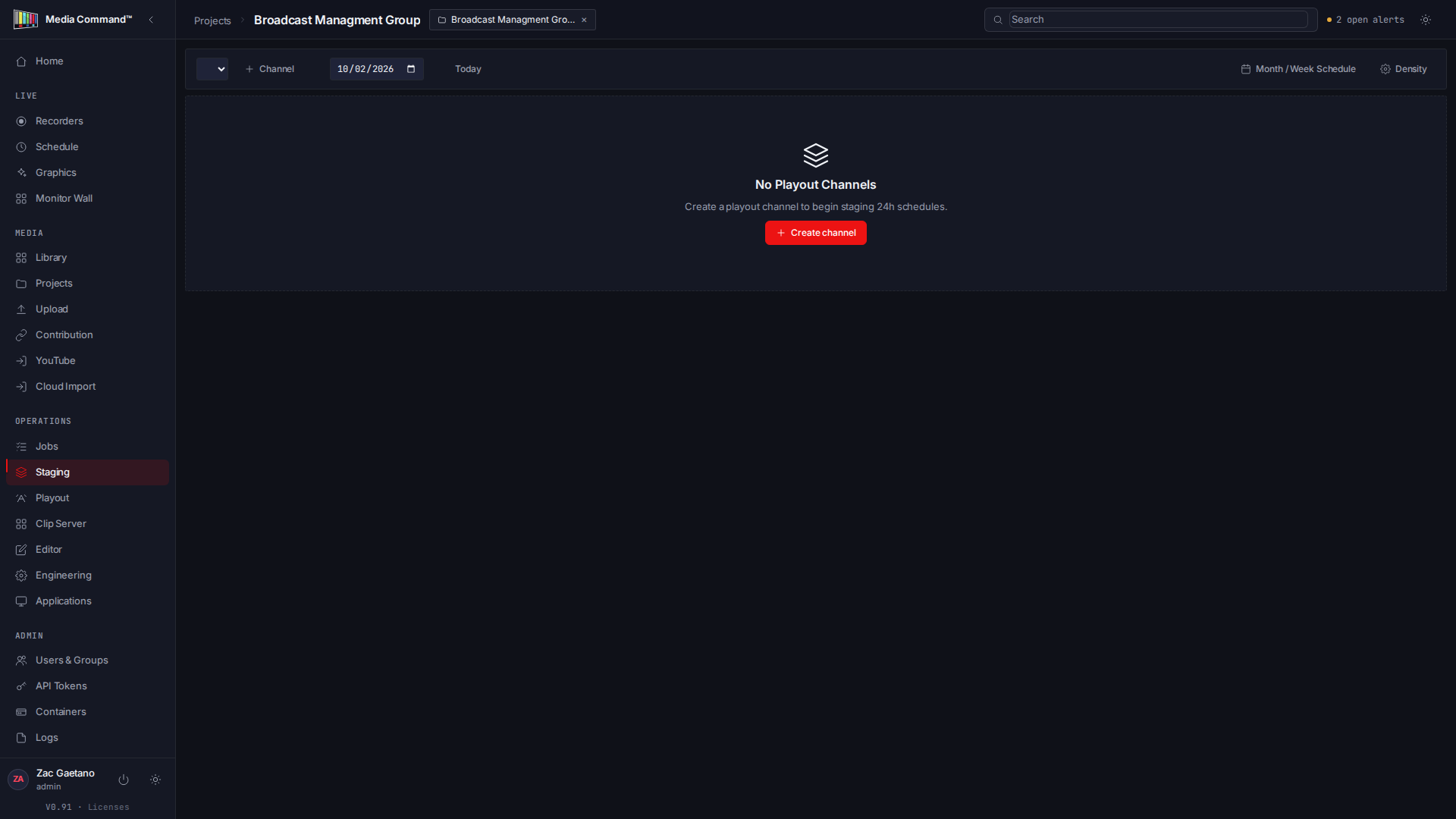
- Scratch Volume Utilization: Tracks free space across cluster scratch disks (e.g.,
/mnt/NVME/MAM). - Automated Retention & Pruning: Enforces retention policies, moving finalized assets to cold storage and purging temporary render artifacts.
Playout
The Playout interface controls master control playout channels and rundown automation.
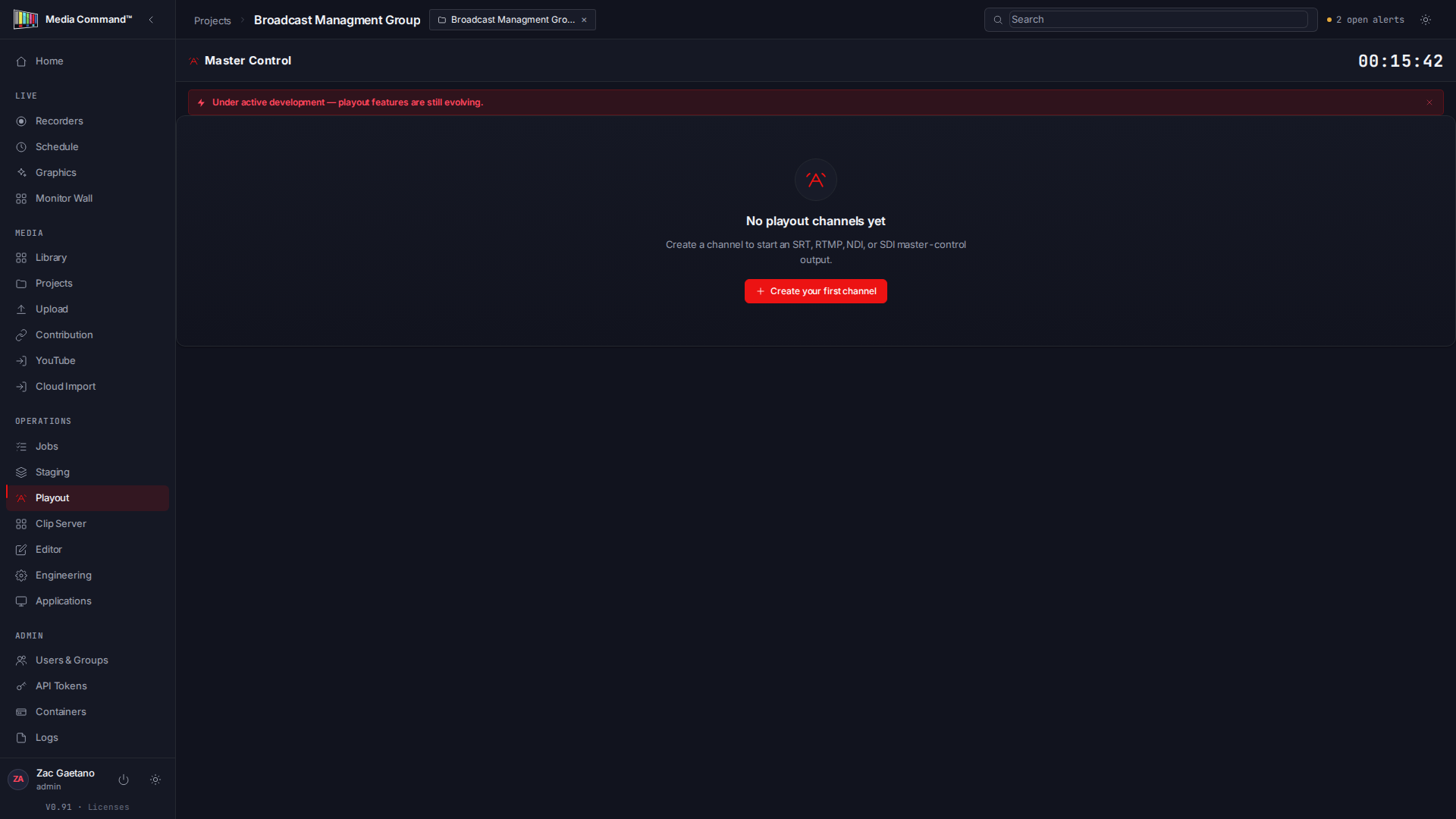
- Multi-Channel Playout: Controls CasparCG playout instances emitting uncompressed SDI or low-latency NDI feeds.
- Rundown Management: Drag-and-drop playlist builder with CUE, PLAY, PAUSE, STOP, and LOOP controls.
- Live Confidence Monitoring: Real-time program and preview return video monitors.
Clip Server
The Clip Server provides instant-access clip storage and replay playback for live studio productions.
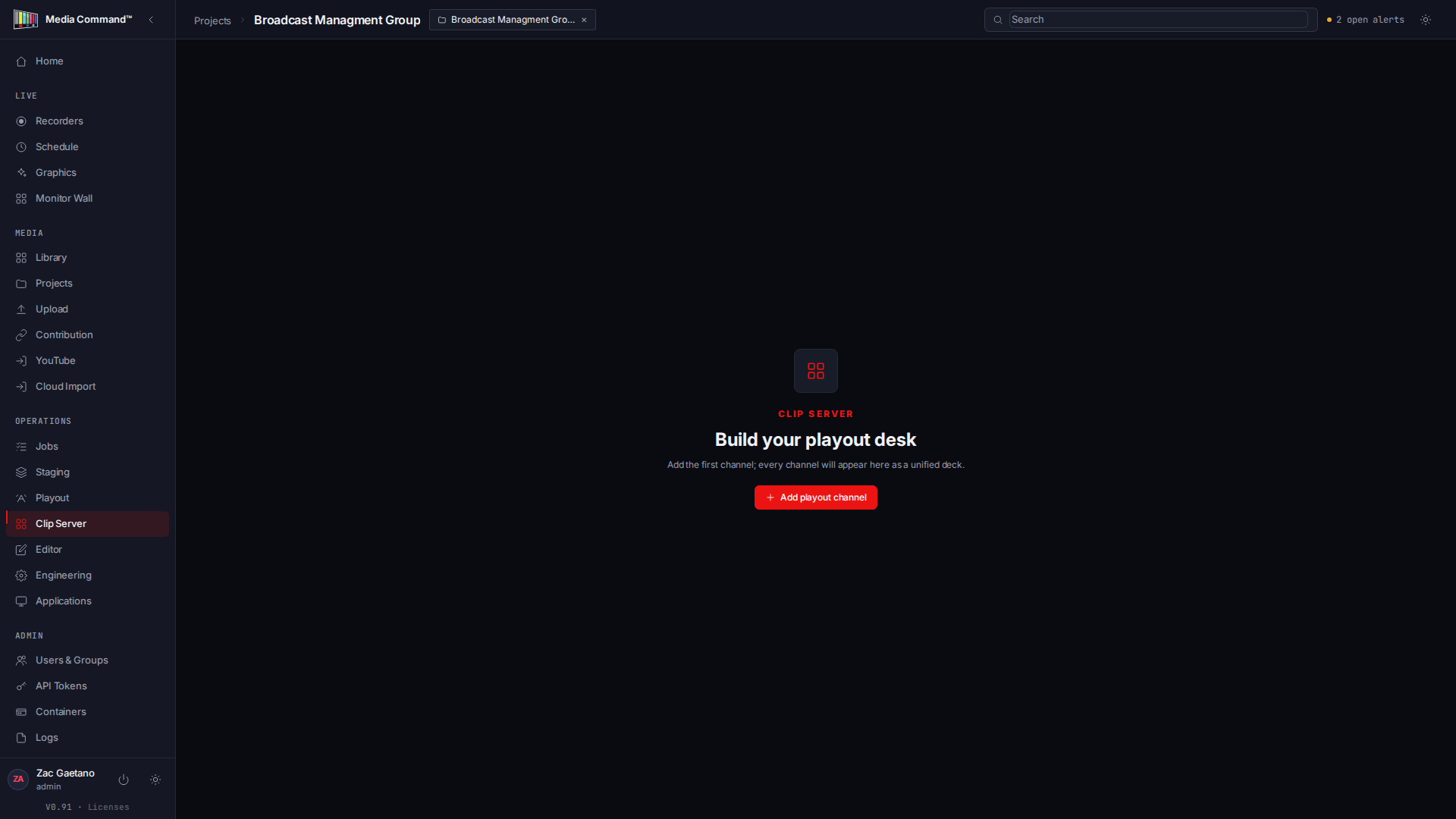
- Cart Wall / Hot-Keys: Configurable bank of instant-trigger video clips, bumpers, stingers, and sound effects.
- Zero-Latency Playback: Pre-loads video frames in shared memory (
/dev/shm) for frame-accurate firing on air.
Editor
The Web Editor is an integrated light NLE for rapid clipping, rough-cutting, and social media exports without launching desktop software.
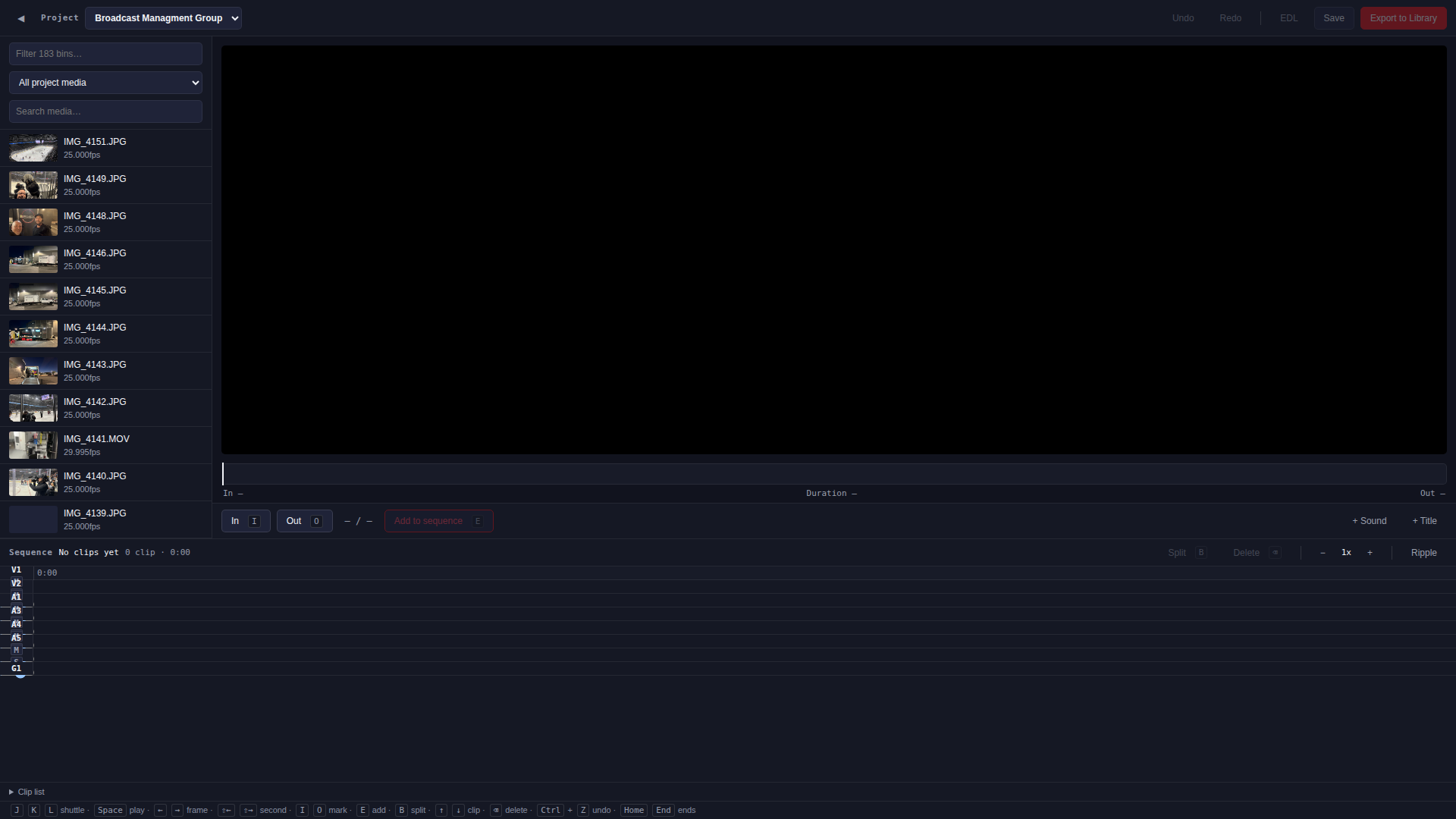
- Multi-Track Timeline: Timeline supporting multiple video and audio tracks with ripple edit and razor tools.
- Frame-Accurate Cuts: Trims TAMS master flows directly on GOP boundaries or triggers server-side smart-rendering.
- Export Presets: Instant publishing presets for social media (16:9, 9:16 vertical, 1:1 square) or MAM master bins.
Engineering
The Engineering dashboard gives broadcast engineers granular diagnostic insight into hardware signal paths.
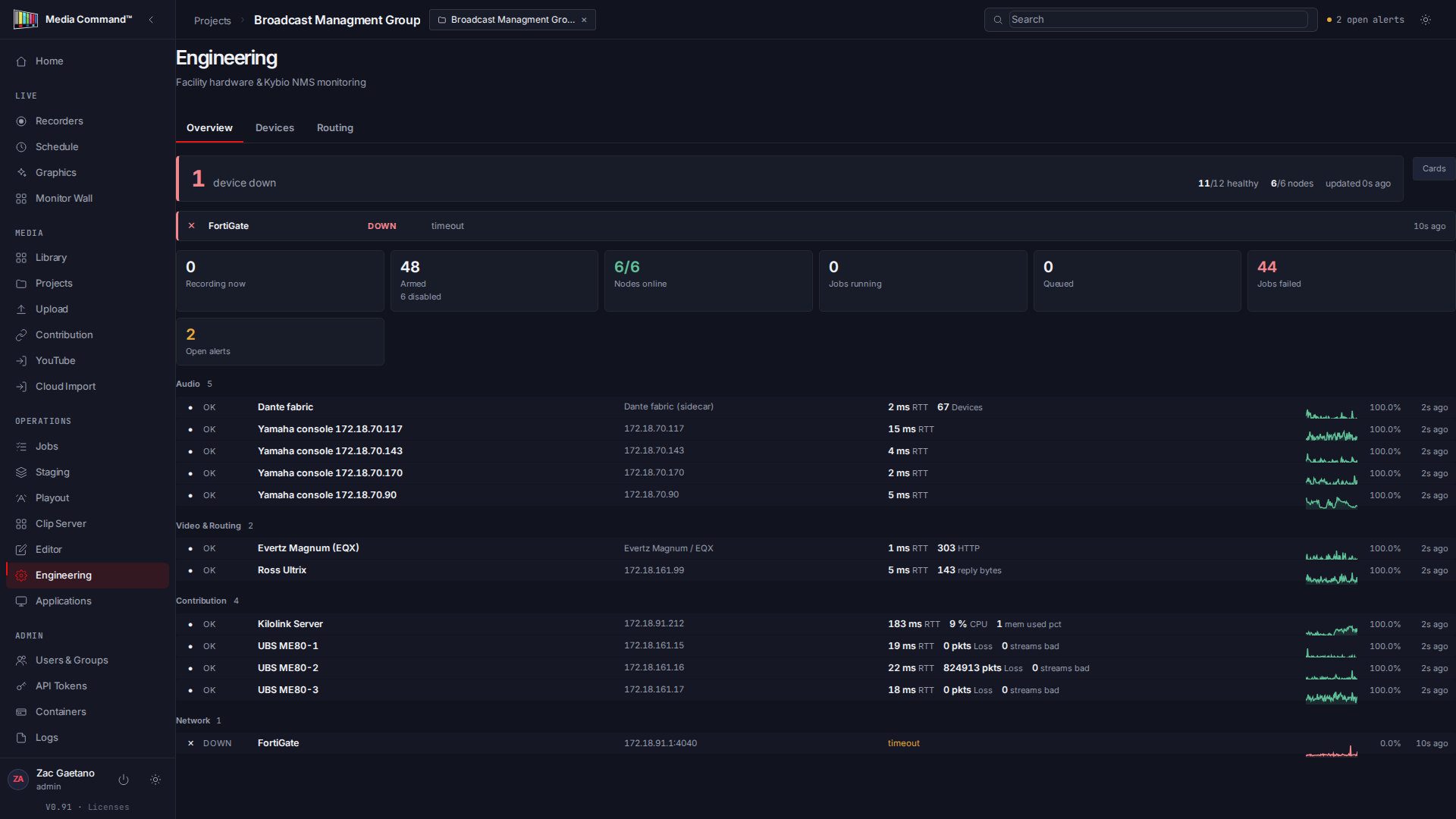
- SDI Matrix & Frame Sync: Status of Deltacast PCIe cards, Genlock sync lock, and reference clock timing.
- GPU Acceleration Metrics: NVIDIA NVENC/NVDEC engine load, GPU temperature, VRAM allocation, and persistence mode status.
- Network Interface Statistics: Throughput graphs for 10GbE media networks, PTP (IEEE 1588) timing, and Dante audio multicast streams.
Applications & Downloads Hub
The Applications screen is the central distribution portal for client tools, plugins, and desktop installers.
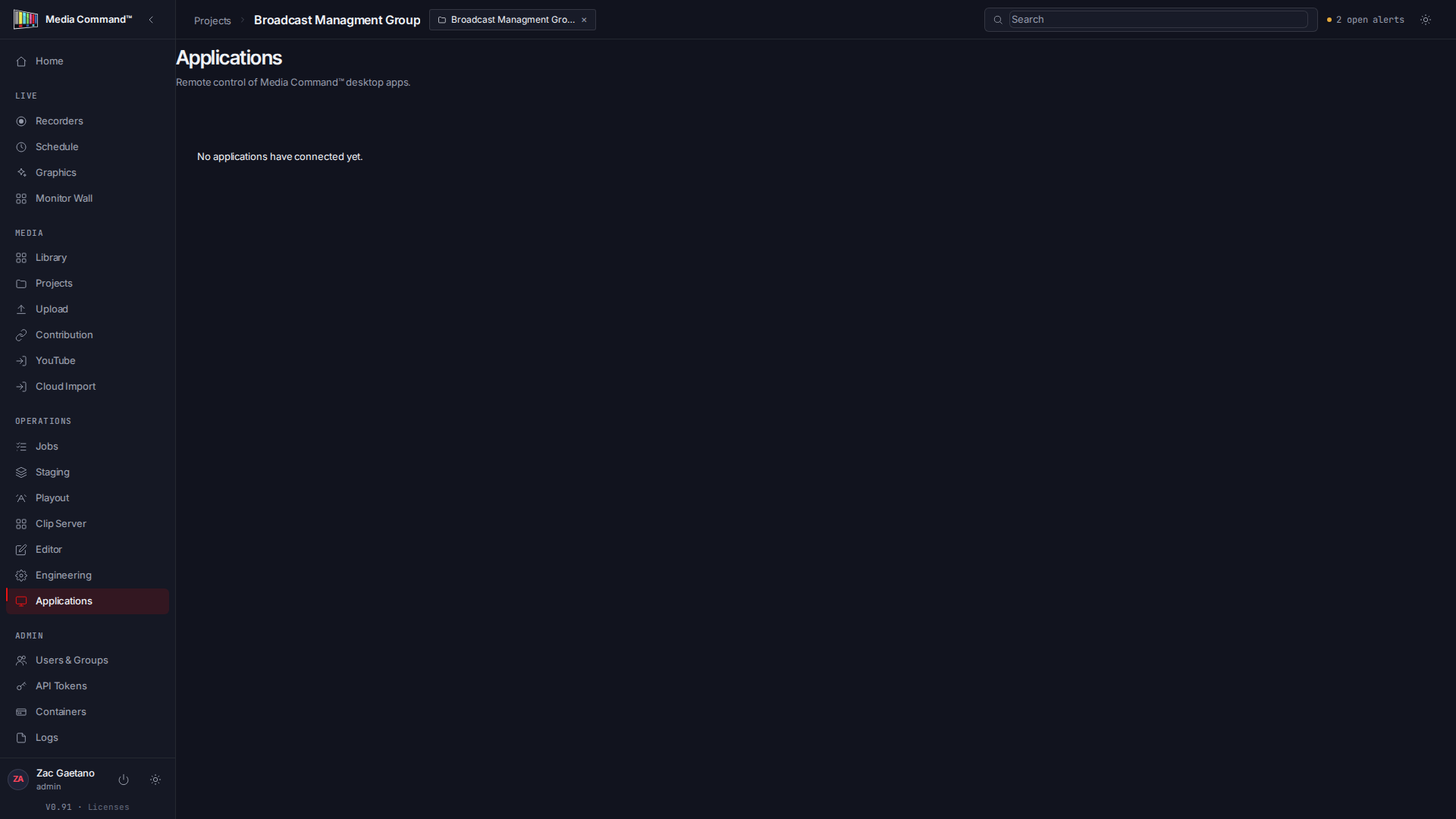
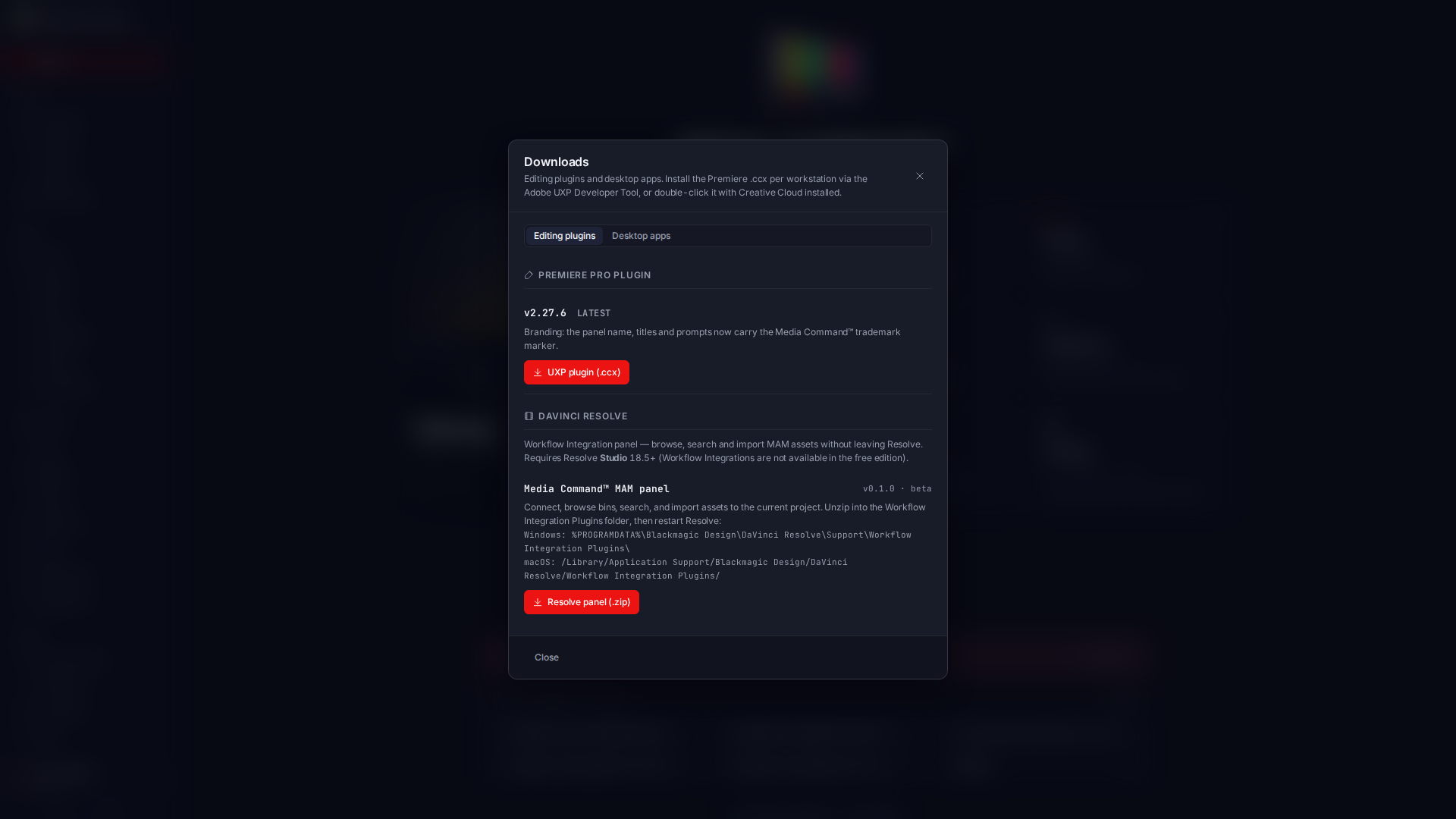
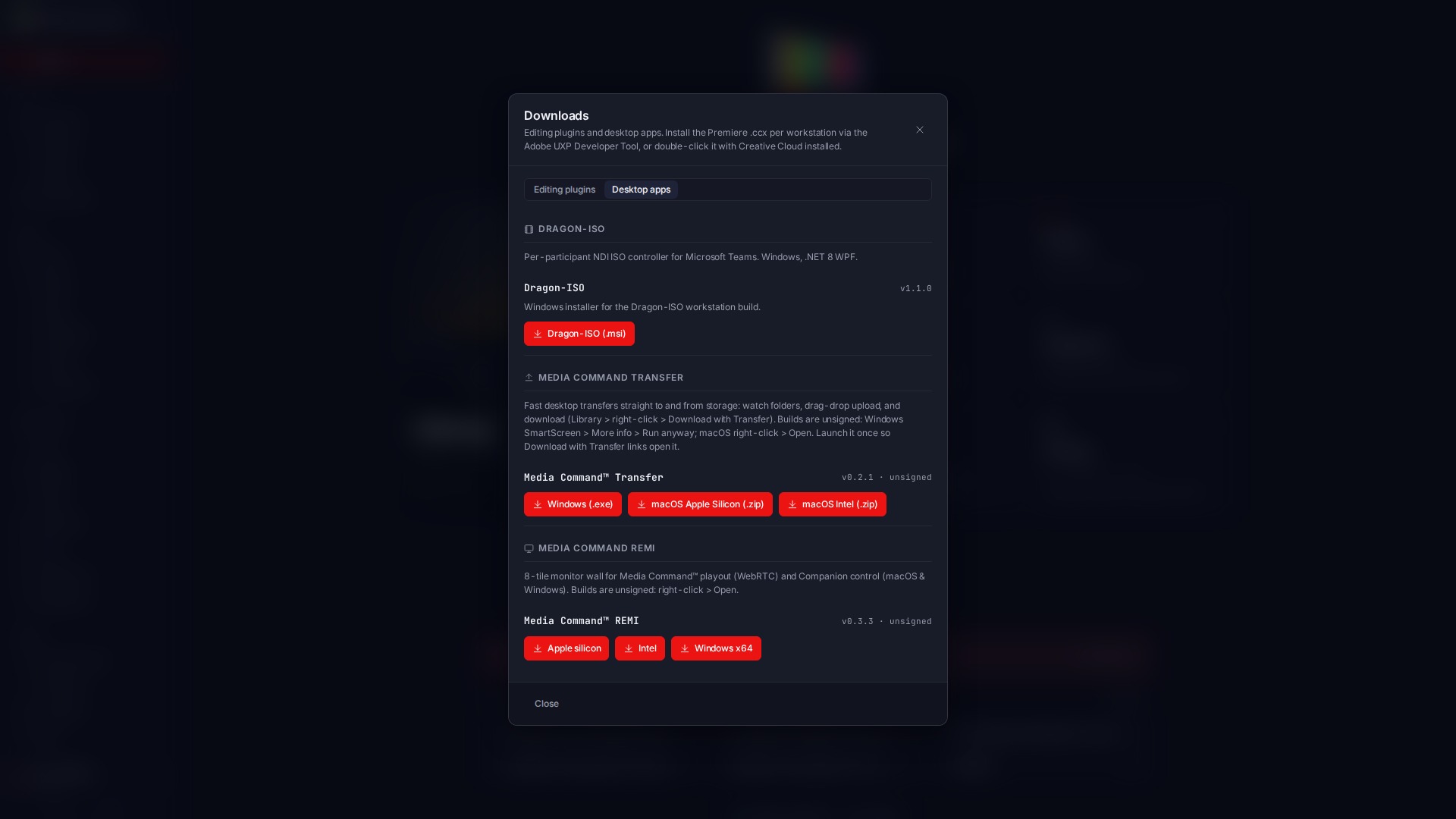
Available downloads:
- Adobe Premiere Pro UXP Plugin (
dragonflight-mam-2.27.6.ccx) - DaVinci Resolve Studio Workflow Plugin (
dragonflight-resolve-0.1.0.zip) - Media Command Transfer (
Media-Command-Transfer-0.2.1-mac-arm64.zip,mac-x64.zip,win-x64.exe) - Media Command REMI Multiviewer (
Media-Command-REMI-0.3.3-mac-arm64.zip,mac-x64.zip) - Dragon-ISO Teams Recorder (
Dragon-ISO-Setup-1.1.0.msi)
7. System Administration & Infrastructure (ADMIN Section)
Users & Groups Management
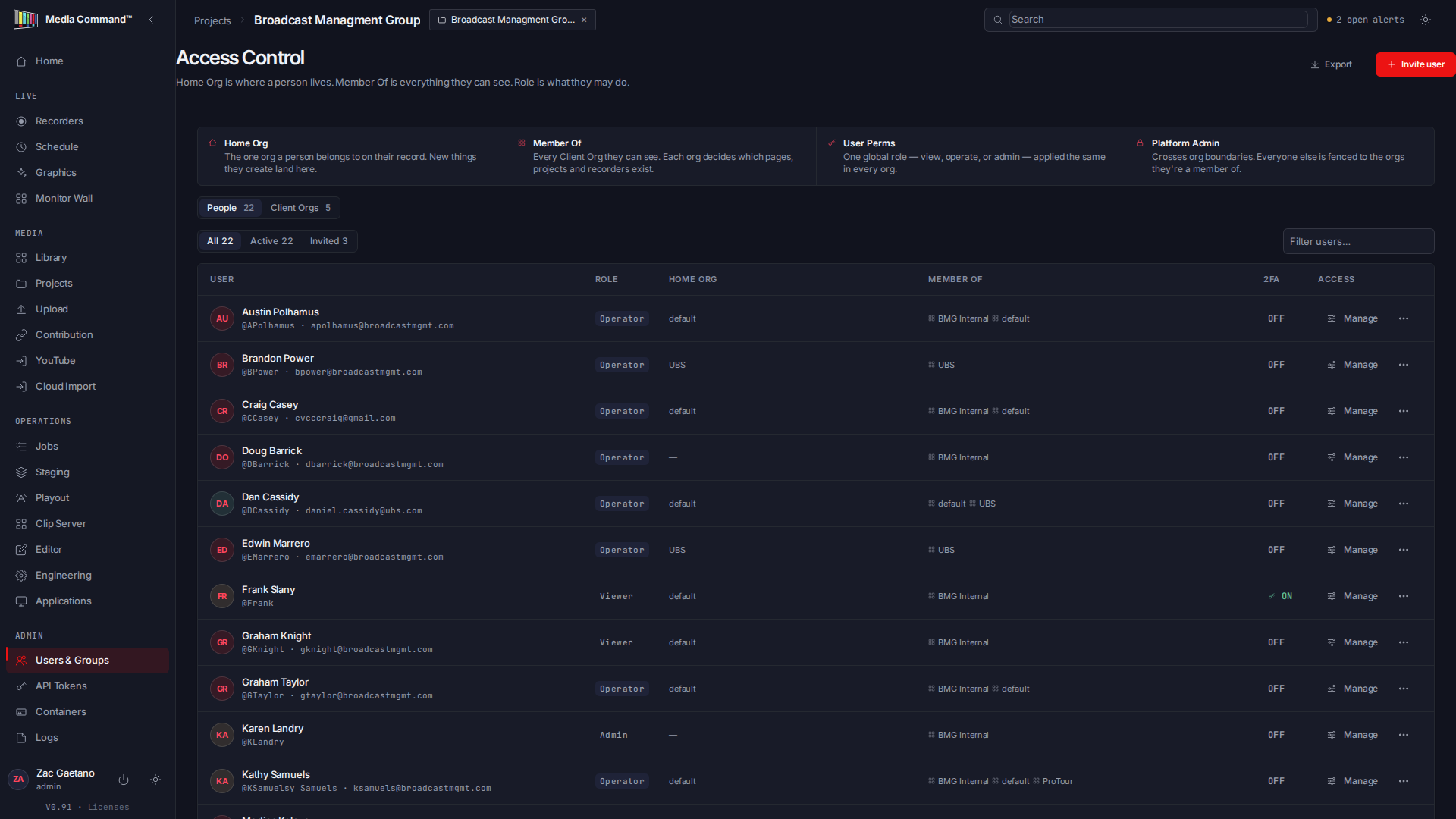
- User Provisioning: Create and manage local accounts, email invitations, and password resets.
- Group Assignments: Assign users to functional production groups with custom project access boundaries.
- Role Enforcement: Designate global platform roles (
Admin,Operator,Editor,Viewer).
API Tokens & Automation Keys
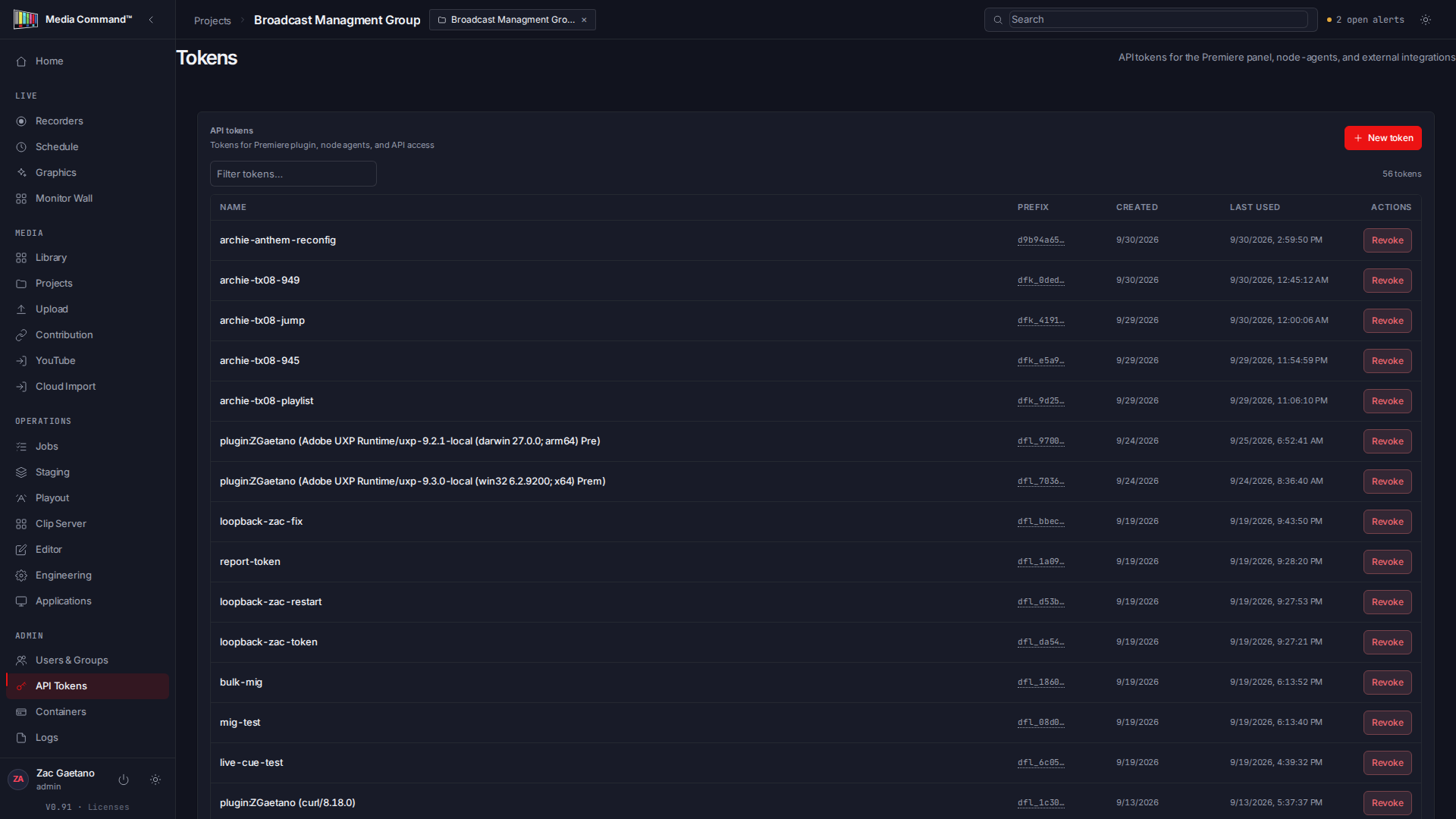
- Service Tokens: Generate scoped API keys for automated pipelines, external transcoders, and CI/CD jobs.
- Permission Scoping: Restrict tokens to specific actions (e.g., read-only metadata search, ingest-only, playout cueing).
- Revocation & Expiry: Set automated token expiration dates and instant revocation triggers.
Containers & Fleet Health
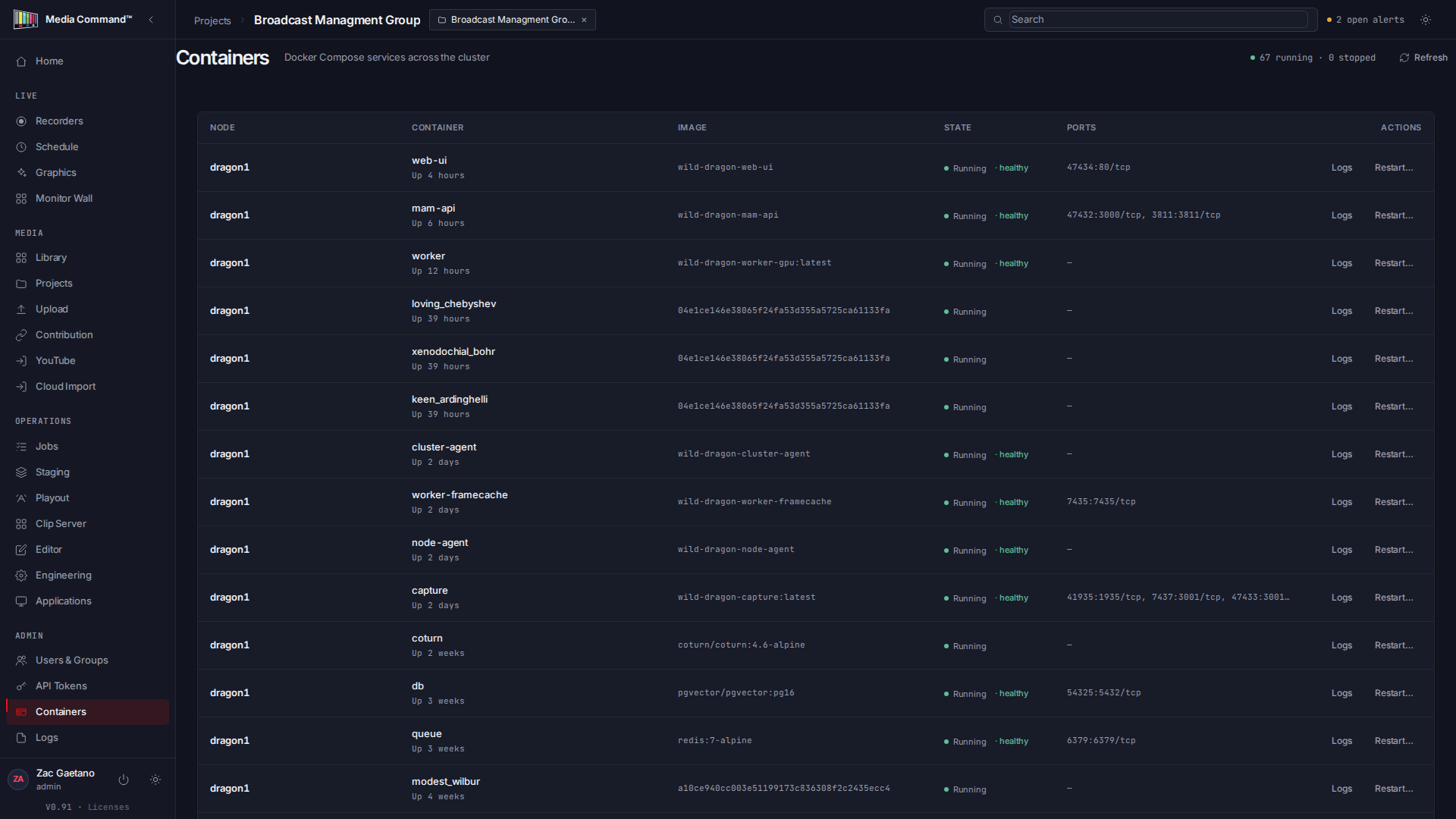
- Docker Container Fleet: Real-time status of all containers running across the cluster (
wild-dragon-mam-api-1,wild-dragon-worker-1,wild-dragon-db-1,wild-dragon-web-ui-1,recorder-dragon4-dc0..dc7). - Resource Utilization: CPU, RAM, and GPU memory consumption per container.
- Restart & Lifecycle Controls: Graceful restart of individual worker queues and service daemons.
System & Container Logs
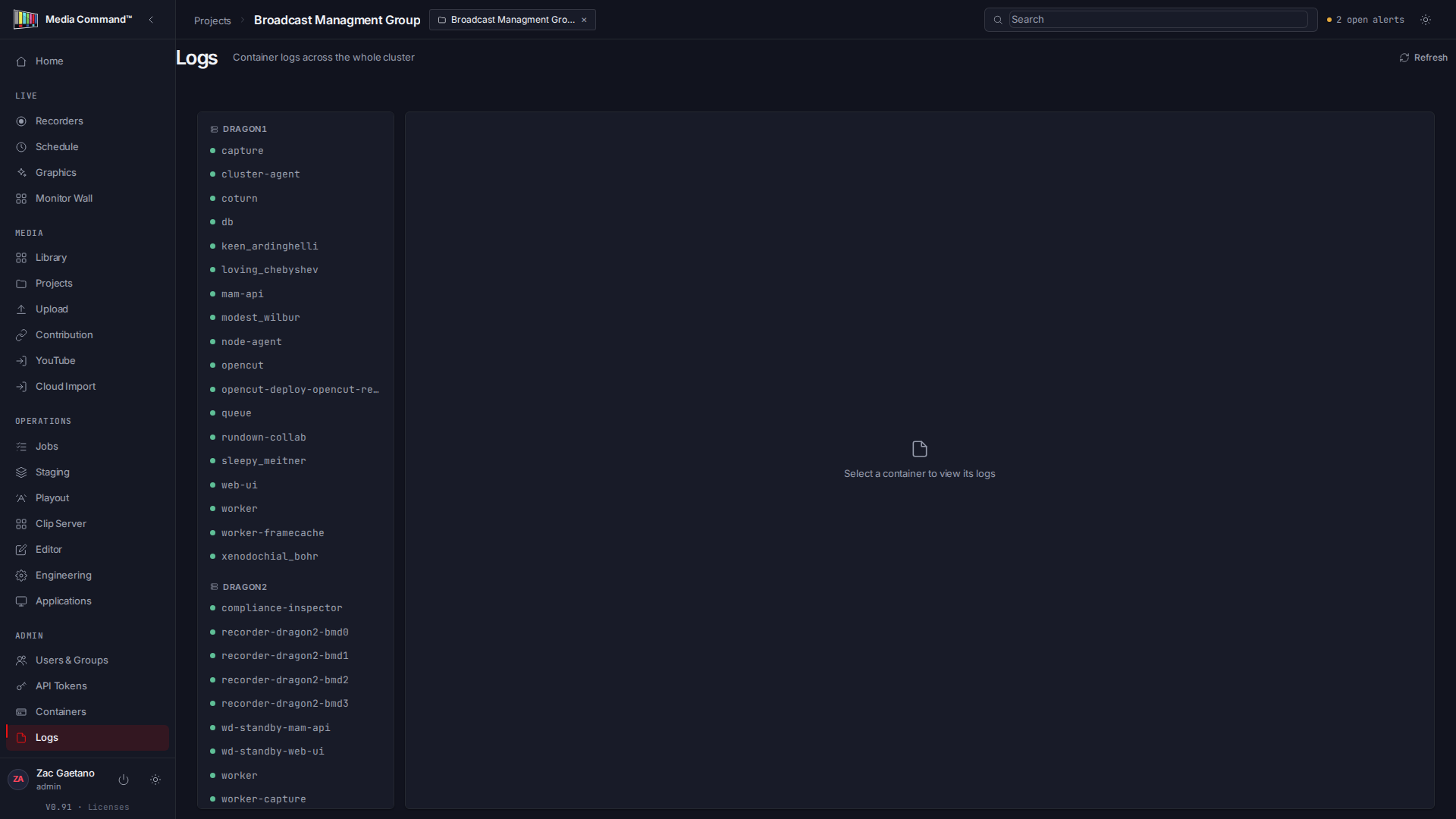
- Centralized Log Aggregator: Live streaming logs from all cluster nodes with severity filters (
DEBUG,INFO,WARN,ERROR). - Regex Log Search: Instant query capabilities across millions of log entries for rapid fault diagnosis.
Audit Trail & Governance
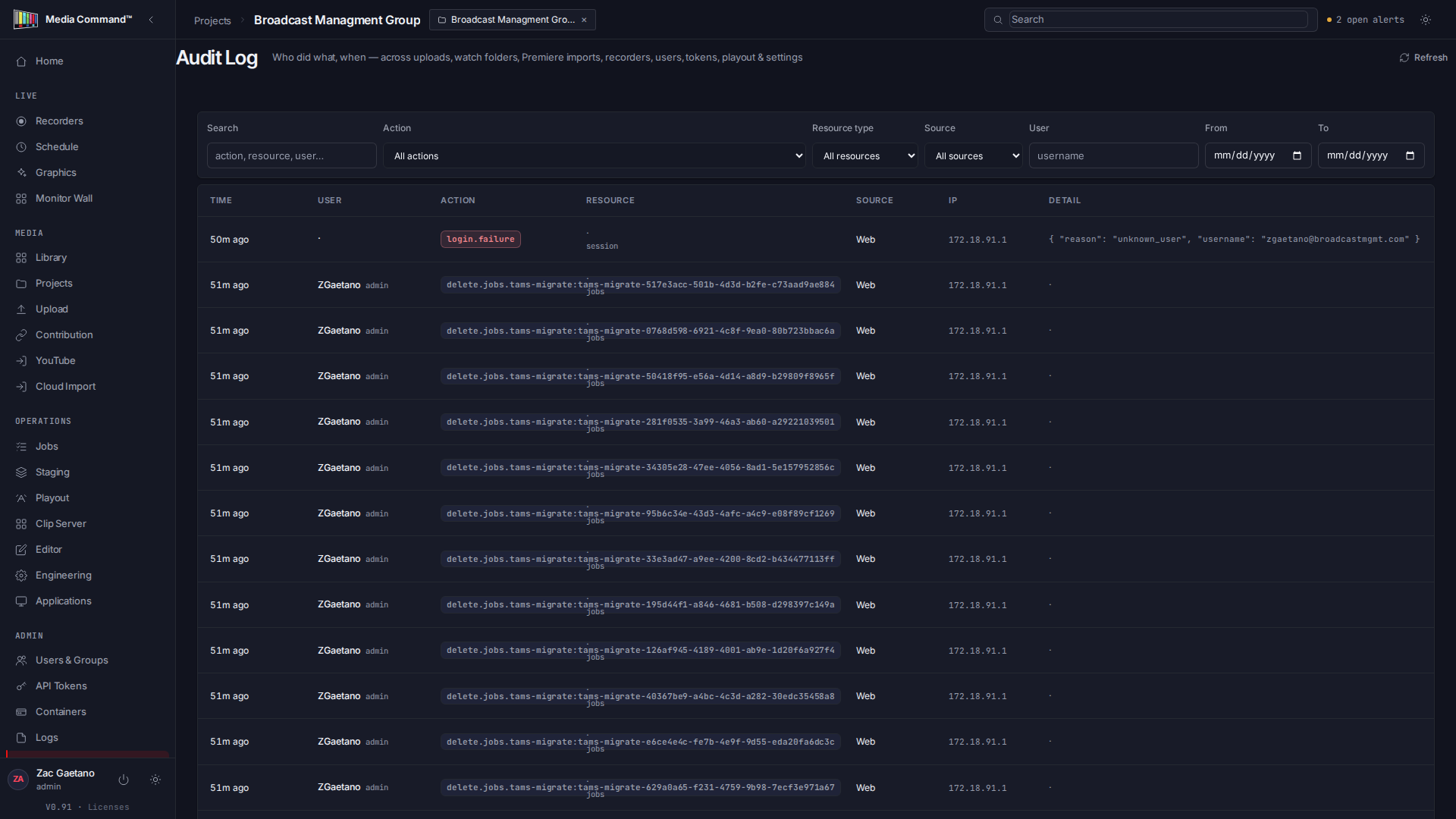
- Immutable Action History: Detailed records of every user action: logins, file deletions, metadata edits, permission modifications, and playout triggers.
- Security Compliance: Captures user ID, IP address, timestamp, affected asset ID, and previous/new state values.
Cluster Topology
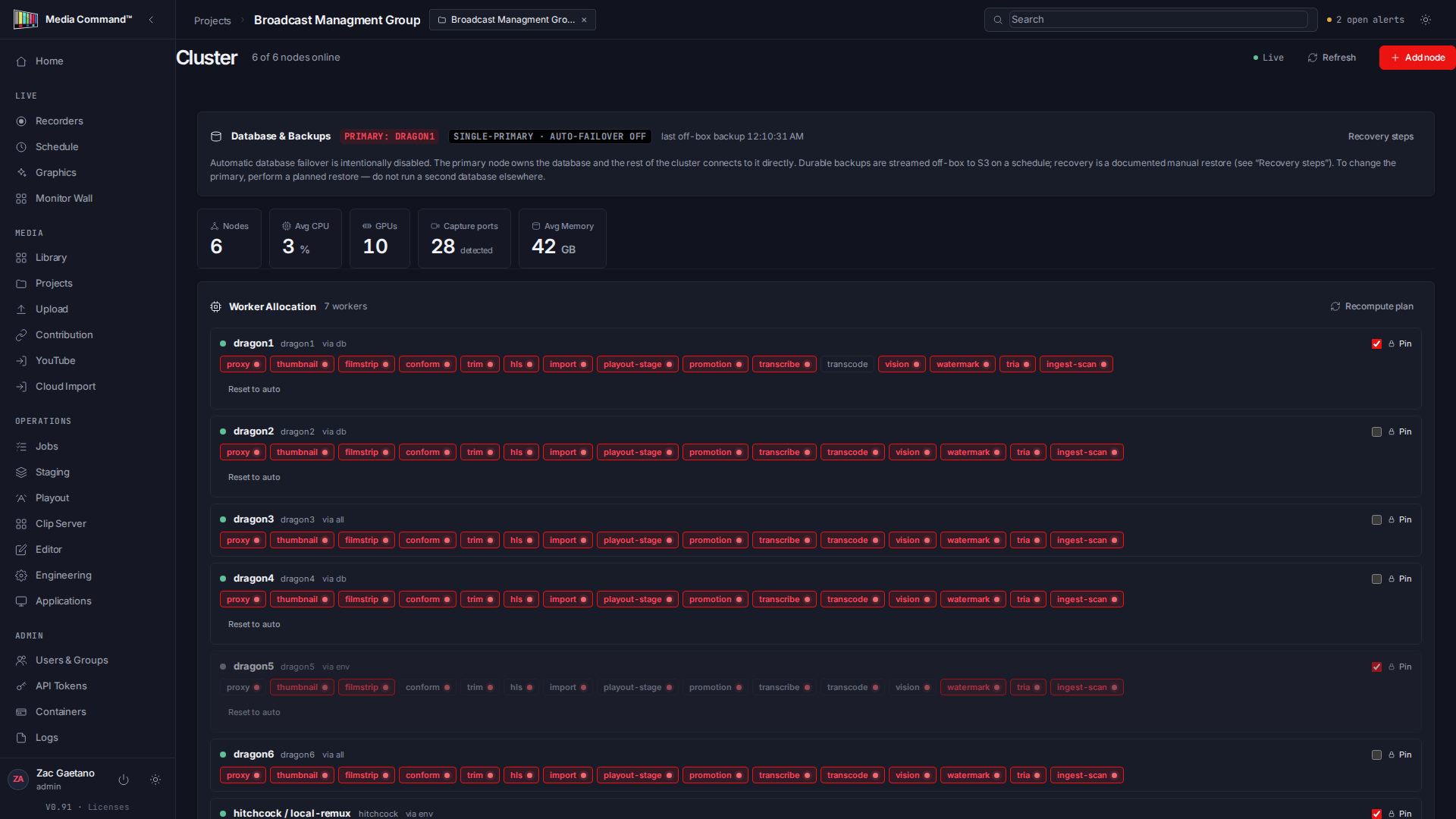
- Multi-Node Visualizer: Graphical map of the 6-node distributed cluster architecture (
dragon1core database & API,dragon2-dragon6compute/GPU/capture workers). - Heartbeat & Latency Monitoring: Inter-node network latency, SSH connectivity status, and cluster agent sync times.
Global System Alerts
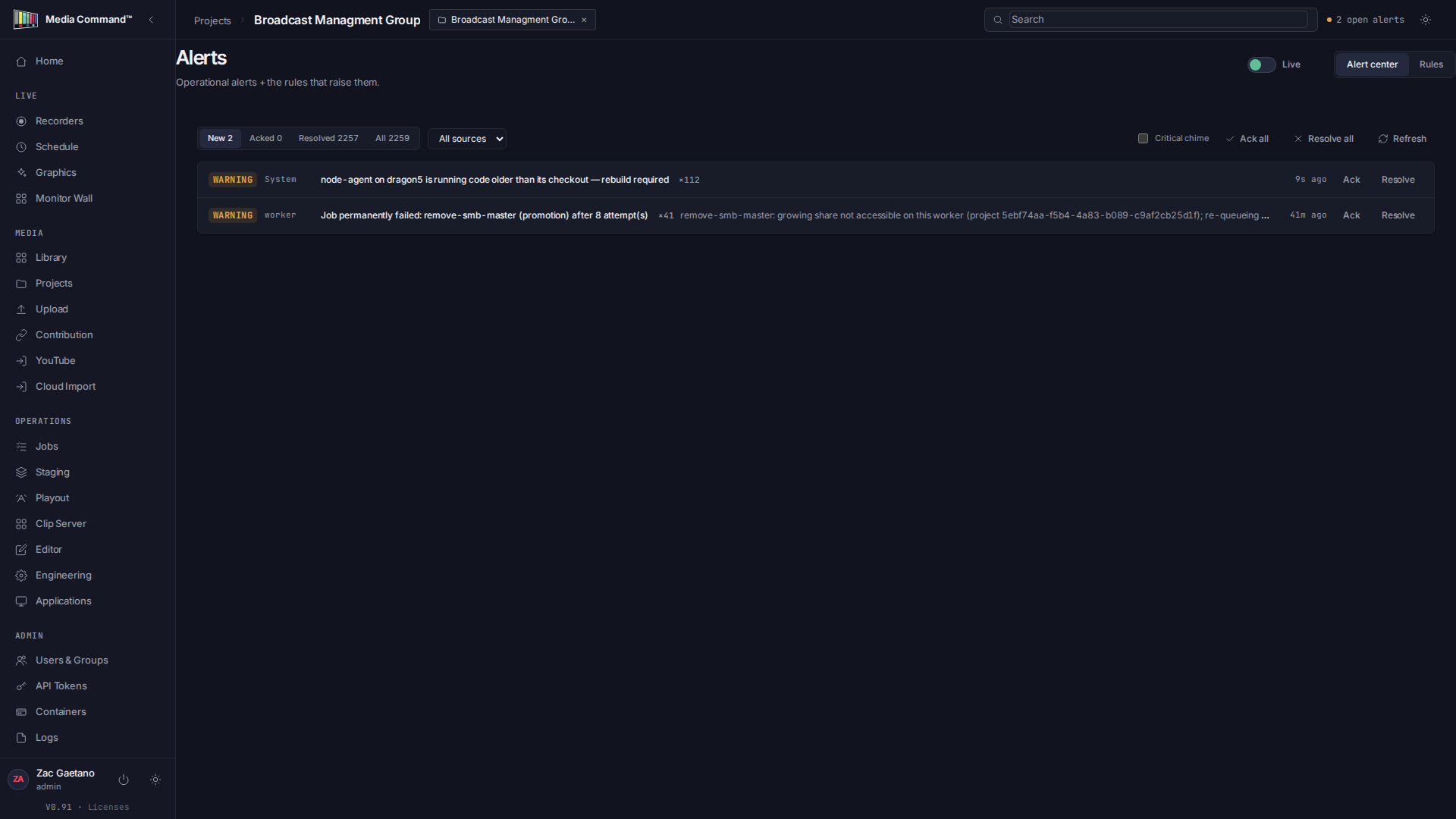
- Active Incident Monitor: Surfaces critical operational alerts (e.g., storage capacity thresholds, SDI signal loss, worker heartbeat drops).
- Notification Webhooks: Dispatches alert notifications to Discord, Slack, PagerDuty, or email channels.
System Settings
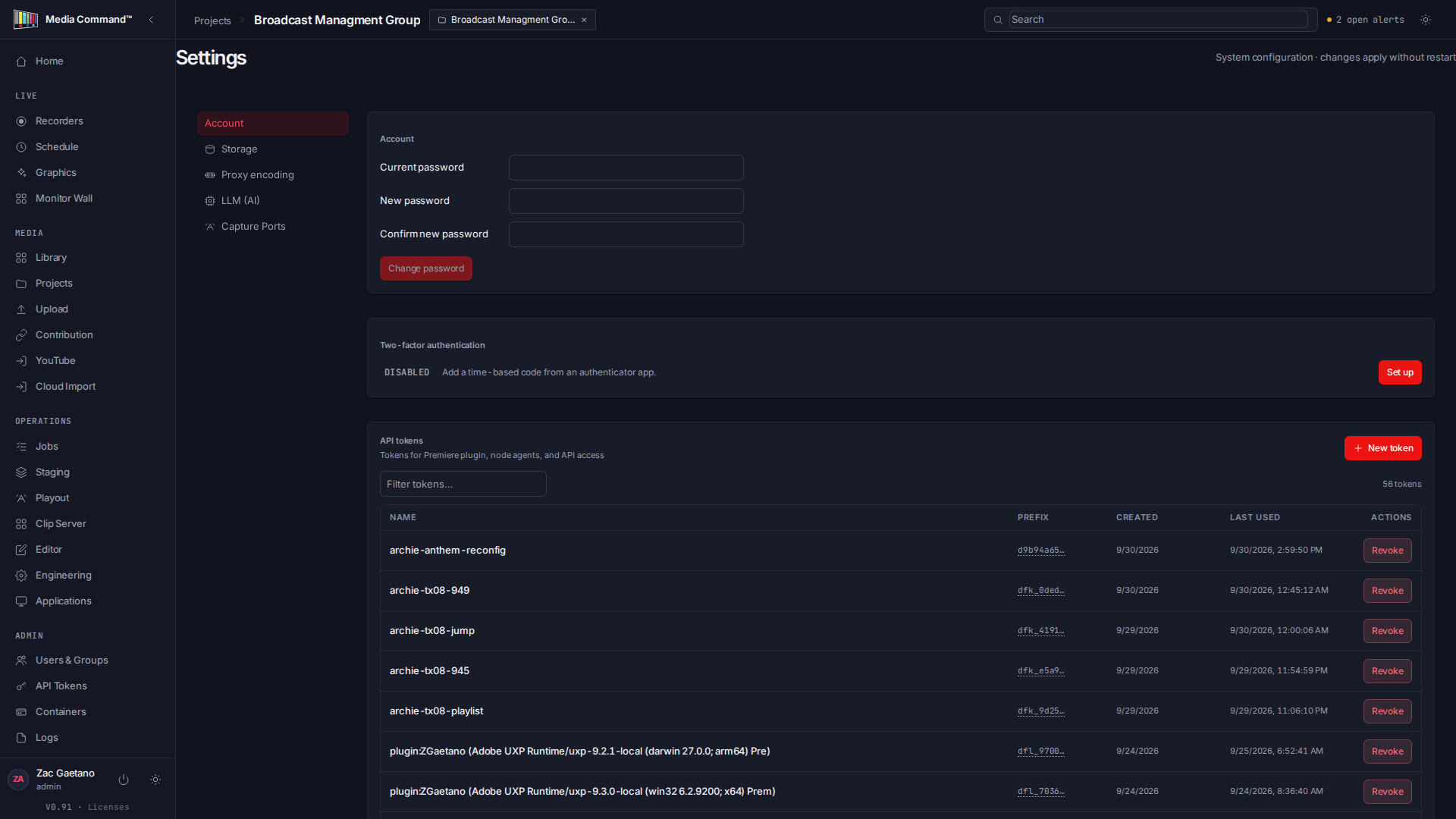
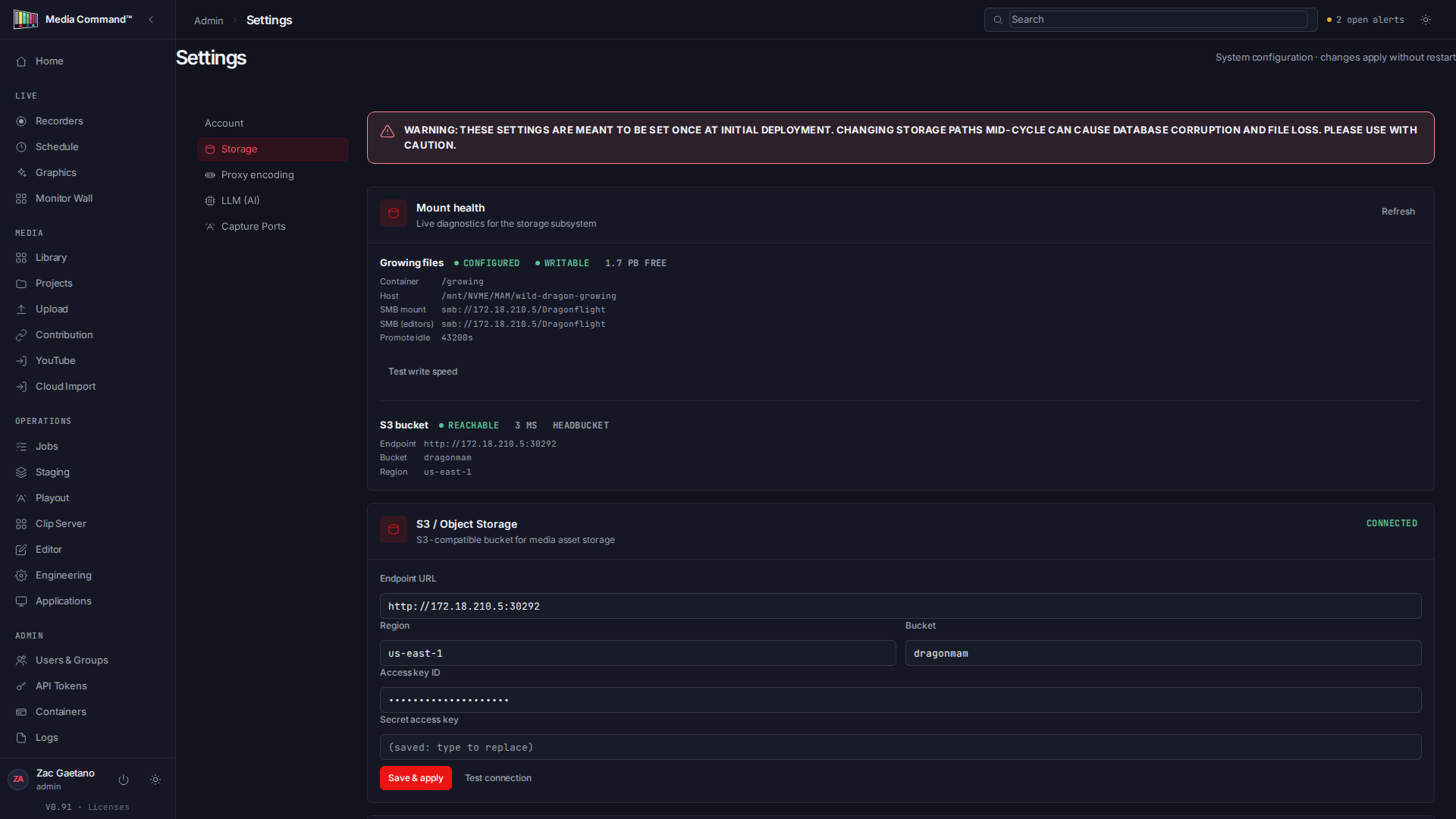
- Storage Configuration: Configure local scratch paths, NFS/CIFS mounts, TrueNAS Hitchcock pools, and S3 endpoint credentials.
- Transcoder Profiles: Define GPU-accelerated encoding presets, bitrate ladders, and proxy resolutions.
- Playout Settings: Configure CasparCG channel topologies, NDI output labels, and genlock reference timing.
8. NLE Plugins & Desktop Applications
Adobe Premiere Pro UXP Plugin
The Media Command UXP Plugin brings the full power of the MAM directly into Adobe Premiere Pro 2026 (v26+).
┌─────────────────────────────────────────────────────────┐
│              Media Command™ — Premiere Pro              │
├─────────────────────────────────────────────────────────┤
│ [🔍 Search BMG assets...                       ] [Filter]│
│ ┌─────────────────────────────────────────────────────┐ │
│ │ 🎬 BMG Al Jazeera Sizzle v2.mp4   [1080p · HEVC]    │ │
│ │    Duration: 00:00:49:12 · 119 MB                   │ │
│ │    [Import Proxy]  [Import High-Res]  [Live TAMS]   │ │
│ ├─────────────────────────────────────────────────────┤ │
│ │ 🔴 LIVE: Dragon4-DC0 - Ingest Feed (Growing)        │ │
│ │    Duration: 01:24:10.. (LIVE)                      │ │
│ │    [Mount Growing Sequence]                         │ │
│ └─────────────────────────────────────────────────────┘ │
│ ─────────────────────────────────────────────────────── │
│  [⬆ Export Timeline to MAM]     [🔄 Relink Segments]   │
└─────────────────────────────────────────────────────────┘
Installation
- Download
dragonflight-mam-2.27.6.ccxfrom the Downloads menu in Media Command. - Double-click the
.ccxfile to install via Adobe Creative Cloud Desktop / Unified Plugin Installer (UPI). - In Premiere Pro, open Window → Extensions → Media Command™.
Key Capabilities
- Live Growing File Editing: Instantly import live capture streams while recording is in progress. The playhead can scrub up to the live record edge.
- Proxy / High-Res Relinking: Edit locally with lightweight H.264 proxies, then toggle one-click relinking to full-resolution ProRes master flows.
- Direct Sequence Export to MAM: Export sequence cuts directly to target Media Command project bins with automatic render job dispatching.
DaVinci Resolve Studio Workflow Plugin
The Media Command DaVinci Resolve Panel integrates with Blackmagic Design DaVinci Resolve Studio 18.5+.
Installation
- Download
dragonflight-resolve-0.1.0.zip. - Extract the package into the Resolve Workflow Integration directory:
- macOS:
/Library/Application Support/Blackmagic Design/DaVinci Resolve/Workflow Integration Plugins/ - Windows:
%PROGRAMDATA%\Blackmagic Design\DaVinci Resolve\Support\Workflow Integration Plugins\
- macOS:
- In DaVinci Resolve Studio, navigate to Workspace → Workflow Integrations → Media Command MAM.
Key Capabilities
- Direct Bin Ingest: Drag assets directly from the Media Command panel into the Resolve Media Pool.
- Color-Managed Workflows: Automatically applies project-level color tags and metadata to incoming clips.
Media Command Transfer (Desktop Uploader)
Media Command Transfer is a high-speed desktop utility for bulk broadcast file ingest.
- Installer Packages:
- macOS Apple Silicon:
Media-Command-Transfer-0.2.1-mac-arm64.zip - macOS Intel:
Media-Command-Transfer-0.2.1-mac-x64.zip - Windows x64:
Media-Command-Transfer-0.2.1-win-x64.exe
- macOS Apple Silicon:
- Features:
- Accelerated UDP & multi-threaded HTTP chunked transfers.
- Automated checksum validation (MD5 / SHA256) upon upload completion.
- Background tray operation with batch queue management.
Media Command REMI (Remote Production Multiviewer)
Media Command REMI is a low-latency remote monitoring client designed for directors, producers, and engineering supervisors.
- Installer Packages:
- macOS Apple Silicon:
Media-Command-REMI-0.3.3-mac-arm64.zip - macOS Intel:
Media-Command-REMI-0.3.3-mac-x64.zip - Windows x64:
Media-Command-REMI-0.3.3-win-x64.exe(portable, unsigned)
- macOS Apple Silicon:
- Features:
- Multi-stream WebRTC/WHEP playback with sub-300ms latency.
- Audio QC: Solo and mute individual channel tracks across different video feeds.
- Hardware-accelerated decoding with minimal CPU overhead.
Dragon-ISO (Teams / NDI ISO Controller)
Dragon-ISO is an enterprise automation tool for capturing individual Microsoft Teams and NDI participants into isolated broadcast feeds.
- Installer Package:
Dragon-ISO-Setup-1.1.0.msi(Windows 10/11 Server). - Features:
- Automatically isolates each meeting attendee's video and audio into dedicated NDI streams.
- Directly pipes ISO feeds into Media Command Recorders for automated project archiving.
9. Operational Runbooks & Safety Protocols
Media Deletion Safety Protocol
CRITICAL STANDING DIRECTIVE: Media Command enforces a zero-tolerance policy against unauthorized data loss. Under no circumstances may raw media files, S3 objects, or database records be purged without explicit, multi-step authorization.
- Recycle Bin Quarantine: Deleting an asset in the UI moves it to the project's isolated Recycle Bin.
- Hard Deletion Guard: Permanent purging from physical storage requires administrative credentials and double confirmation dialogs.
Live Growing File Workflow
- In Recorders, enable the target capture port and set container format to fMP4 / CMAF (HEVC/H.264) or ProRes (Segmented).
- Click Create Recording to begin the live feed.
- Open Adobe Premiere Pro and launch the Media Command UXP Plugin.
- In the plugin, locate the active recording (tagged with red
LIVEbadge) and click Mount Growing File. - Edit the timeline immediately. New video segments are dynamically recognized by Premiere Pro without re-importing.
Manual maintained by BMG Engineering & Wild Dragon Operations · October 2026