
19 KiB
Media Command™ — End-to-End Operator & Engineering Guide
PDF edition: Media-Command-Guide.pdf
System Version: Media Command™ v0.91
Author: Broadcast Management Group (BMG)
Reference Project: Broadcast Management Group (12,353assets)
Date: October 2026
Table of Contents
- System Overview
- Authentication & Access Control
- Dashboard
- Live Ingest & Control
- Media
- Operations
- Administration
- Plugins & Desktop Applications
- Safety & Runbooks
1. System Overview
Media Command is a broadcast media asset management, live capture, and playout platform.
Architecture:
- Web UI: JSX components bundled by esbuild, served by nginx. HLS.js for adaptive playback, WebRTC for sub-second monitoring.
- API: Node.js / Express (ESM), PostgreSQL 16 with pgvector, Redis 7, BullMQ job queues.
- Workers: GPU-accelerated transcoding (NVIDIA NVENC/NVDEC) across a distributed node fleet.
- Playout: CasparCG sidecar containers driven over AMCP, with HTML graphics overlay layers.
TAMS fMP4 Master Flows: Media Command records into fragmented MP4 (CMAF) containers. Segments are written sequentially, so editors can scrub up to the live record edge while capture is still in progress. H.264 and HEVC feeds are stream-copied directly — no transcode required.
2. Authentication & Access Control
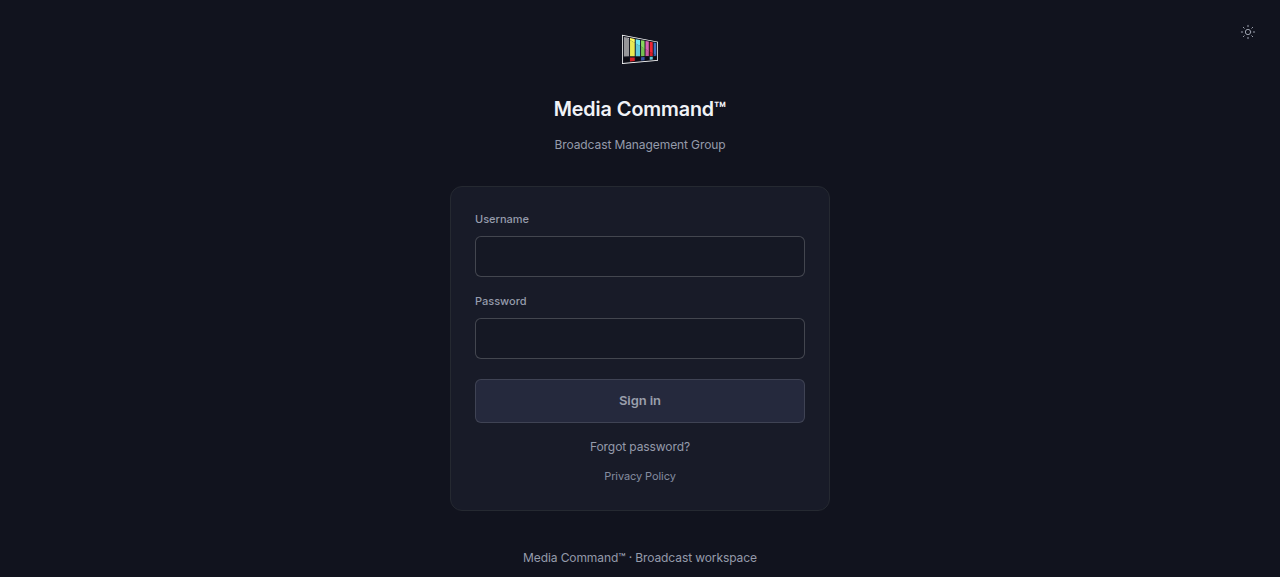
Authentication methods:
- Local credentials: bcrypt-hashed (cost 12) passwords.
- SSO via Authentik: OAuth2/OIDC brokering
@broadcastmgmt.com(Microsoft 365) and@bmgremi.com(Google Workspace). - MFA: TOTP enforcement available.
Session: express-session with connect-pg-simple store. Cookie: dragonflight.sid, httpOnly, 30-day lifetime.
Roles:
| Role | Scope |
|---|---|
Admin (platform_admin) |
Full cluster control, user/token provisioning, container management, storage configuration. |
| Operator | Recorder control, schedule automation, playout queue manipulation, graphics triggering. |
| Viewer | Read-only access to metadata and proxy streams. Default role for new SSO users. |
Per-project and per-organization permissions provide granular access boundaries beyond the global role.
3. Dashboard
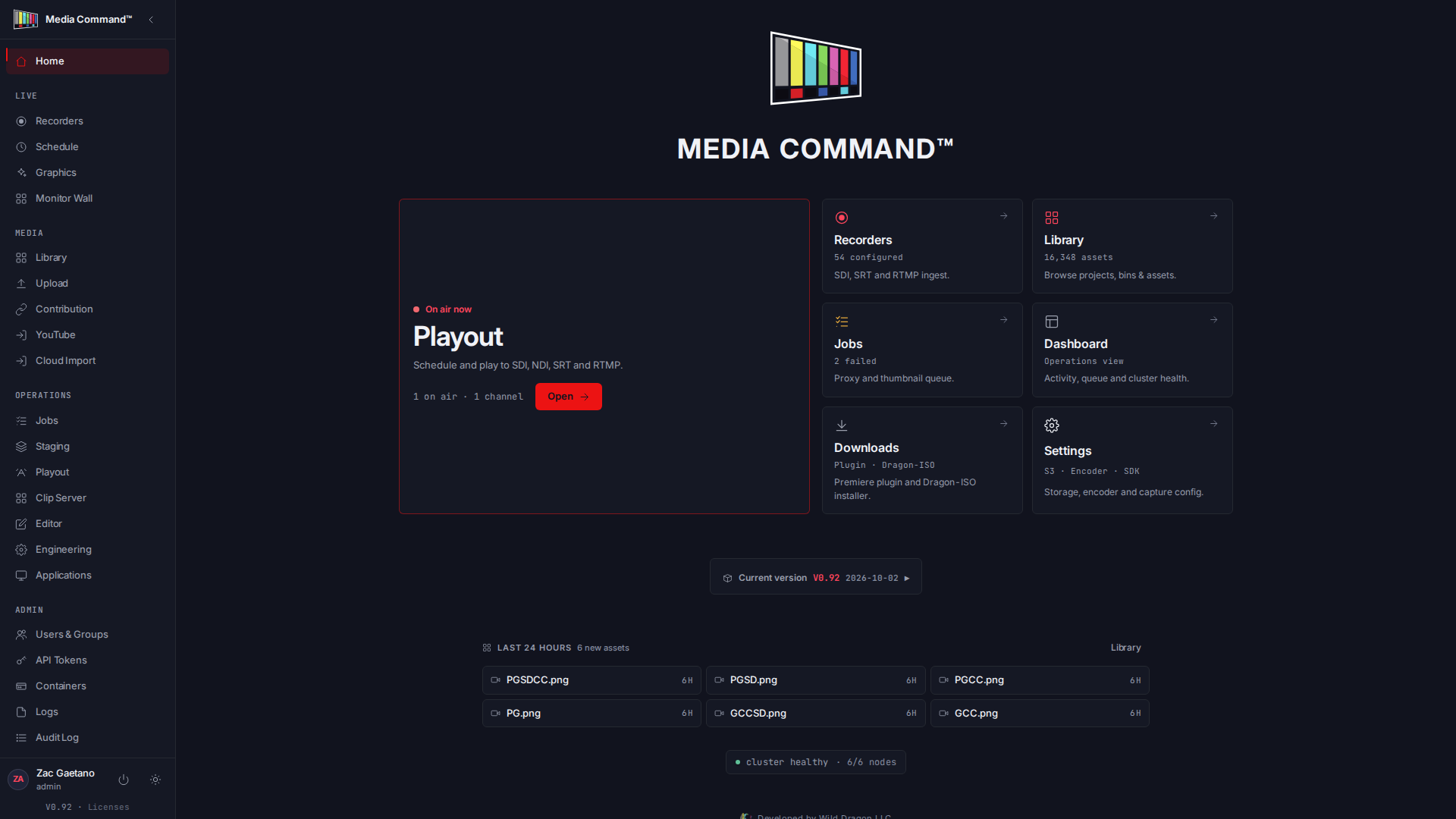
The home screen shows system vitals at a glance:
- Asset count: total indexed assets across all projects.
- Queue status: running and failed BullMQ worker tasks.
- Recorder summary: enabled and configured capture ports.
- Recent activity: files ingested in the last 24 hours.
Quick-access tiles link to Library, Recorders, Playout, Jobs, Downloads, and Settings.
4. Live Ingest & Control
Recorders
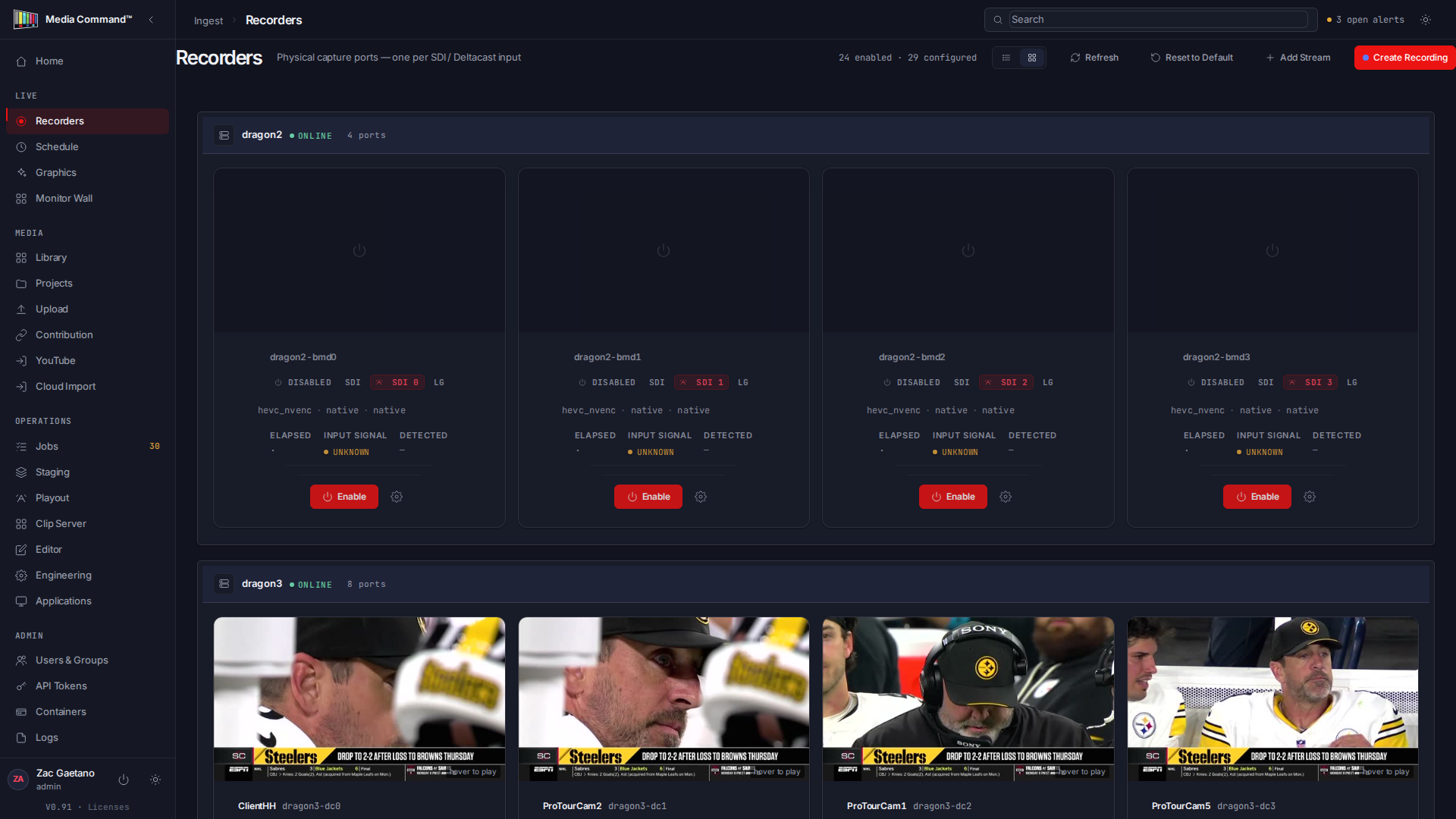
- Density toggle: Dense list (one line per recorder) or Cards (full preview + stats per port).
- Toolbar: Refresh, Reset to Default (disabled while recording), Add Stream, Create Recording.
- Cards: live preview, detected input signal, elapsed time, TAMS/HDR badges, loudness, router crosspoint, Take project picker.
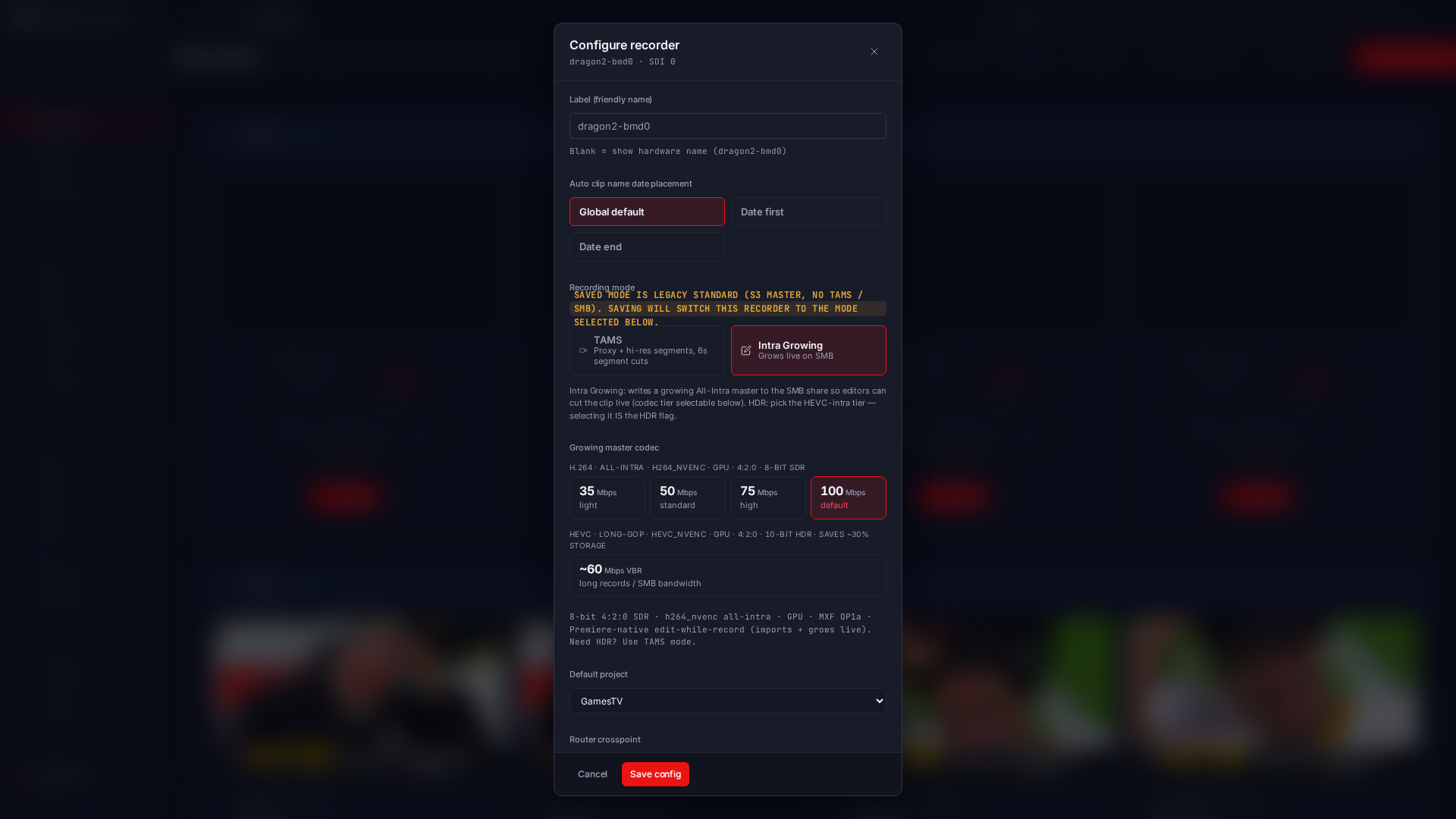
NO SIGNAL= no SDI input. - Configure recorder (gear): label; clip-name date placement (Global default / Date first / Date end); recording mode (TAMS or Intra Growing); growing master codec (H.264 all-intra 35/50/75/100 Mbps, or HEVC long-GOP 10-bit ~60 Mbps VBR); TAMS hi-res codec (HEVC or AV1 long-GOP).
- Create Recording: batch-start checked ports under one crash name, one project; clips named
name_YYYYMMDD_HHMMSS.
Schedule
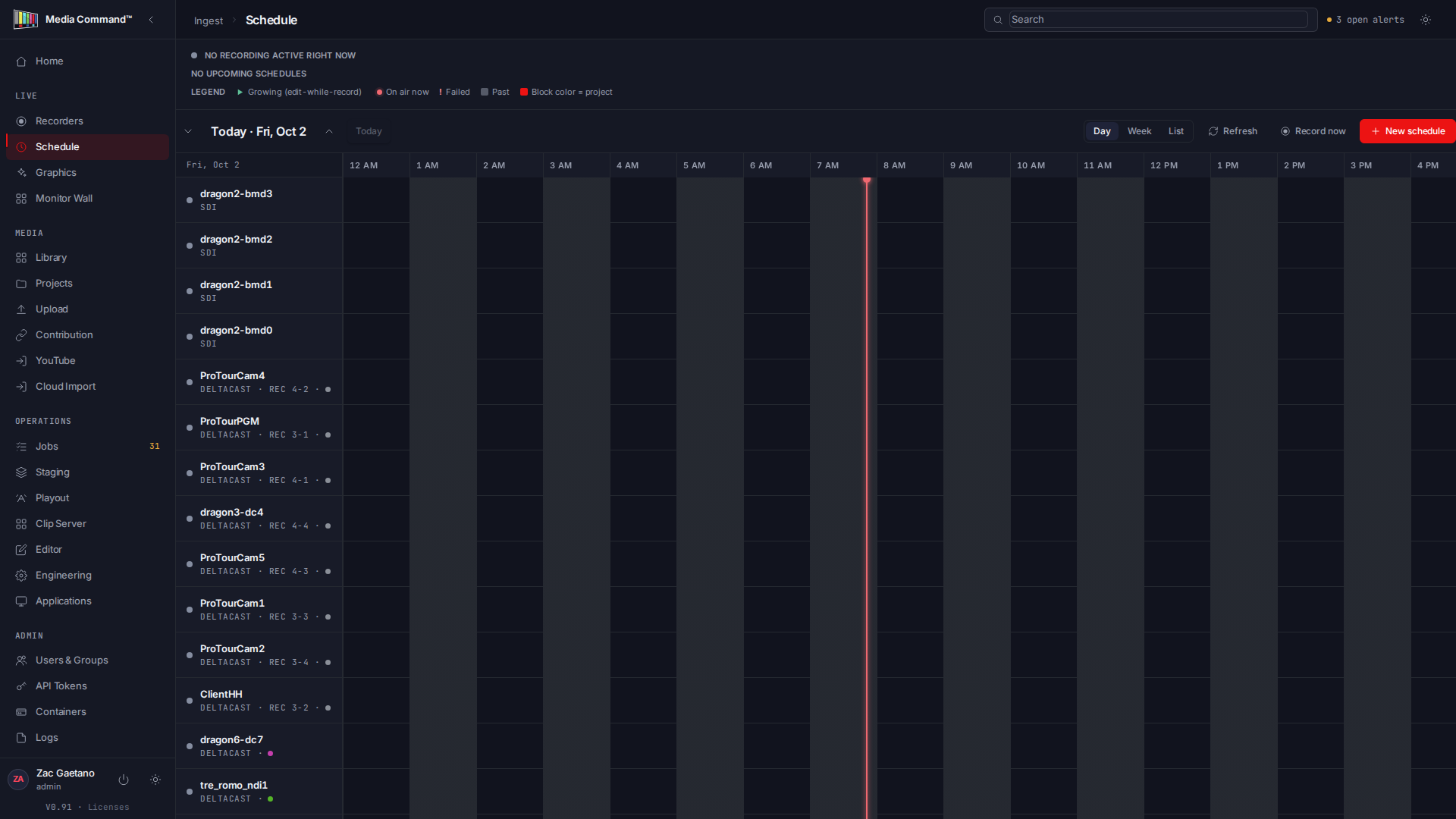
- Toolbar: previous/next day, Today; Day · Week · List views; Refresh; Record now; New schedule.
- List view: Upcoming · Past · All filters; status pending / recording / completed / cancelled / failed.
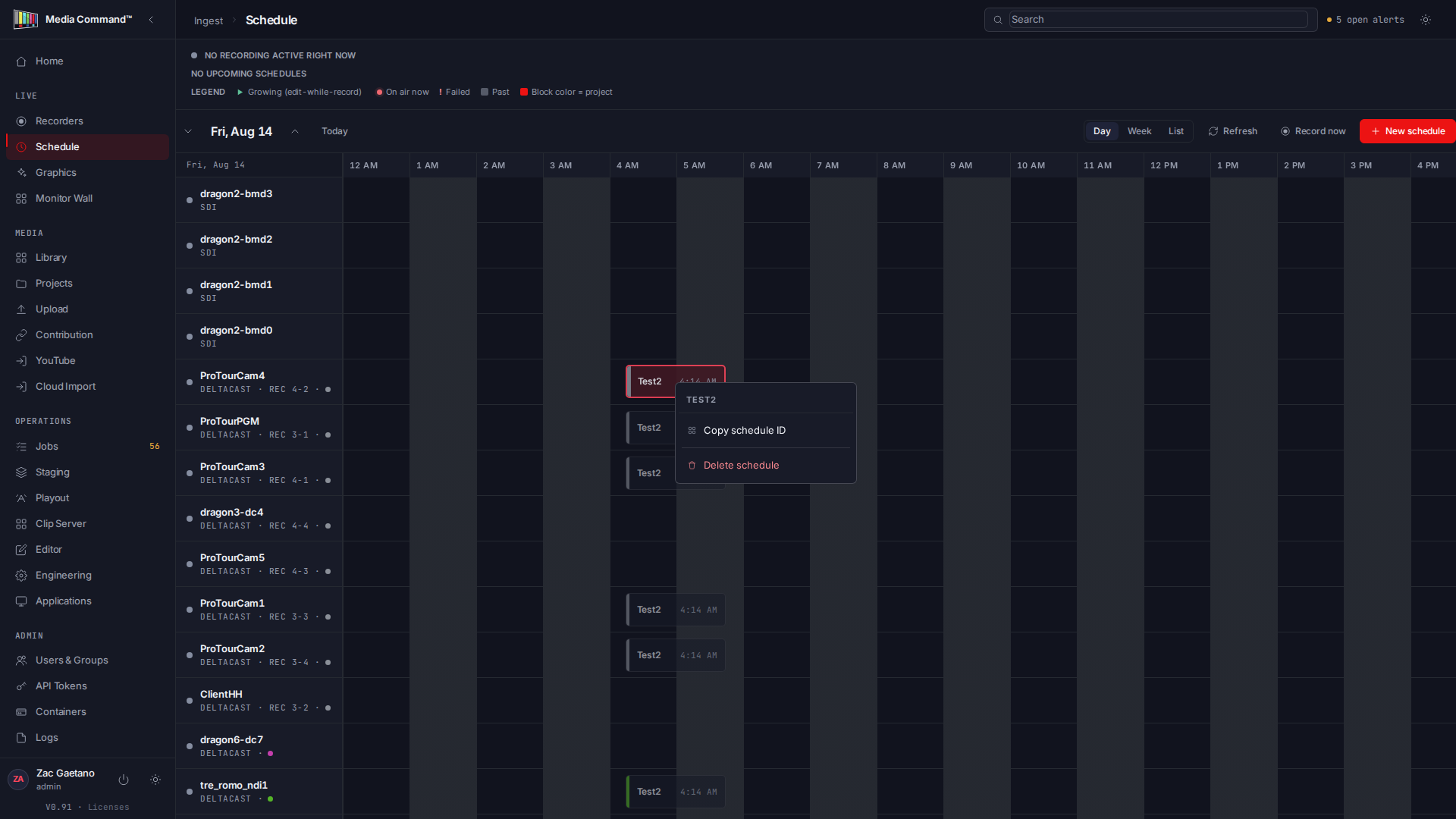
- Right-click an event: Edit… (pending/failed), Cancel run (pending/recording), Copy schedule ID, Delete schedule (not while recording).
- New schedule: Name, Recorders (multi-select), Project, Bin, times, recurrence.
Live Graphics
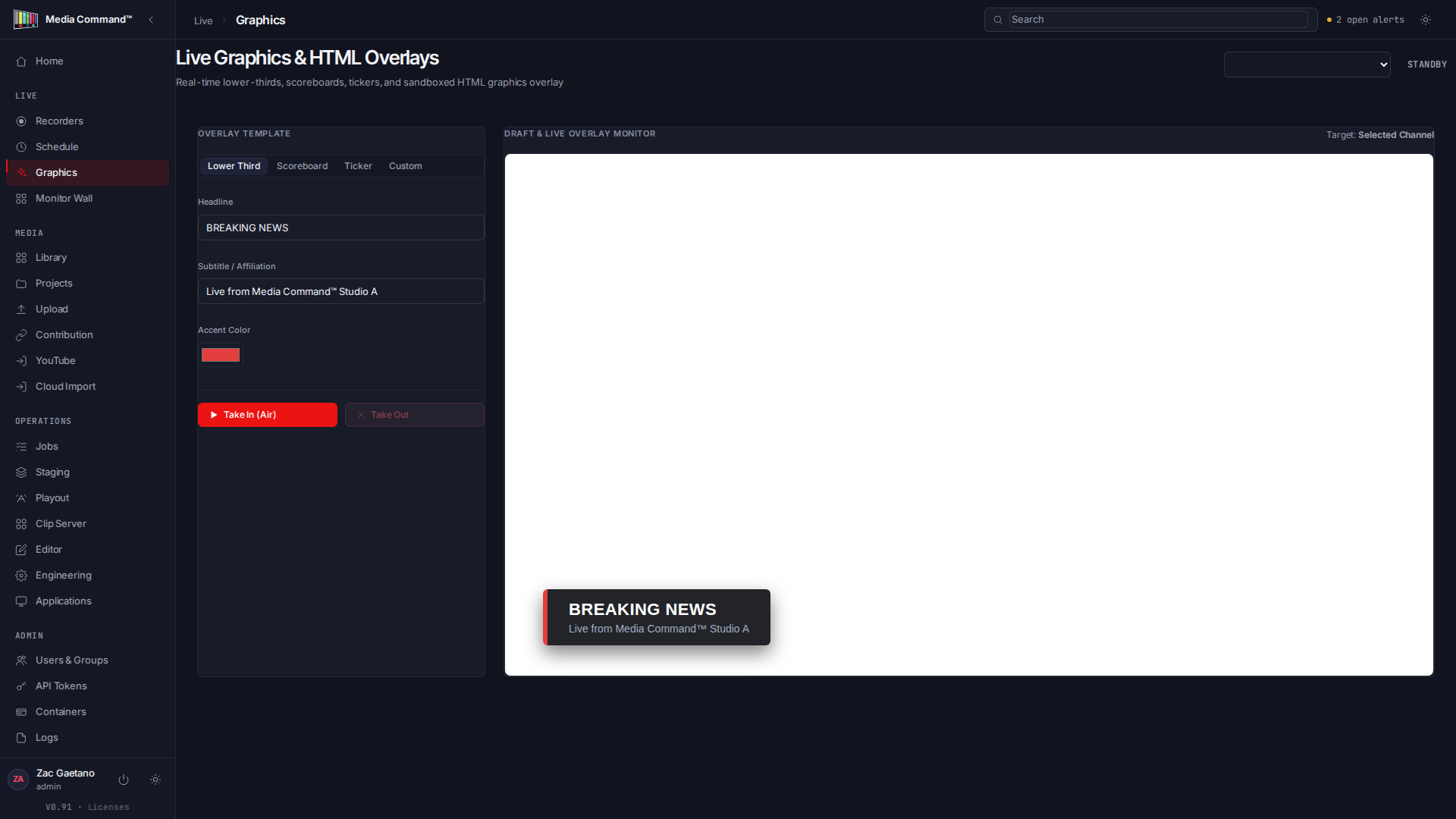
HTML5 broadcast graphics overlay engine.
- Sandboxed Chromium offscreen rendering for dynamic lower-thirds, scoreboards, and bugs.
- DSK layer stacking over playout or recorder preview streams.
Monitor Wall
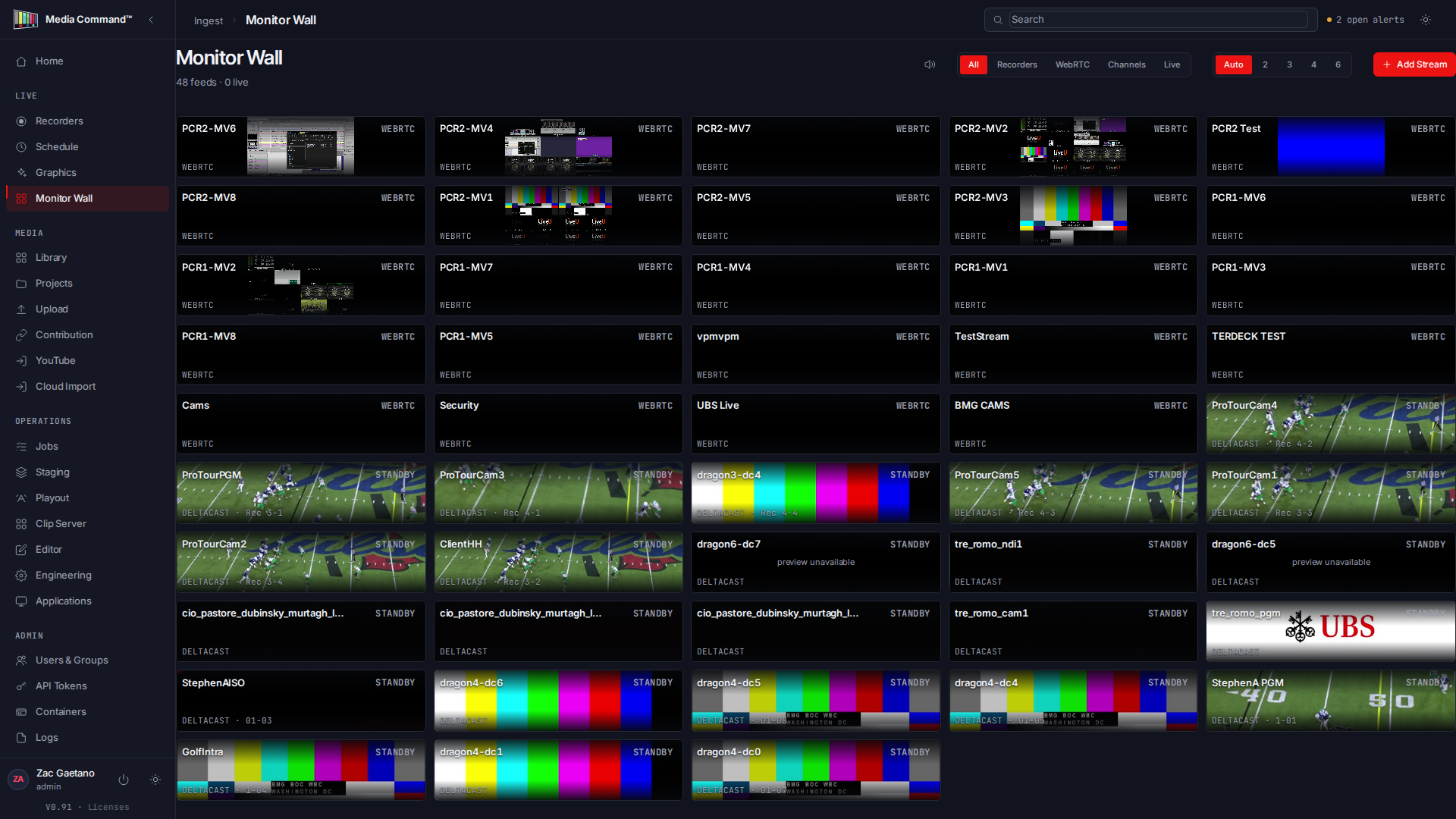
High-density WebRTC multiviewer for control rooms.
- Grid layouts:
Auto,2×2,3×3,4×4,6×6. - Feed filters: Recorders, WebRTC, Playout Channels.
- WHEP/WebRTC streaming with sub-second latency.
- Multi-channel audio meters on active tiles.
5. Media
Projects
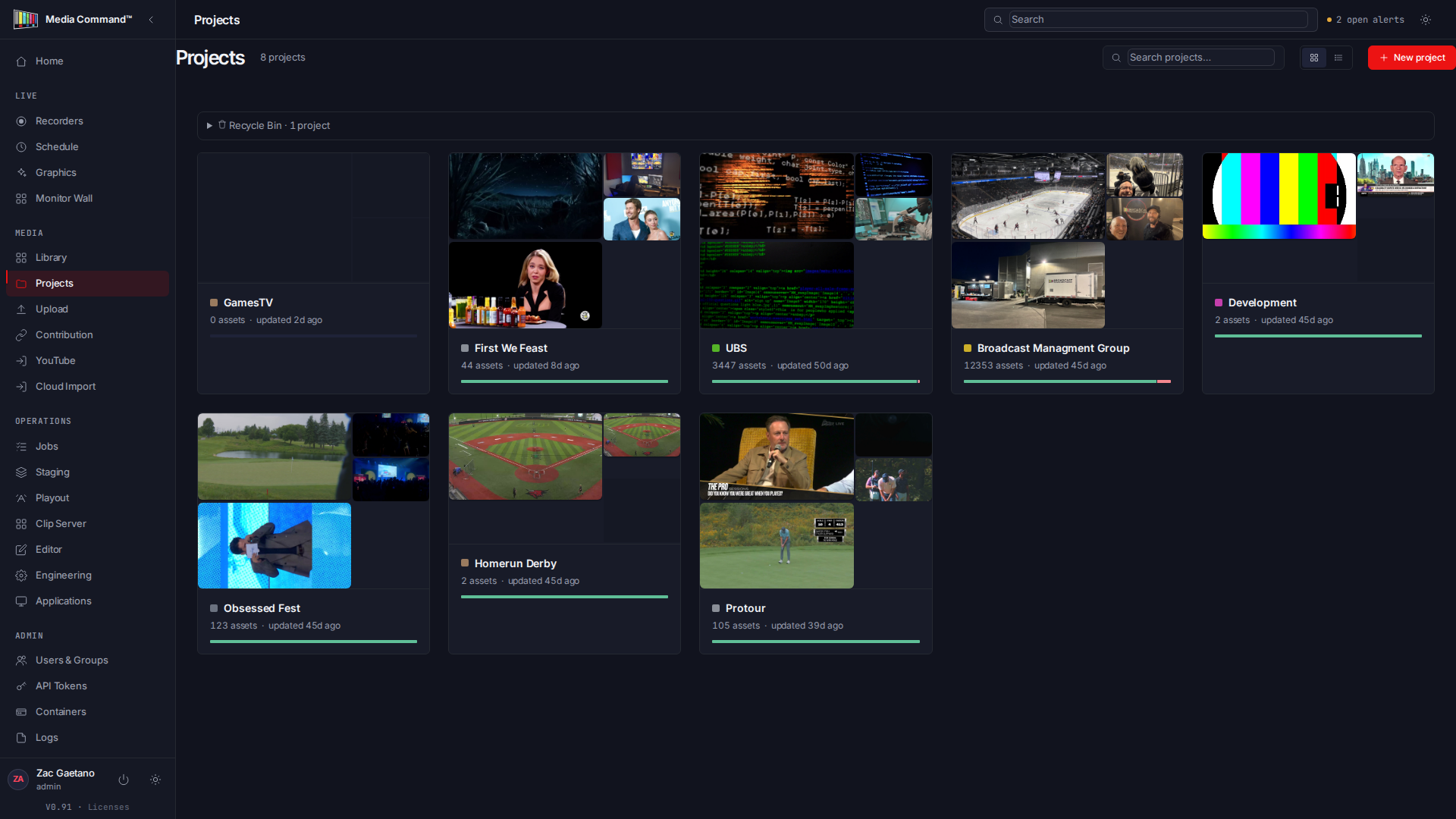
Projects are opened from the Library project switcher (no sidebar button). They are top-level workspaces that isolate media, permissions, and bins. Active projects include Broadcast Management Group (12,353 assets), UBS, Protour, First We Feast, and others.
- Project creation: define name, storage allocation, and assigned user groups.
- Recycle Bin: deleted assets quarantine separately per project.
Library
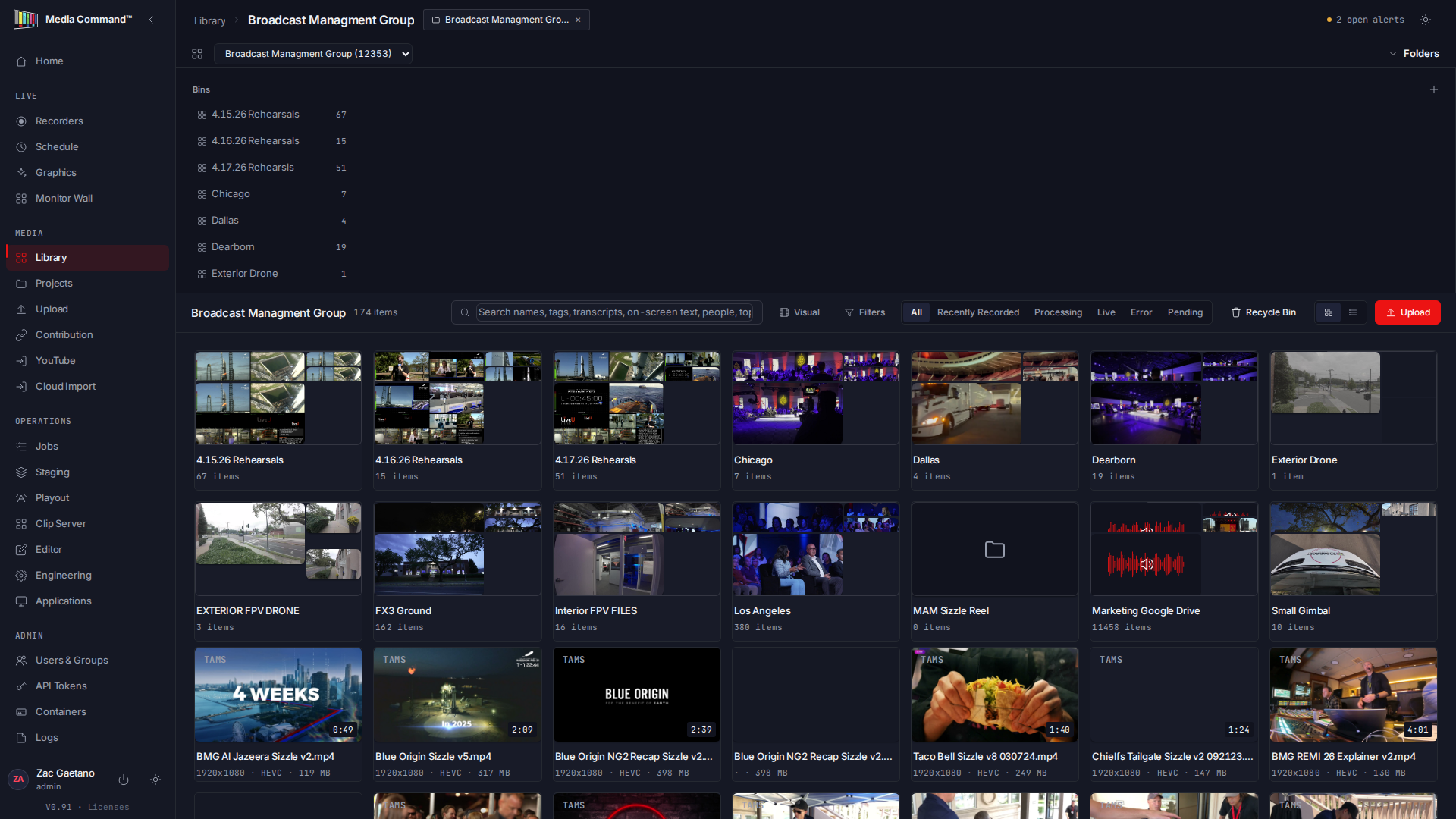
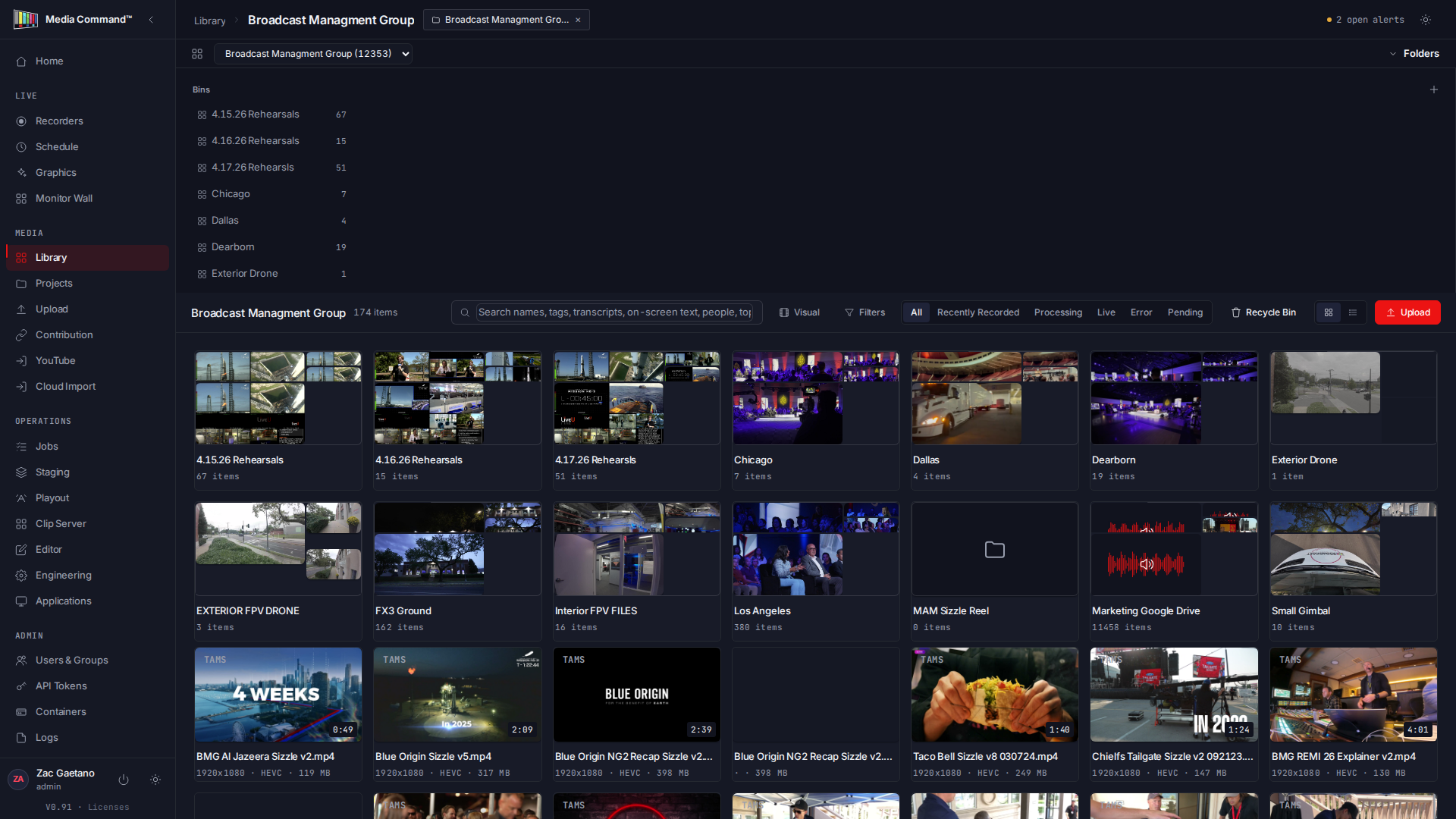
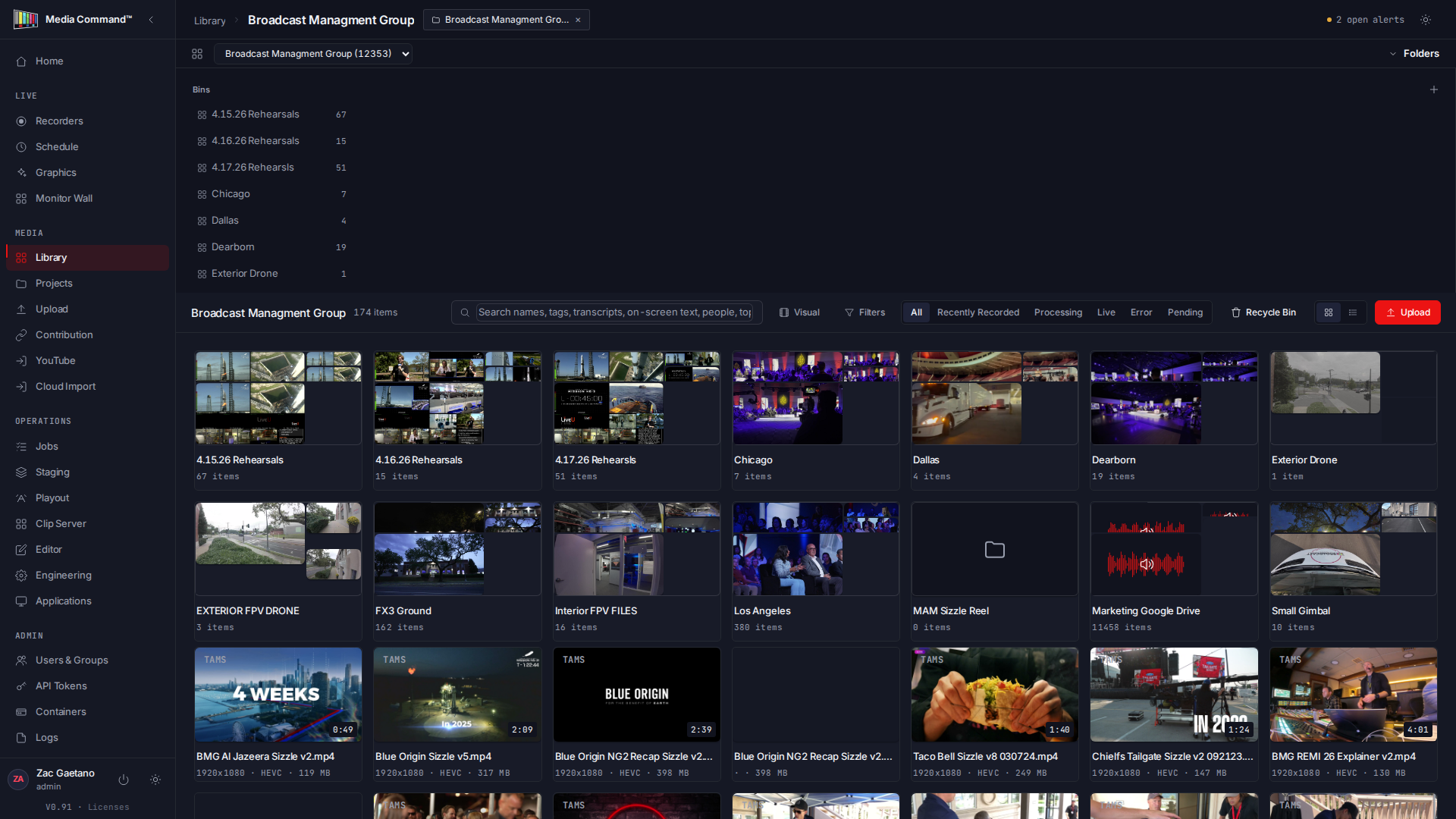
- Project switcher: dropdown to switch between assigned projects or
★ All Projects (Admin View). - Search: full-text search across filenames, tags, and metadata fields.
- Faceted filters: file type, codec, resolution, date range.
- Display modes: list view and thumbnail grid.
- Bins: hierarchical folder organization. Saved searches provide per-user named filter presets.
Asset Detail & Player
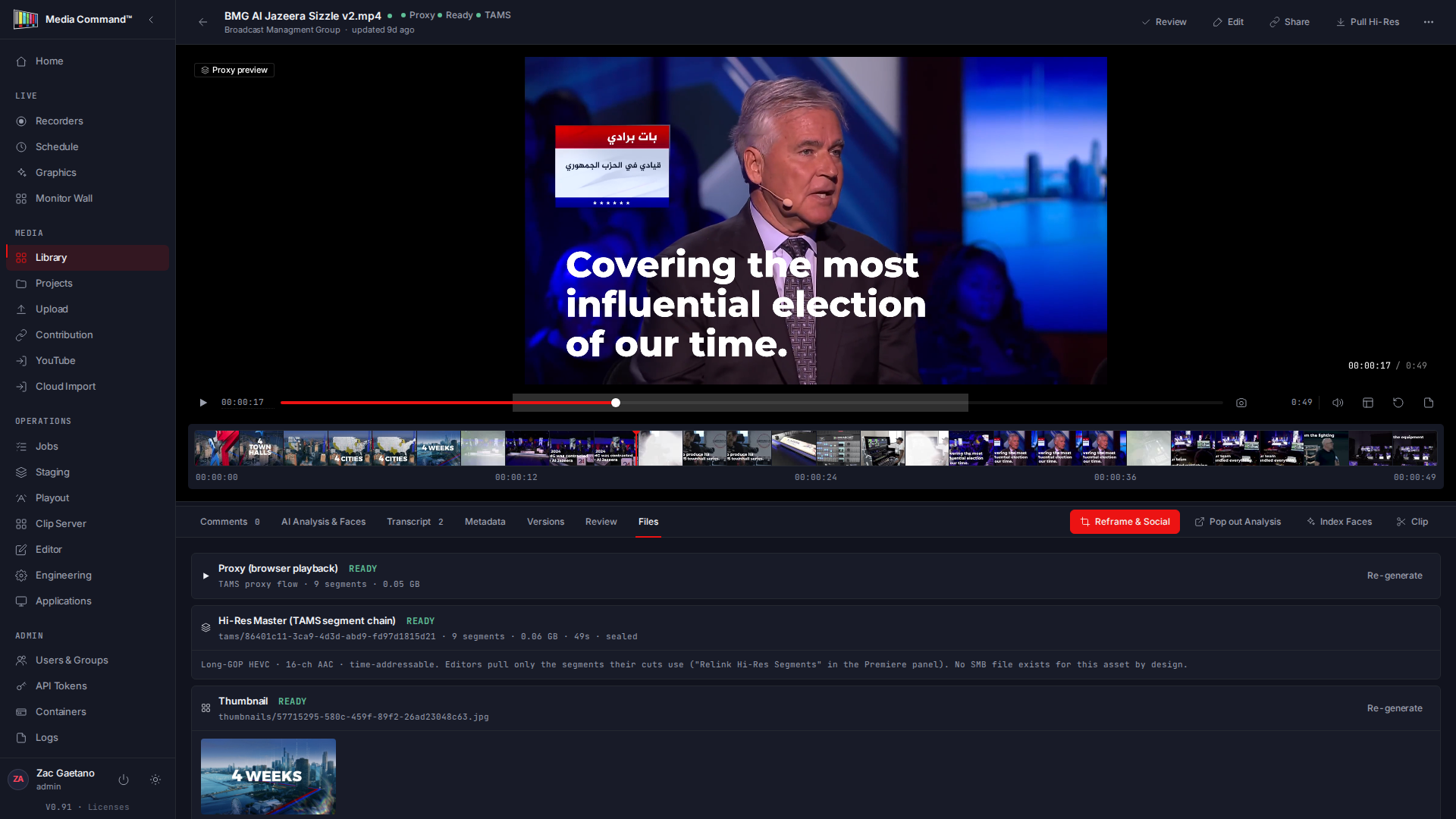
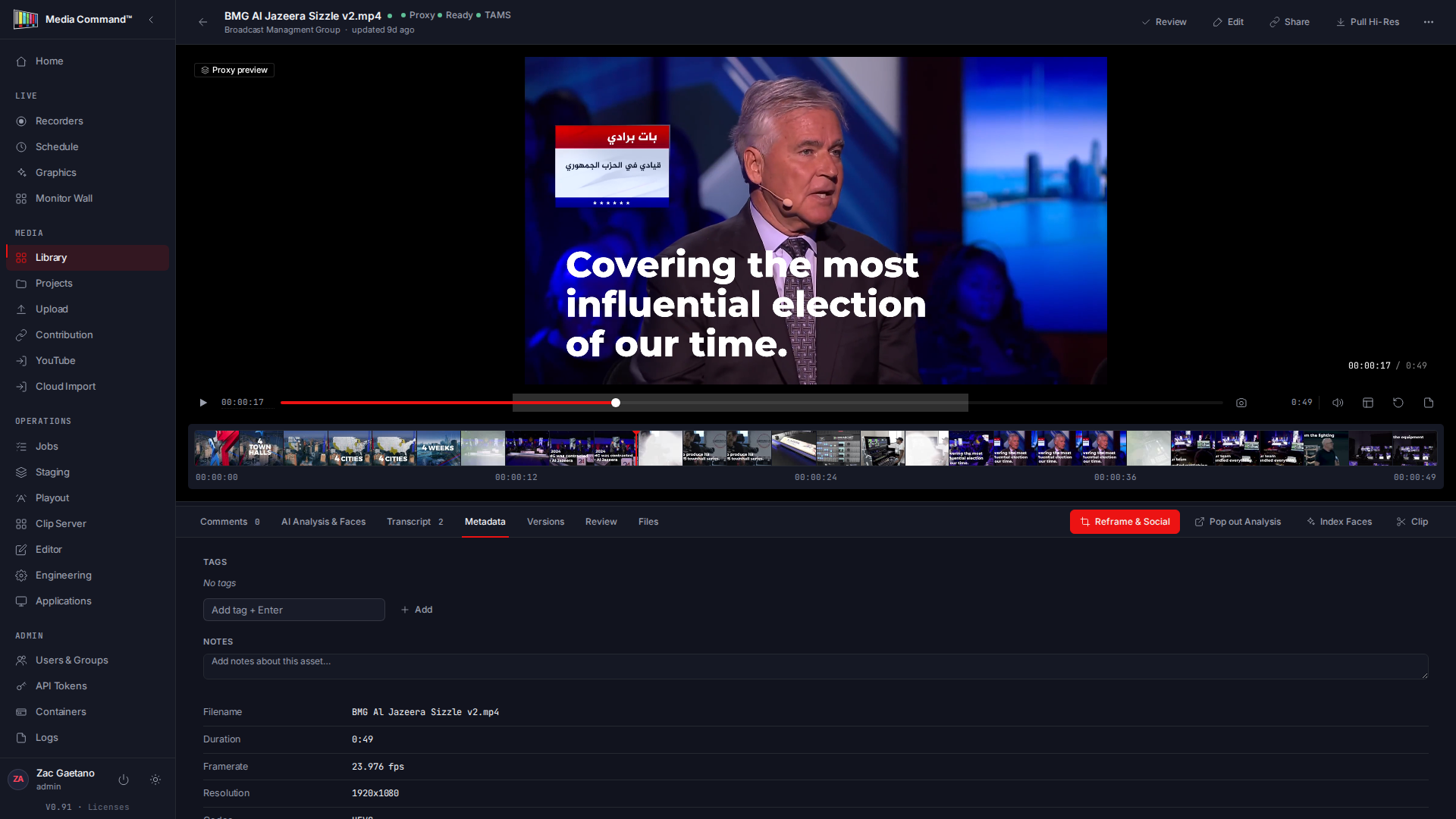
Clicking an asset opens its detail view with:
- Video player: proxy playback with timecode scrubbing, J-K-L shuttle, and in/out point setting (
I/Okeys). - TAMS adaptive playback: scrubbing works on multi-hour growing capture files.
- Tabs: Files, Metadata, Transcript, AI Analysis & Faces, Versions, Comments, Review.
- Technical metadata: container, codec, resolution, frame rate, bit rate, storage path, checksums.
- Actions: Review, Edit, Share, Pull Hi-Res, Reframe & Social, Clip.
AI Analysis
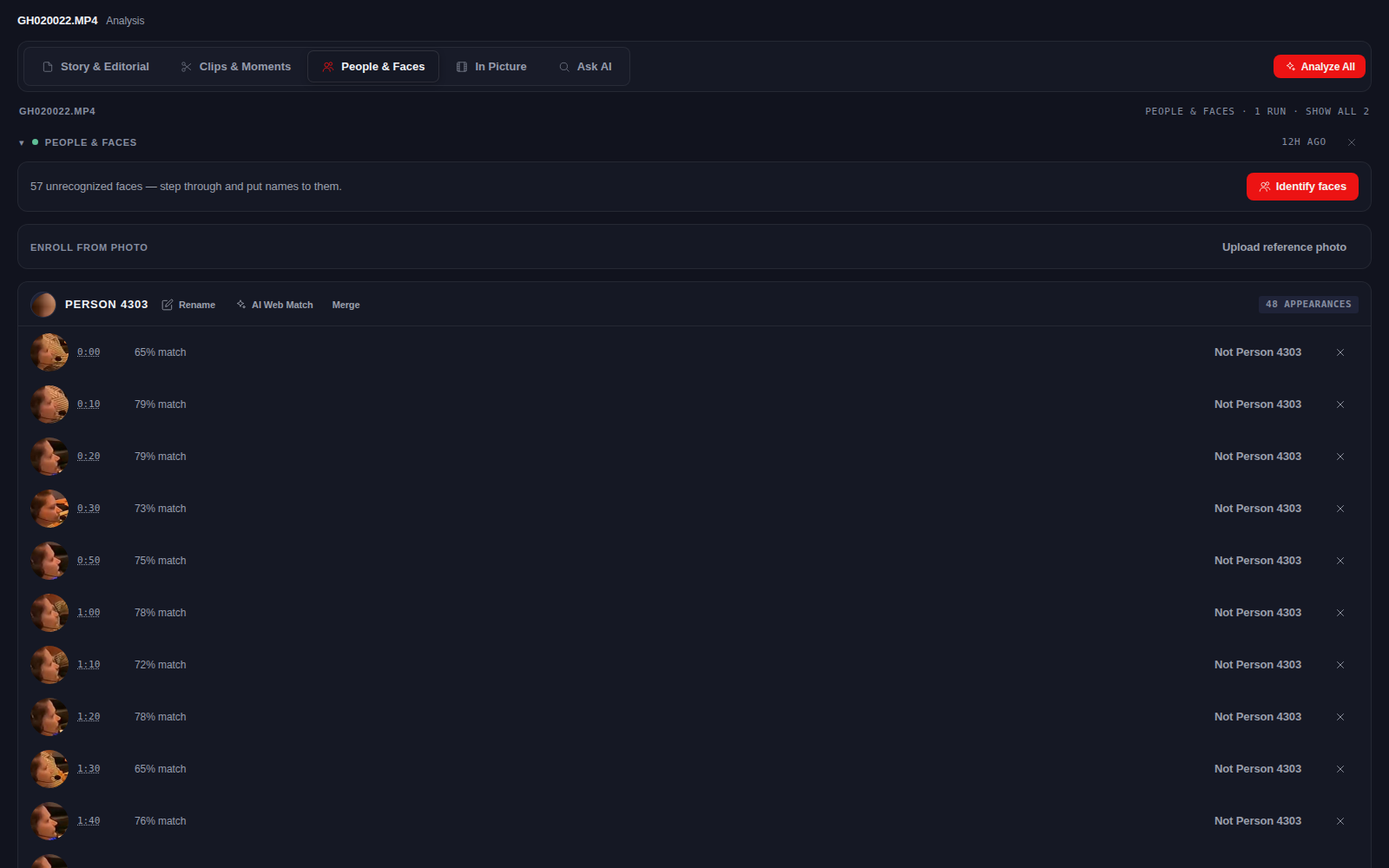
Five tabs (run individually or Analyze All): Story & Editorial (summary, chapters, soundbites, topics), Clips & Moments (ranked social clips → Subclip / Reframe 9:16 / 1:1), People & Faces (clustered faces; Identify faces, Enroll from photo, Rename, AI Web Match, Merge), In Picture (visual keyframe search), Ask AI (questions across the transcript).
Reframe & Social Publisher
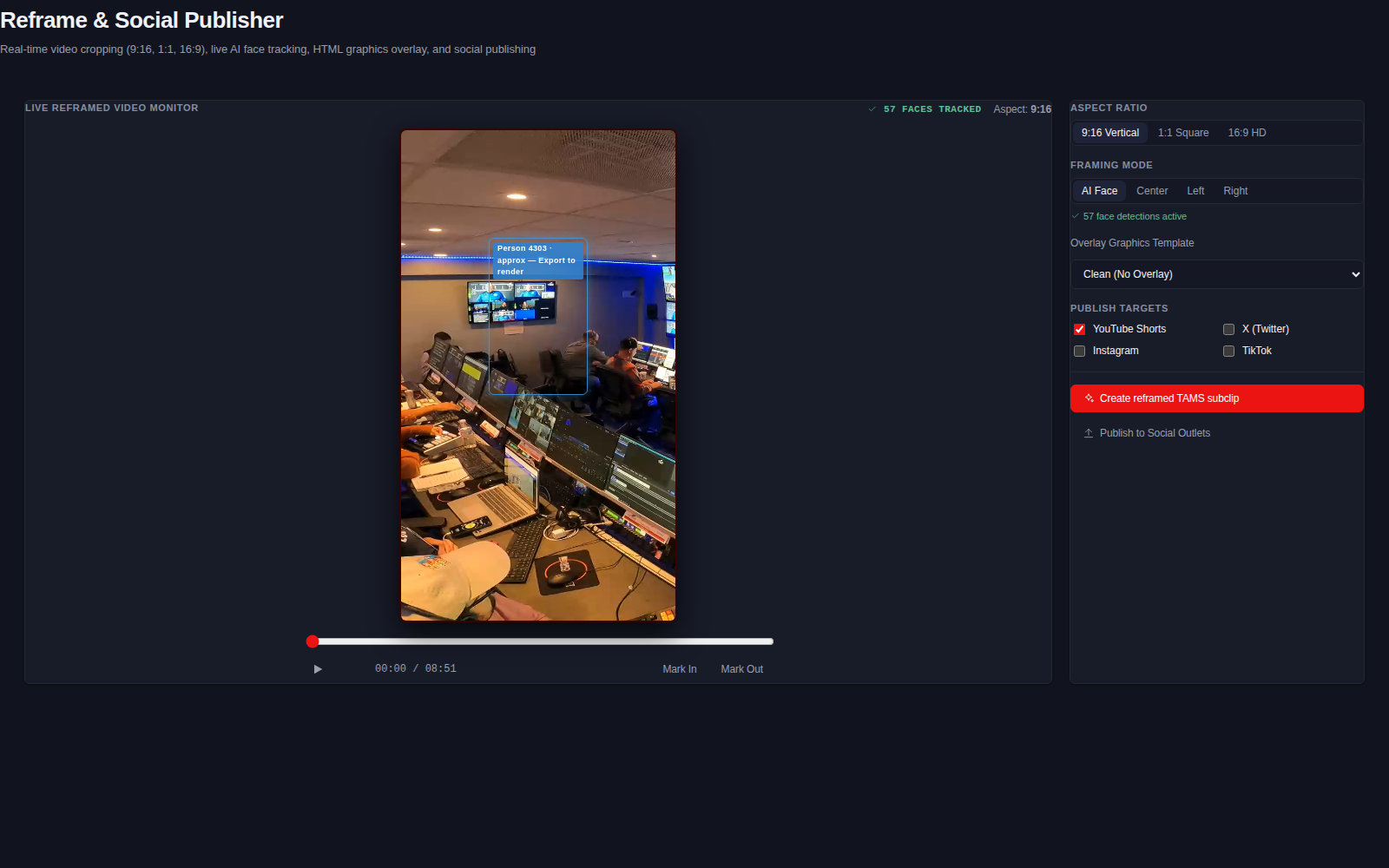
Aspect 9:16 / 1:1 / 16:9; framing AI Face / Center / Left / Right; Index Faces (AI); In/Out; overlay template (Clean, Lower-Third Speaker Badge, Headline Title Banner); Create reframed TAMS subclip; publish to YouTube Shorts, TikTok, Instagram, X.
Upload
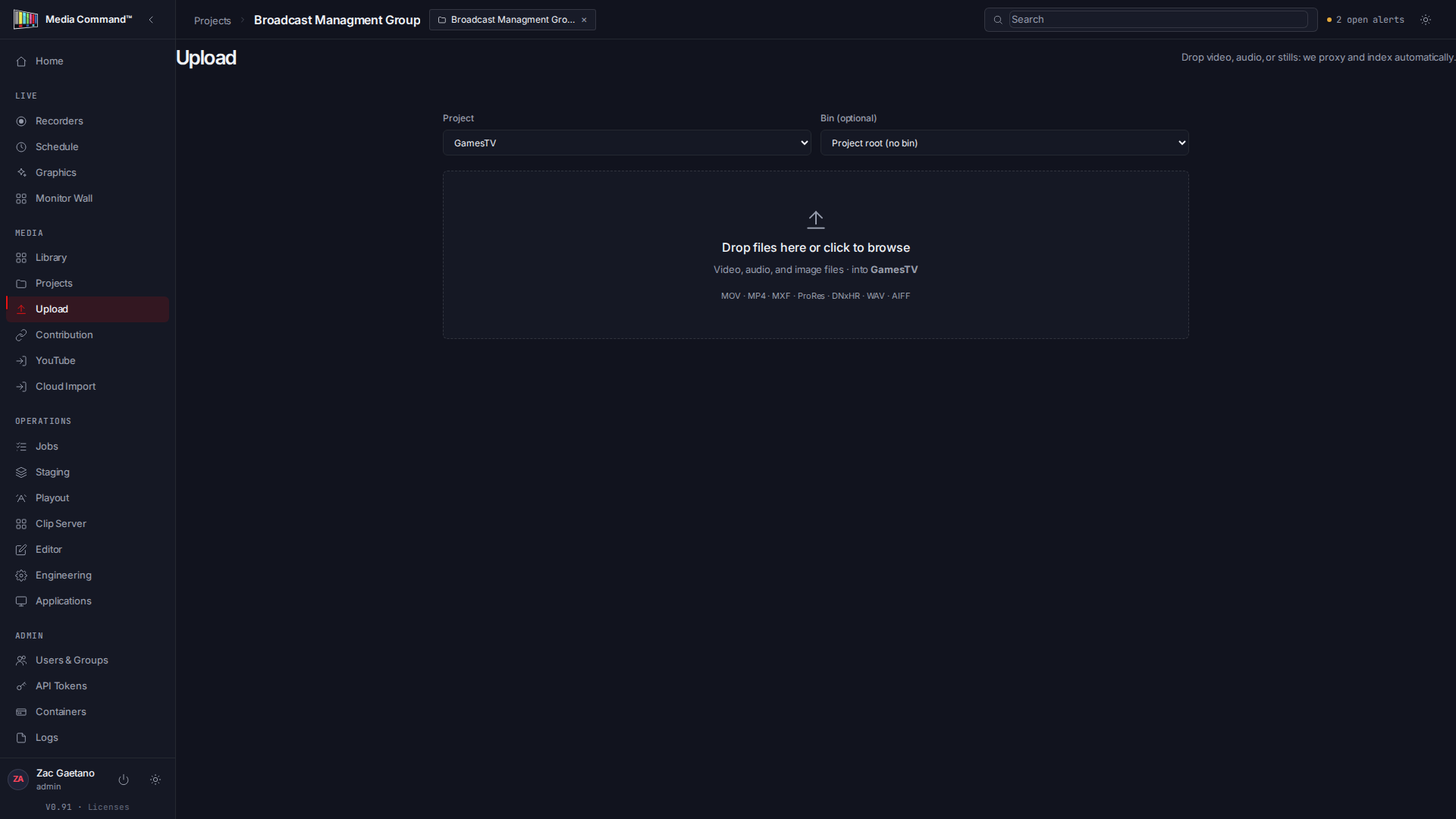
Chunked resumable web upload with target bin selection. Proxy, thumbnail, and waveform generation trigger automatically on completion.
Contribution (Client Uploads)
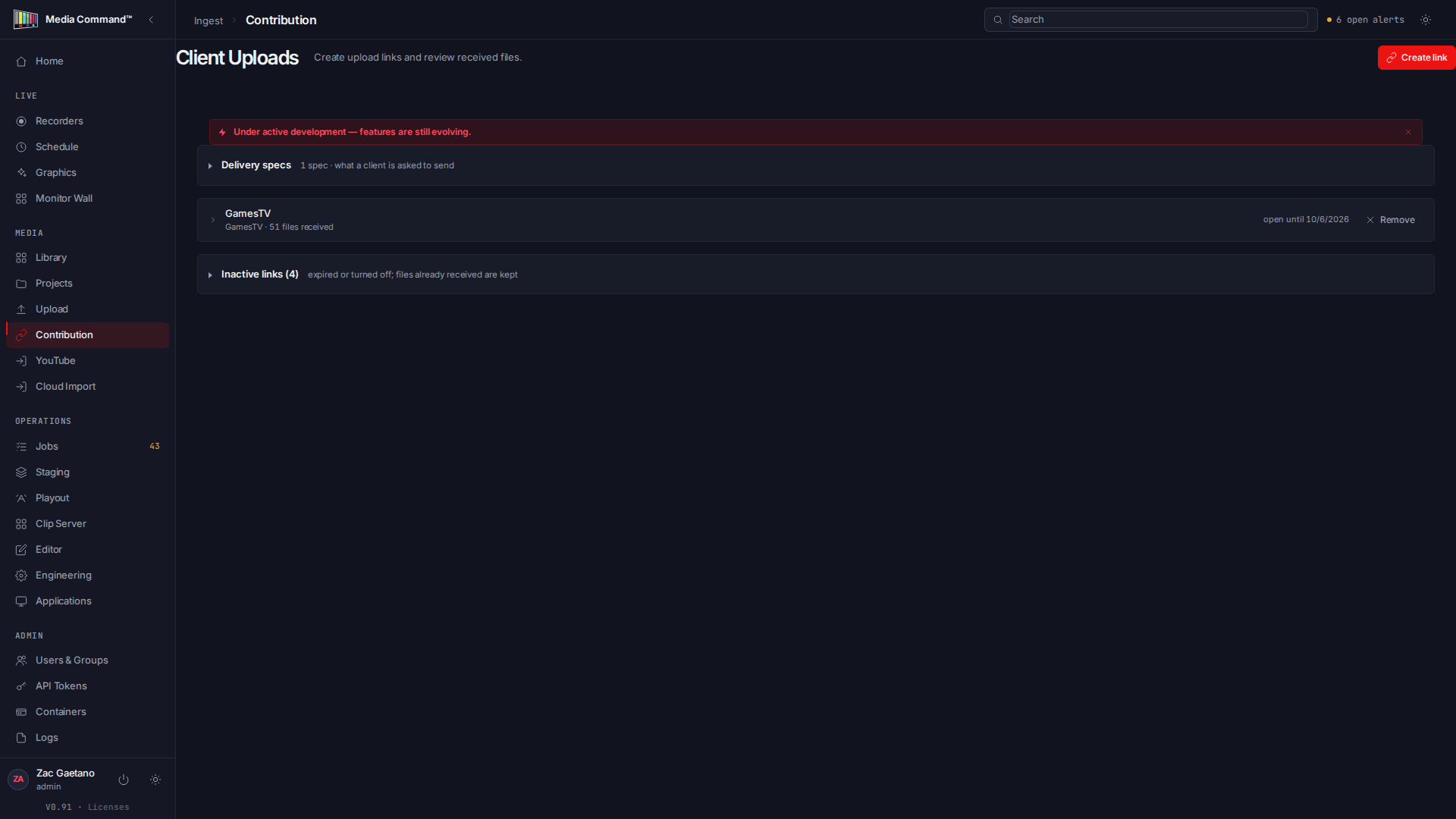
File deliveries from clients via shareable upload links.
- Create link: Name, Project, Expires (default 7 days), Max uploads, optional Password. Client gets a drop page; no account needed.
- Delivery specs: what the client is asked to send (e.g. Broadcast default, EBU R128, 8 rules).
- Received files: MEETS SPEC / NEEDS REVIEW verdict; Accept, Reject, Check against spec.
- Inactive links: expired/turned-off links; received files are kept.
YouTube
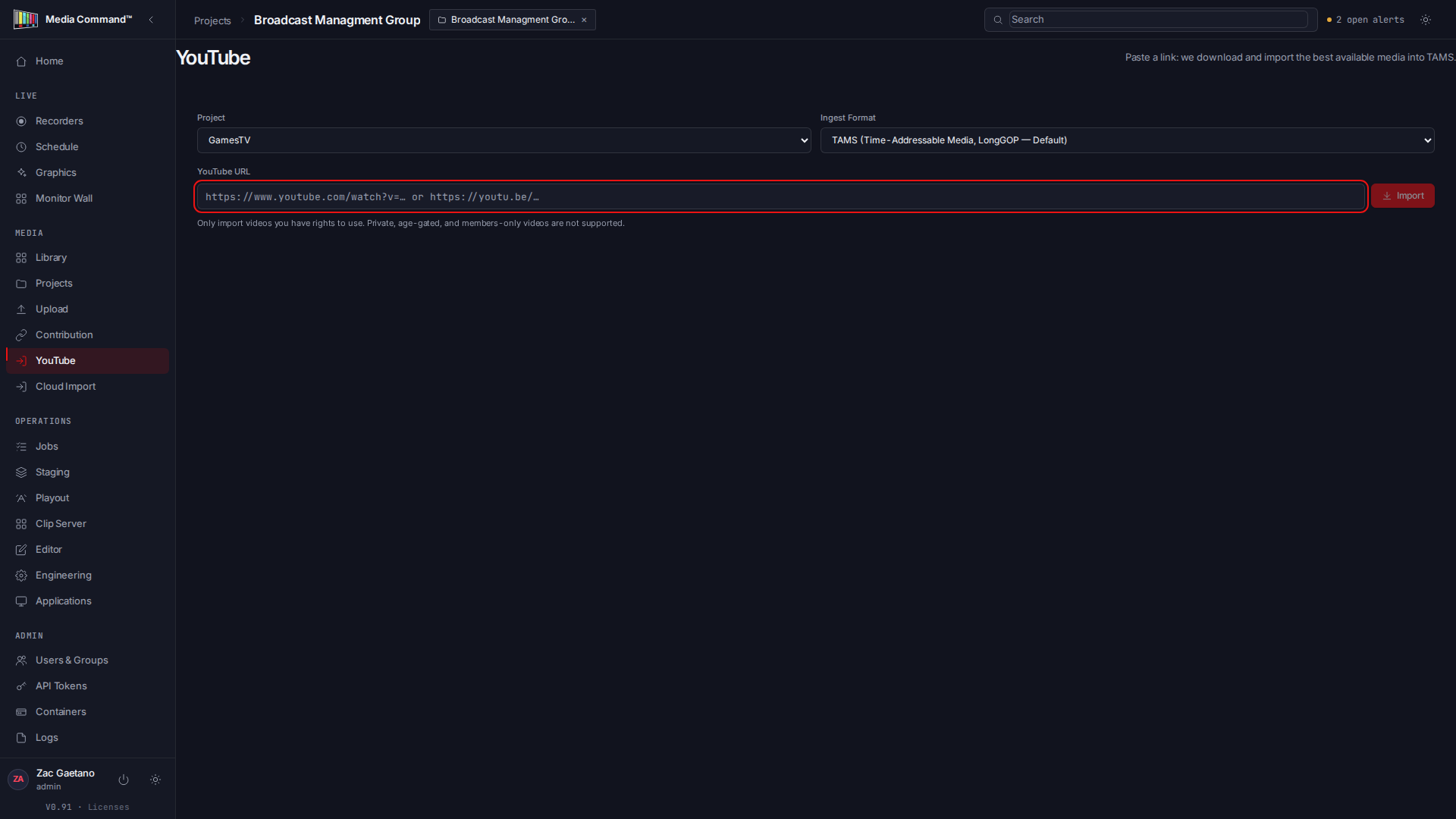
Paste a YouTube video or live stream URL for background download into the Library.
Cloud Import
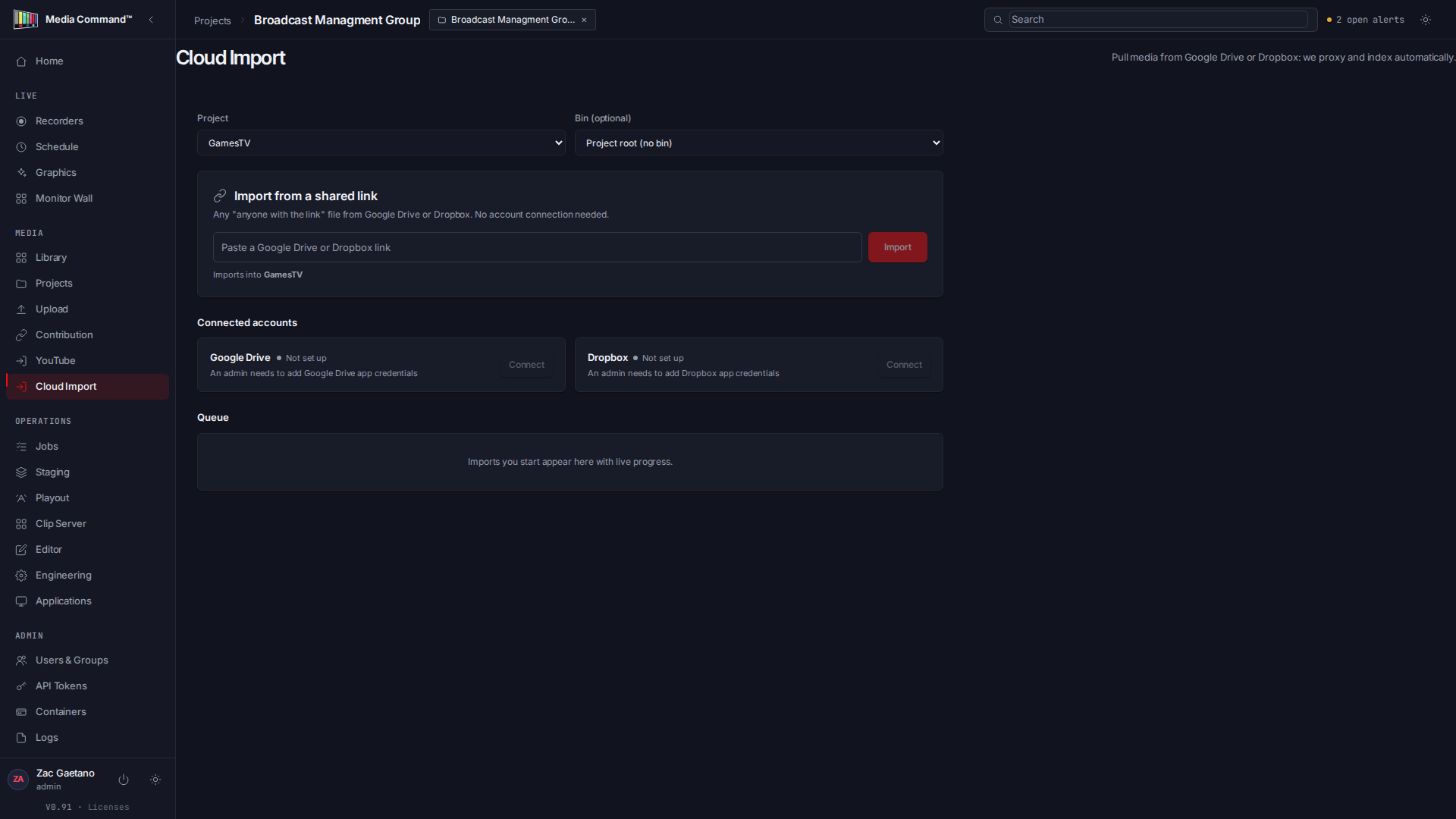
Import media from external cloud storage:
- Google Drive and Dropbox connectors.
- S3-compatible storage (Amazon S3, Wasabi, Backblaze B2, MinIO).
6. Operations
Jobs
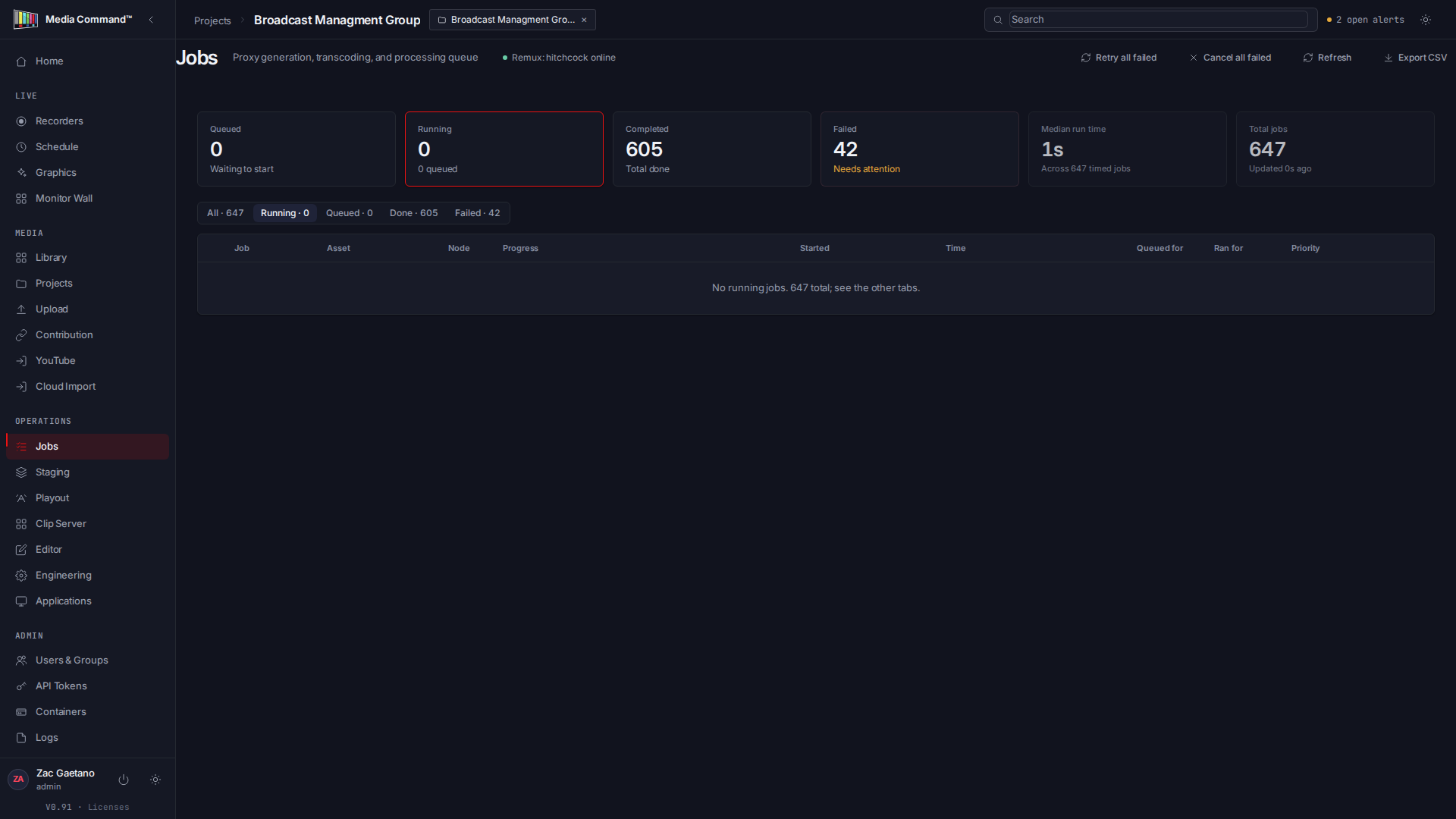
Real-time monitoring of the distributed BullMQ task pipeline. Queues cover transcoding, thumbnail/waveform generation, conform/export, and cloud sync. Per-job controls: progress, error log, retry, priority, flush.
Staging
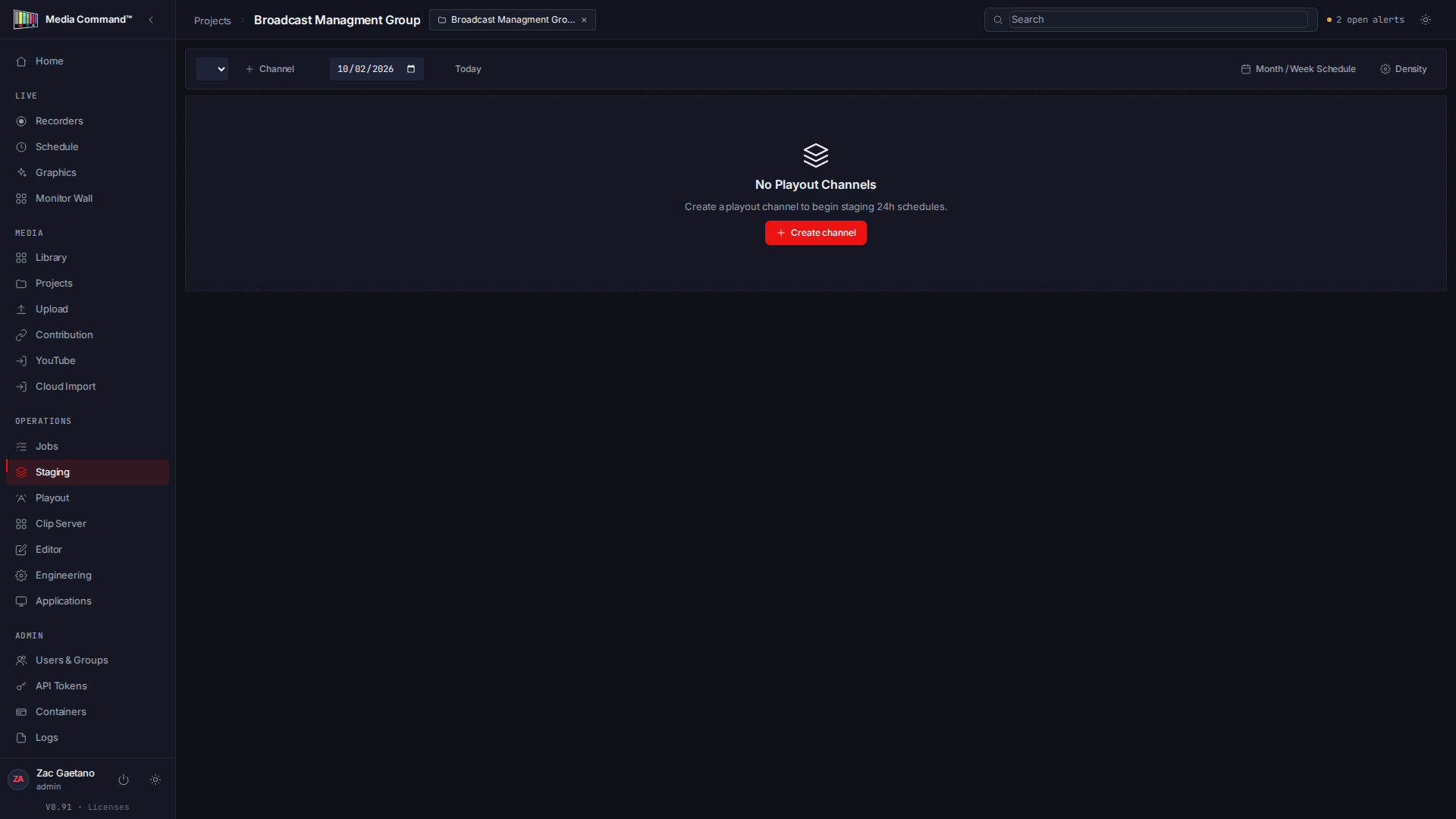
Monitors NVMe scratch storage across the cluster. Tracks free space and enforces retention policies.
Playout
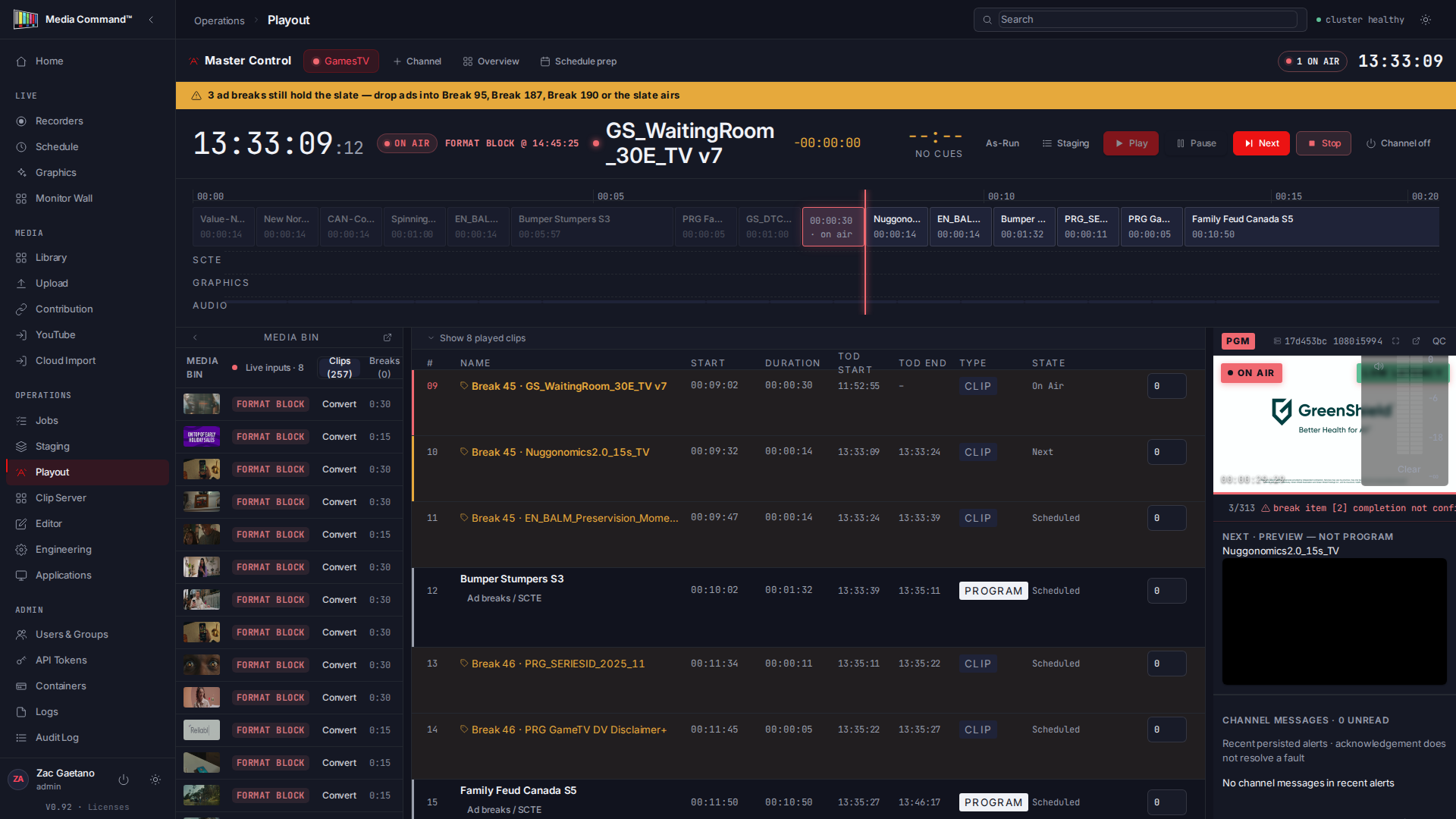
Master control for 24/7 channels. The screenshots in this section show the GamesTV channel live on air.
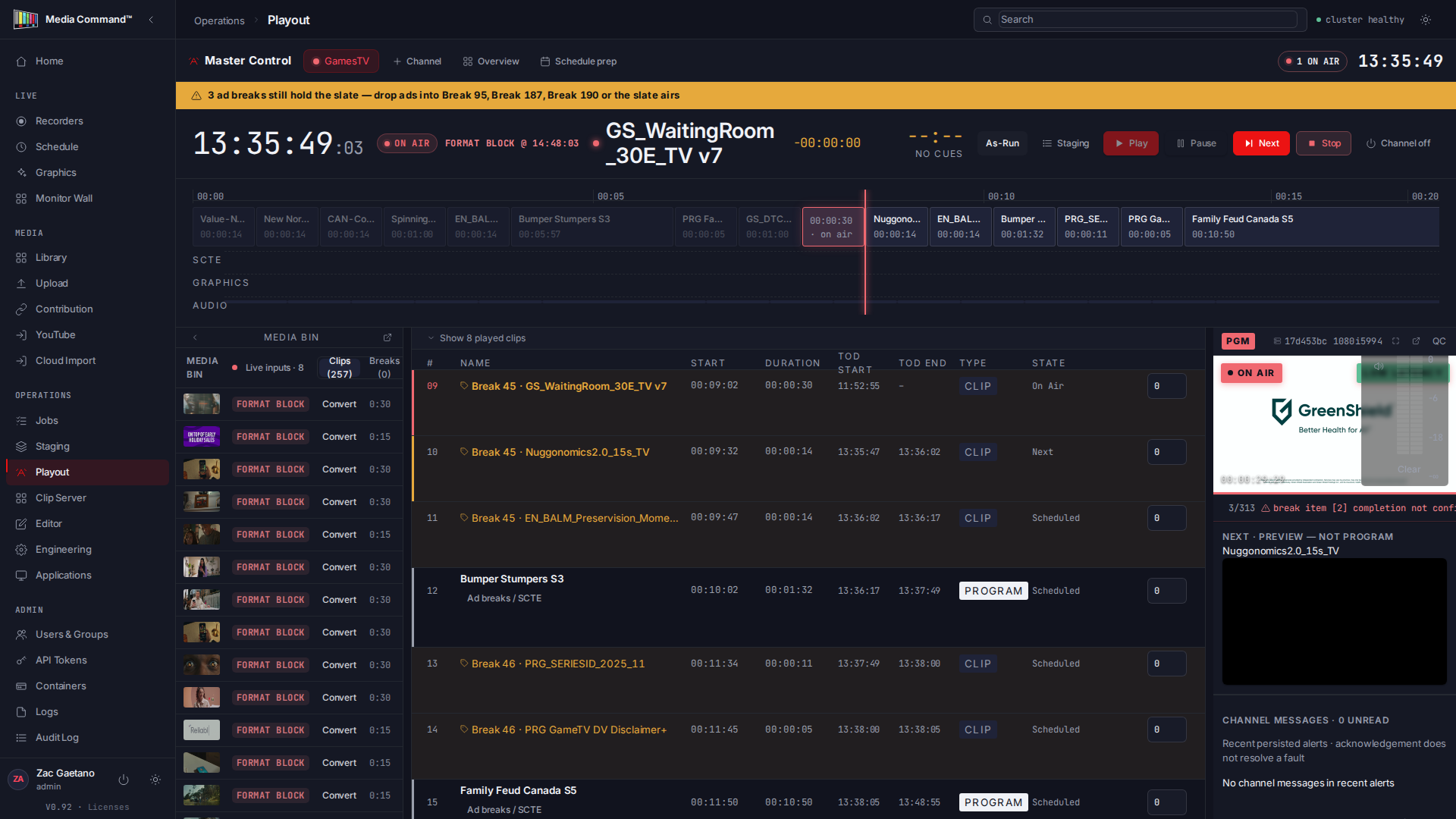
Layout (top to bottom)
- Header: channel selector (
GamesTV), Channel (create channel), Overview, Schedule prep, theON AIRcount and station clock. - Readiness banner: warnings the operator must clear before air — e.g. "3 ad breaks still hold the slate — drop ads into Break 95, Break 187, Break 190 or the slate airs".
- On-air strip: timecode clock, current item (
GS_WaitingRoom_30E_TV v7), time remaining, next SCTE cue, and the transport — Play, Pause, Next (cut to the next item), Stop (stop playback, channel stays on), Channel off (power the channel down). Buttons explain themselves on hover; for example Pause is disabled while an ad break is on air. - PGM monitor: live confidence picture of the channel output.
- Timeline: 24-hour strip with SCTE-104 cue, graphics and audio tracks.
- Media Bin (left): Clips, Breaks and Live inputs. Clips not yet in the channel's format show Convert, which renders a new TAMS flow in the channel format.
- Rundown (centre): start, duration, time-of-day start/end, type (PROGRAM, break, etc.) and state (On Air, Next, Scheduled).
⚠️ On a live channel, Next, Stop and Channel off affect air immediately.
Live inputs
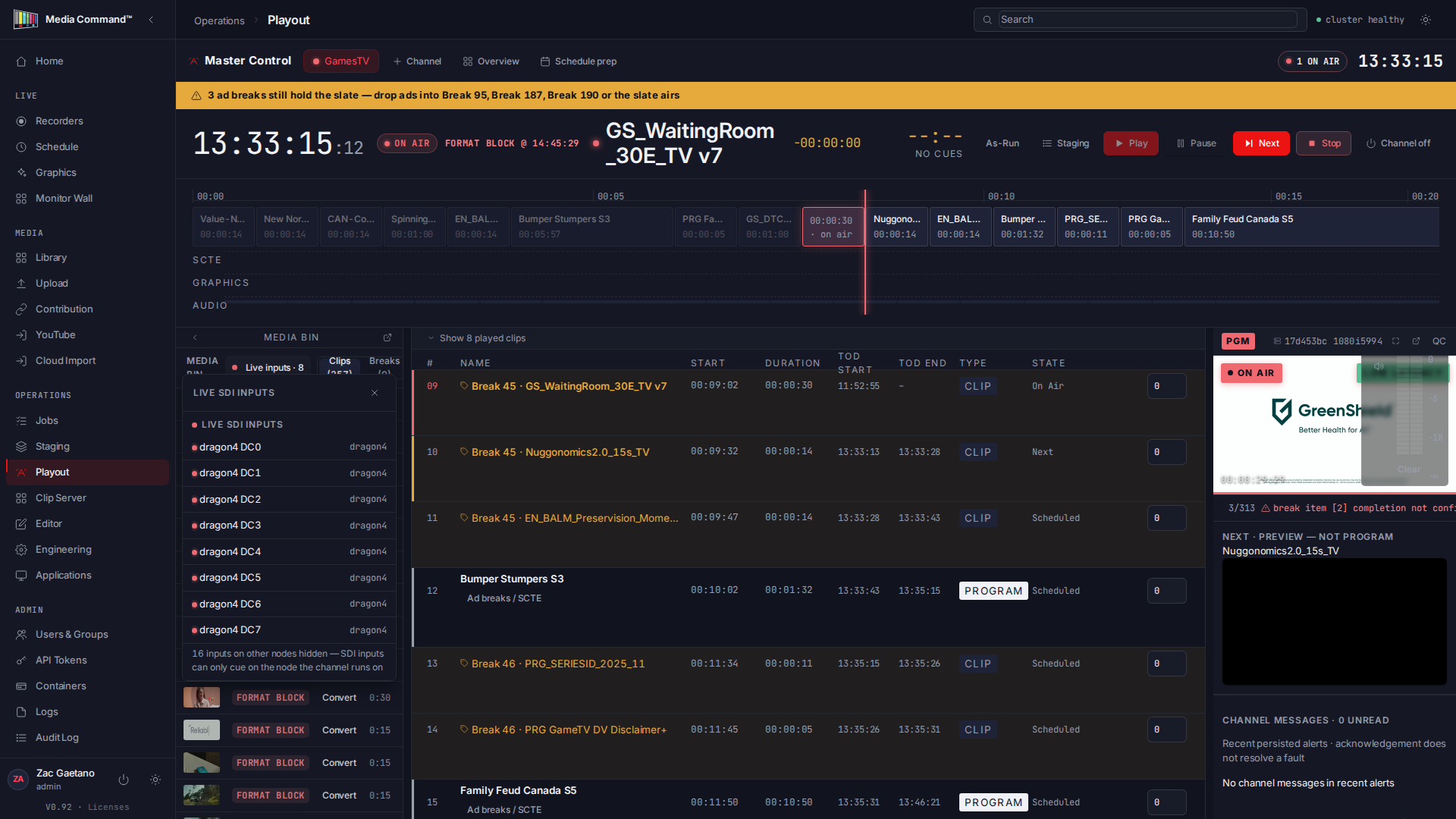
The Live inputs tab lists SDI inputs that can be cued into the rundown. Only inputs on the node running the channel are shown (here dragon4 DC0–DC7); inputs on other nodes are hidden because SDI can only be cued locally.
Overview
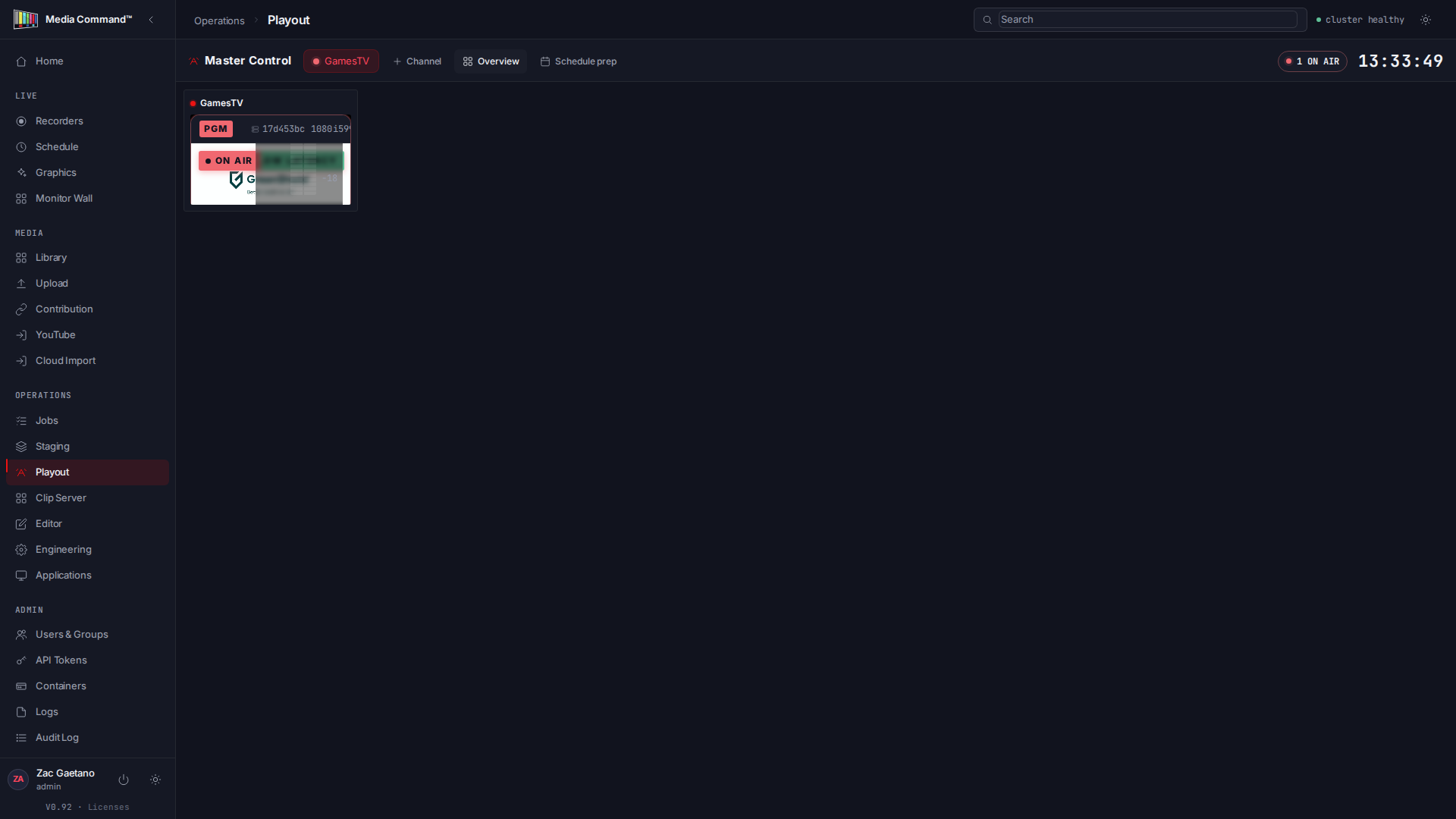
One card per channel with a live program thumbnail, ON AIR state and output format (e.g. 1080i59).
As-Run log
What actually went to air: time, clip, duration and result (PLAYED). Export with Export CSV or Export BXF for traffic reconciliation.
Staging
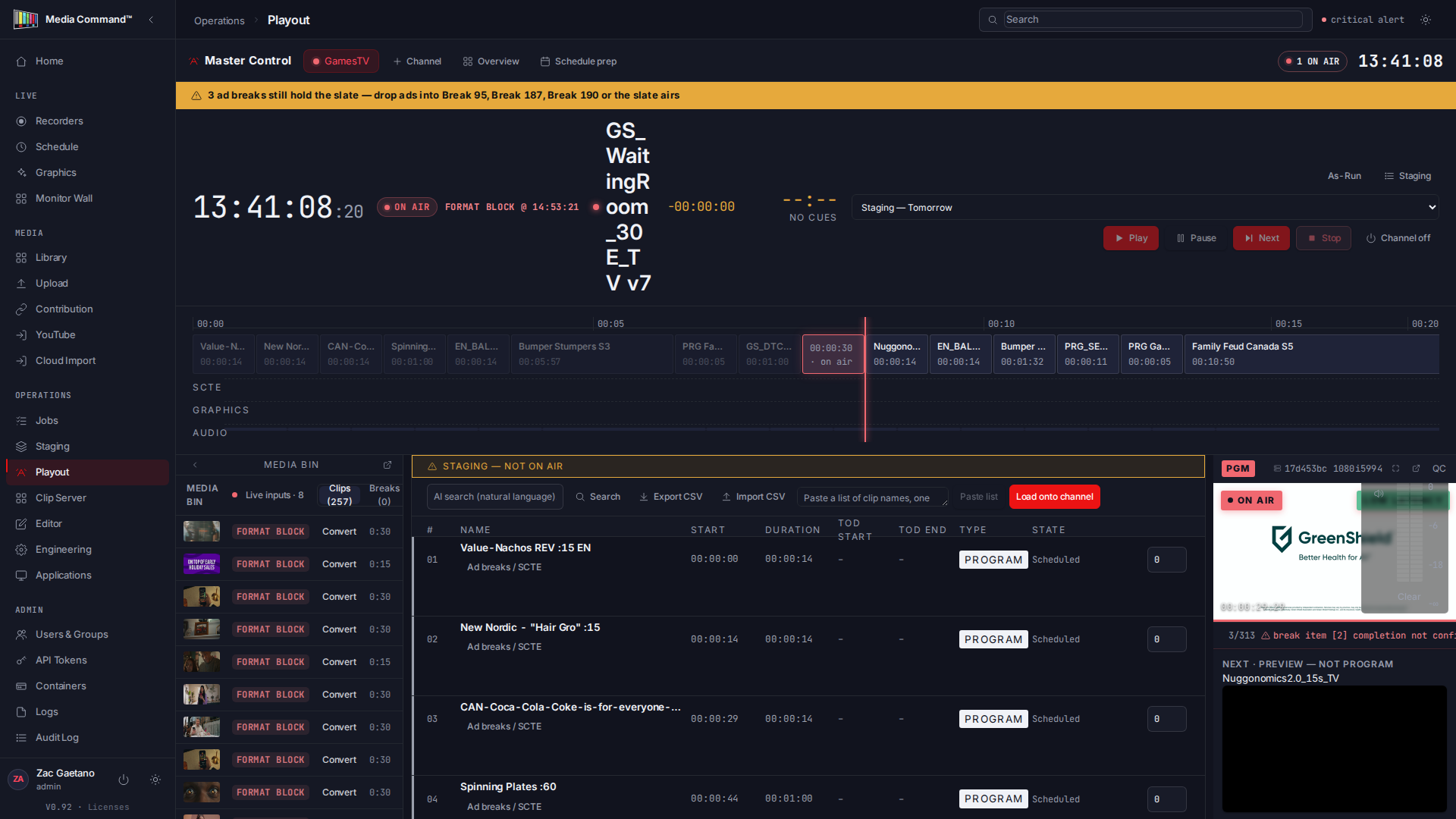
Staging edits a non-air playlist without touching the live rundown. The panel is labelled STAGING — NOT ON AIR; the program monitor and on-air strip keep running above it. Shown here: a 60-item playlist, Staging — Tomorrow, built from GamesTV content.
- Pick an existing staged playlist or create a new one.
- Fill it by dragging clips from the Media Bin, Search, Import CSV, or Paste list (clip names are matched to the catalog).
- Export CSV to share the list; Load onto channel puts the staged playlist on air when it's ready.
Schedule prep
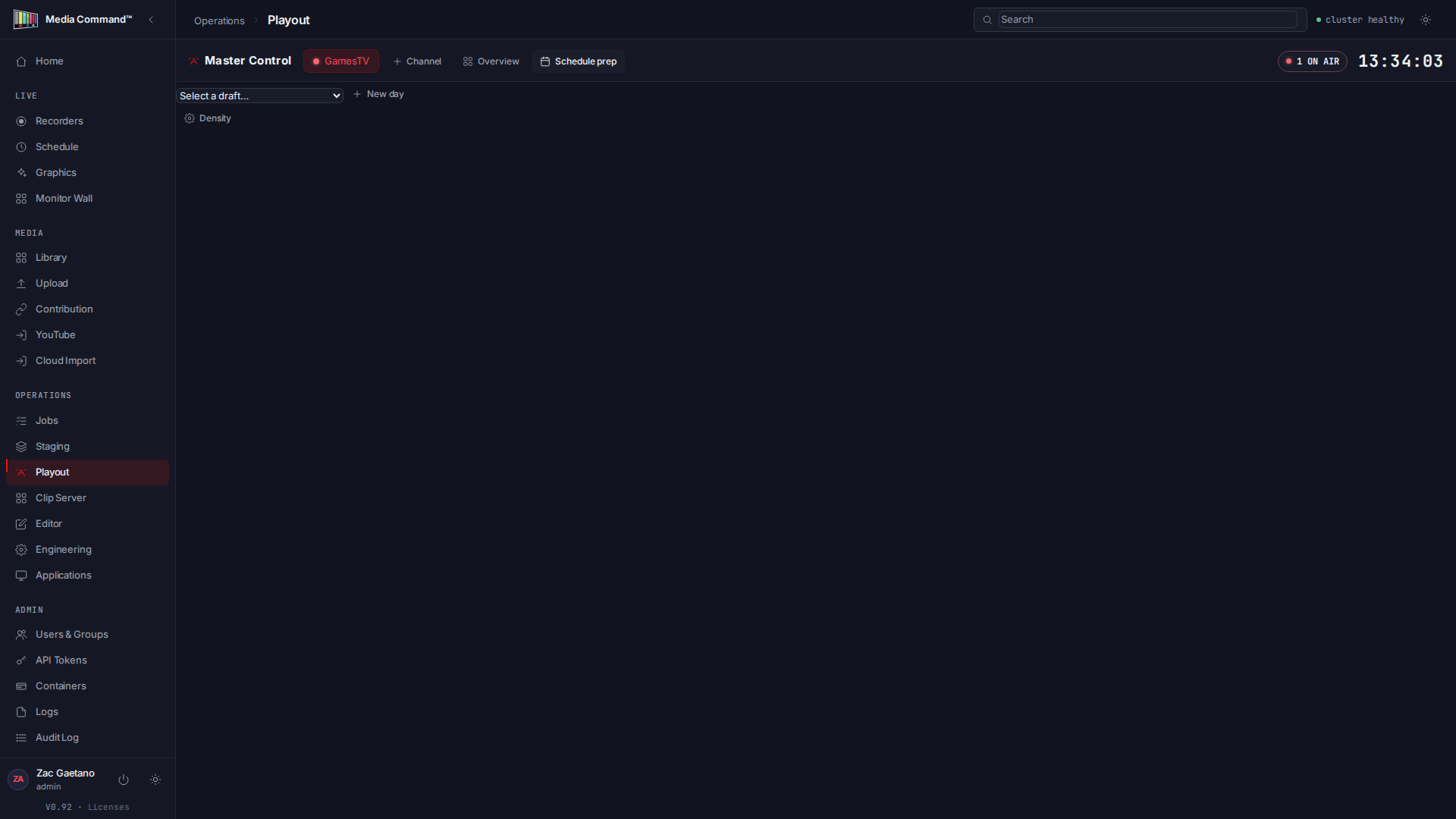
Offline drafting. Pick a draft or create one with + New day, build it away from air, then publish it to the channel.
Clip Server
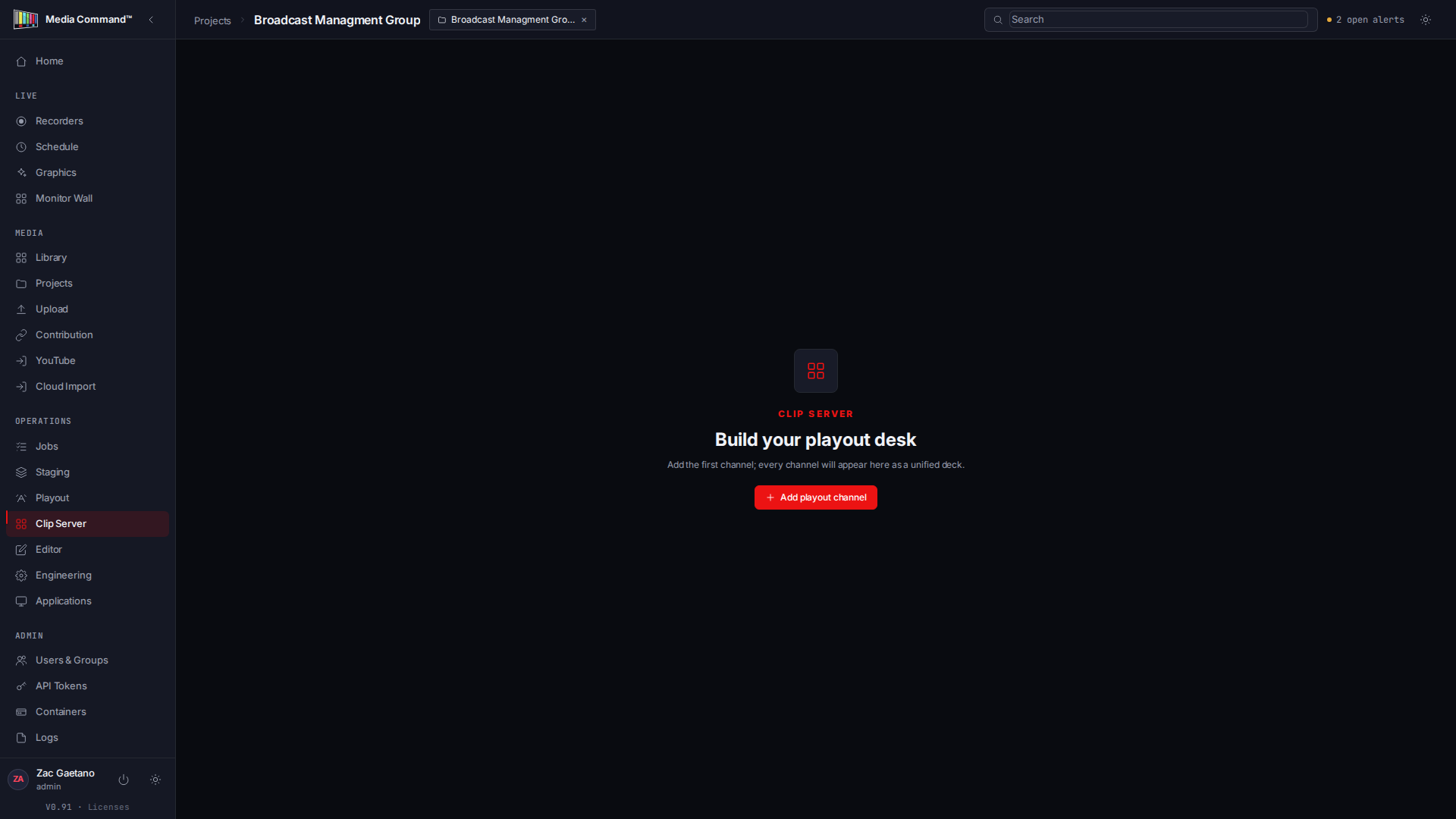
Instant-access clip storage for live studio replay. Pre-loaded frames in shared memory (/dev/shm) for frame-accurate playback.
Editor
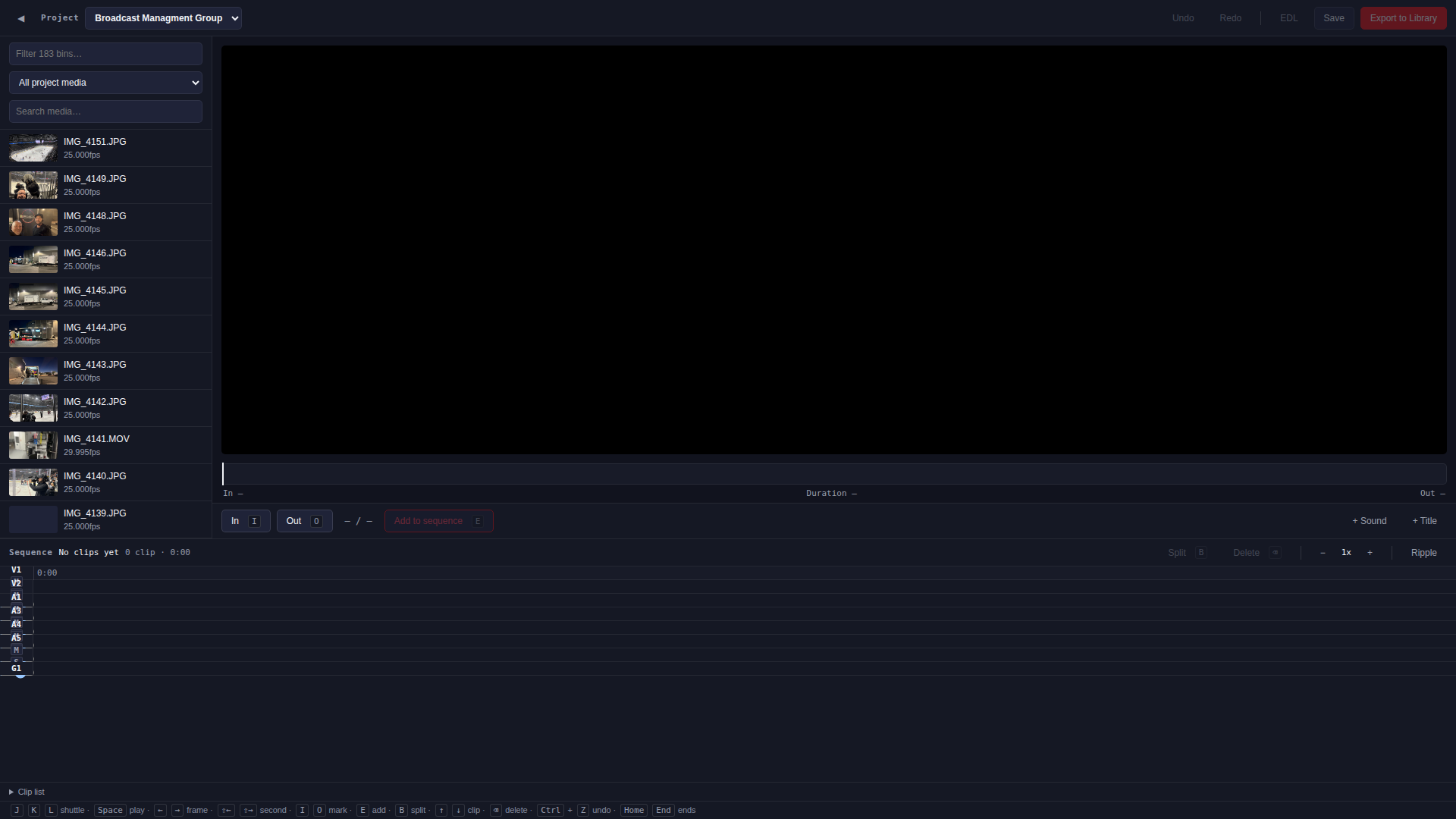
Browser-based NLE at /editor.html for rapid clipping and rough-cut assembly.
- Multi-track timeline (V1, V2, A1–A5).
- In/out trimming on TAMS master flows.
- Export to Library with codec presets and crop-to-fill options.
Engineering
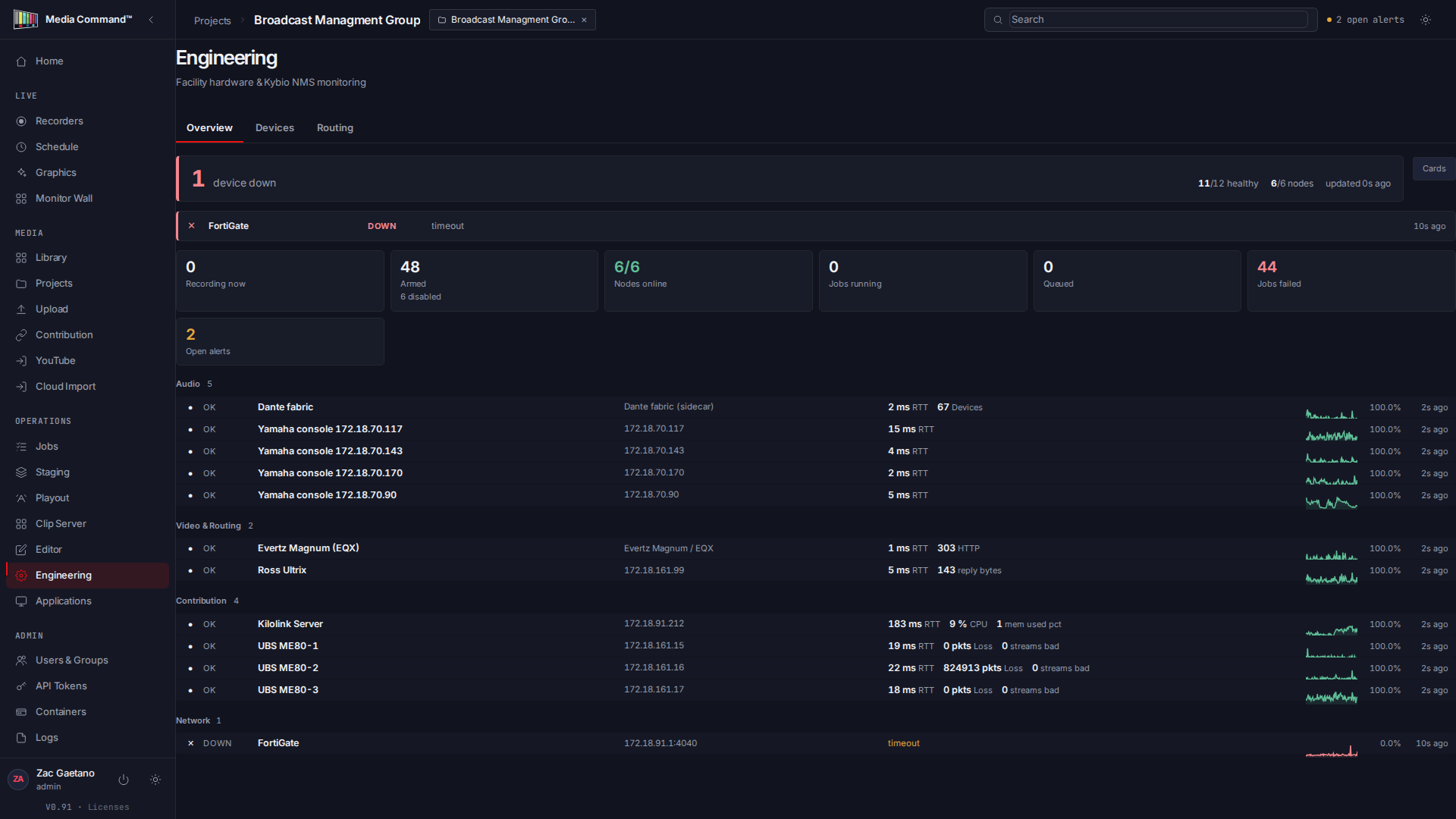
Broadcast engineering diagnostics: capture card status, GPU acceleration metrics, and network interface statistics.
Applications
Central distribution portal for NLE plugins and desktop companion apps. See Section 8 for details.
7. Administration
Users & Groups
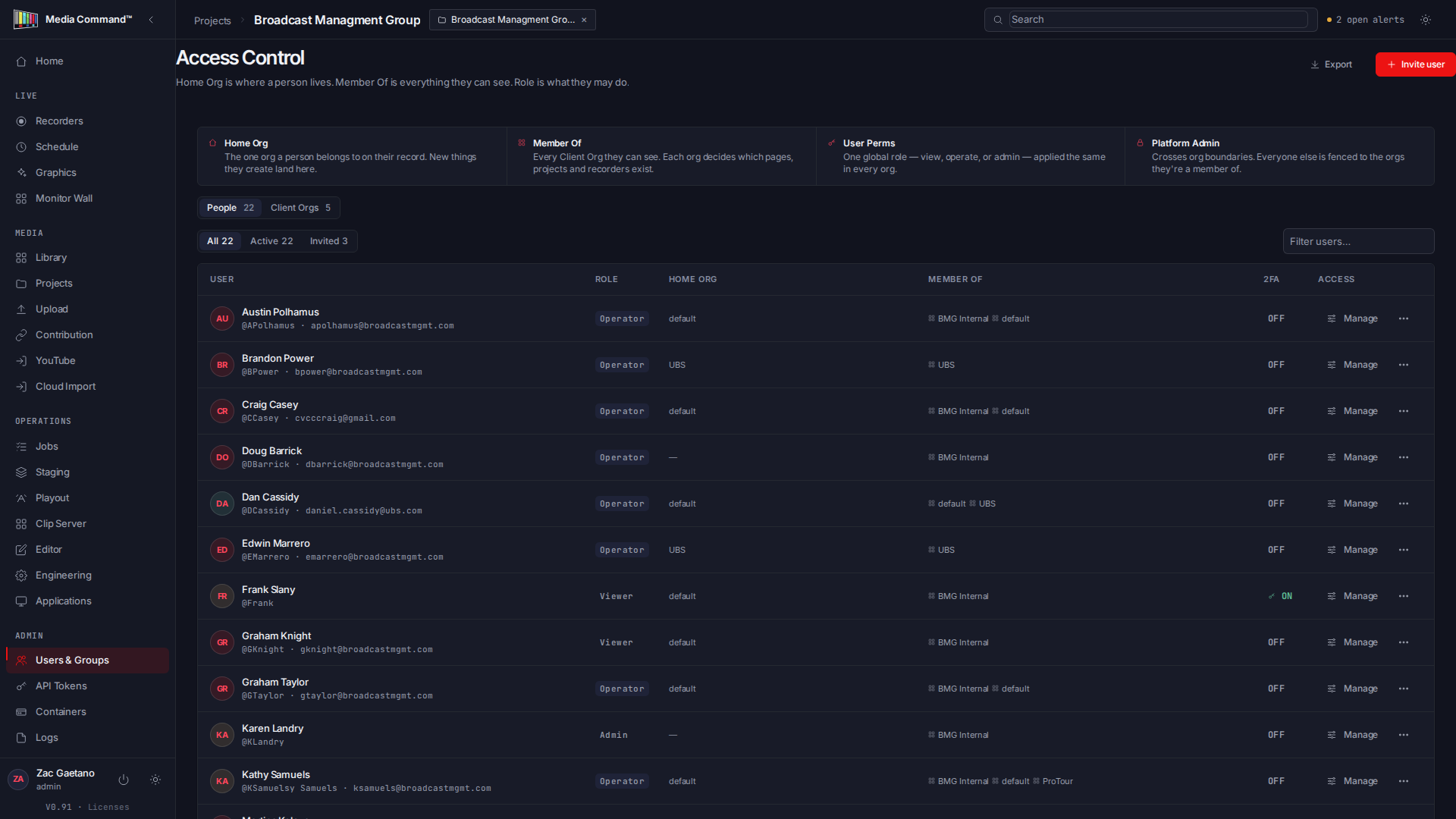
User provisioning, group management, and role assignment.
API Tokens
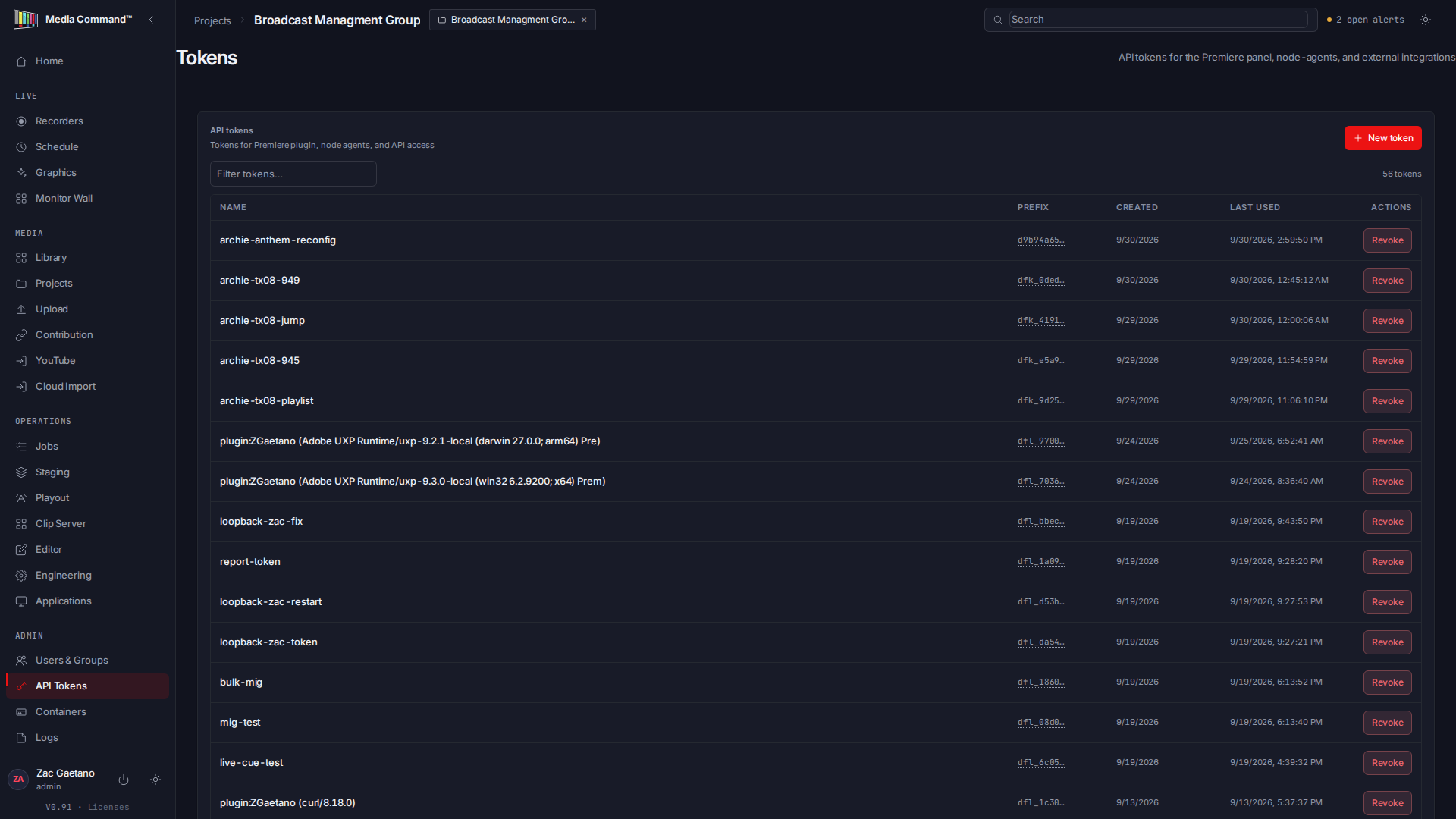
Generate scoped API keys for automation pipelines. Supports expiration dates and instant revocation.
Containers
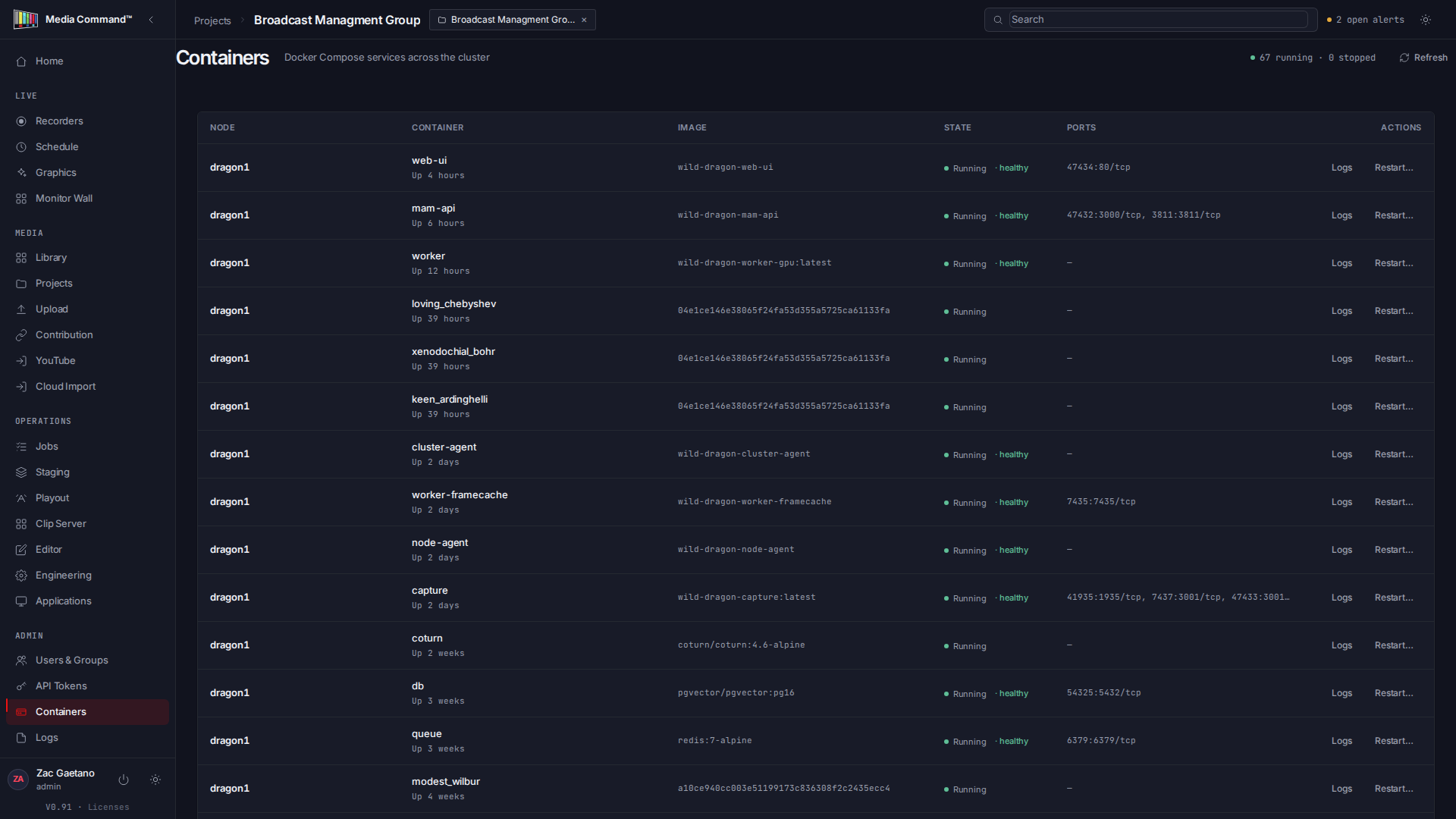
Docker container fleet status across all cluster nodes. Resource metrics and lifecycle controls (restart).
Logs
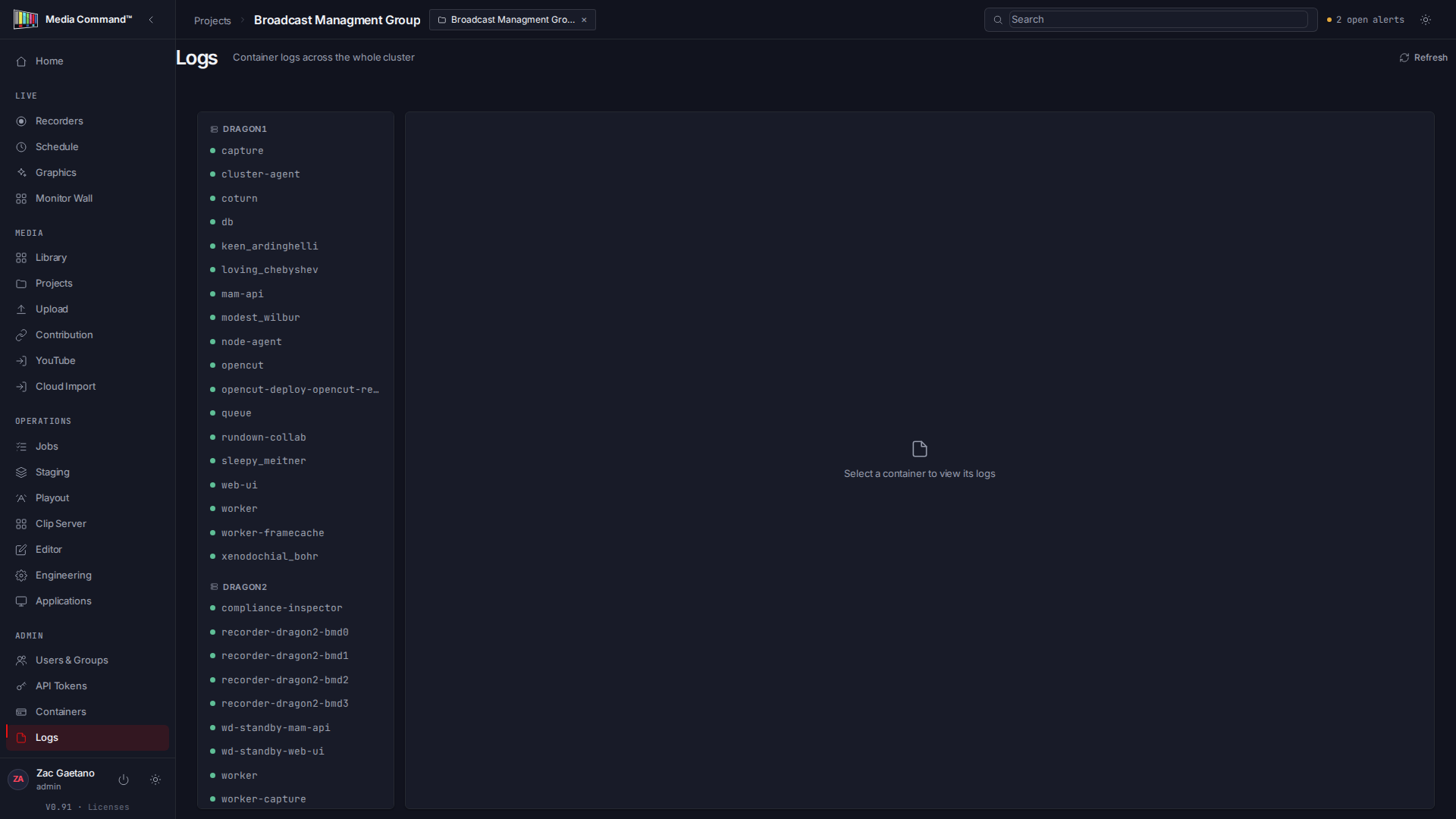
Centralized log aggregation from all nodes with severity filtering and regex search.
Audit Log
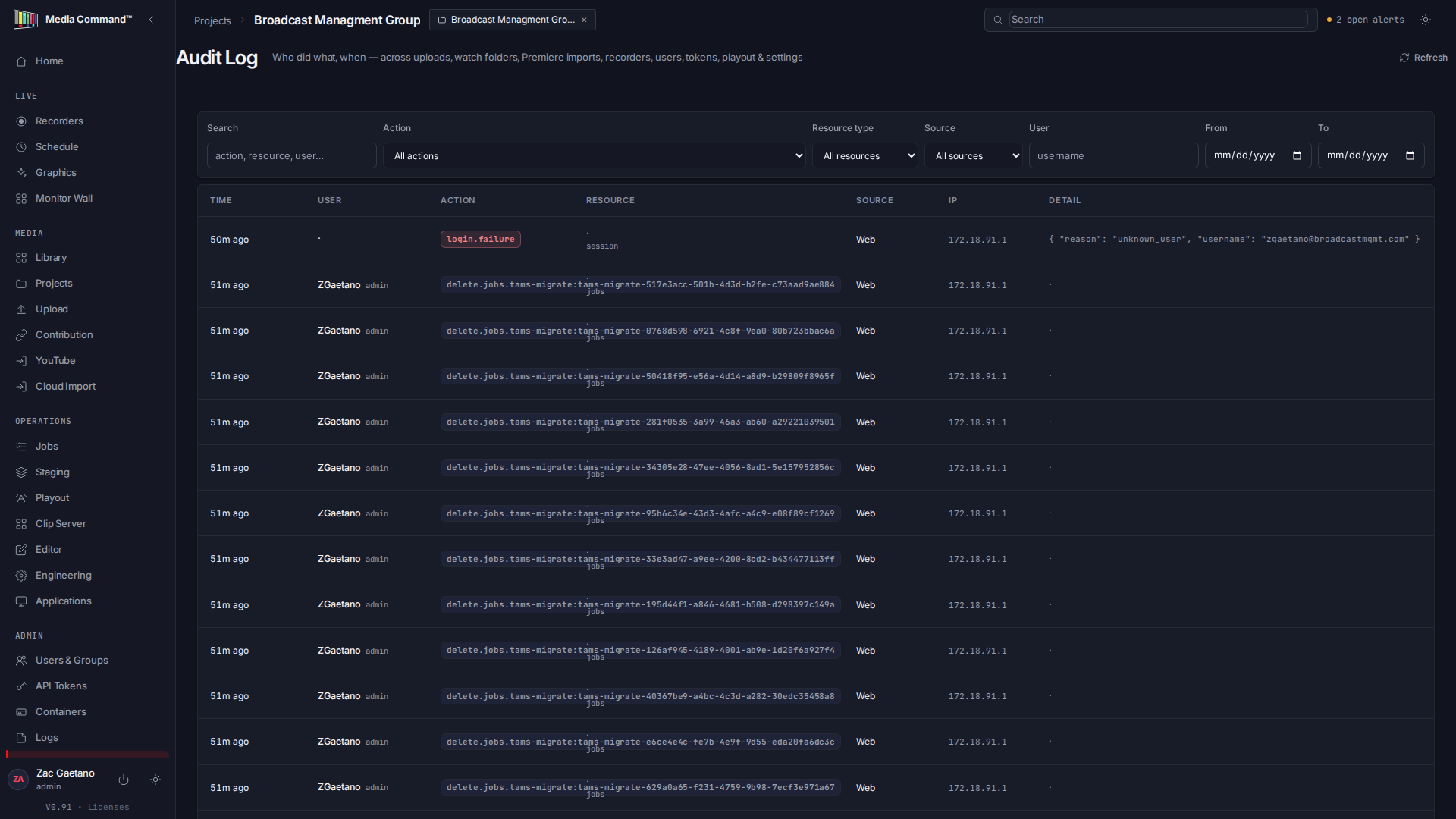
Immutable record of all user actions: logins, deletions, metadata edits, permission changes, and playout triggers. Captures user ID, IP address, timestamp, and state changes.
Cluster
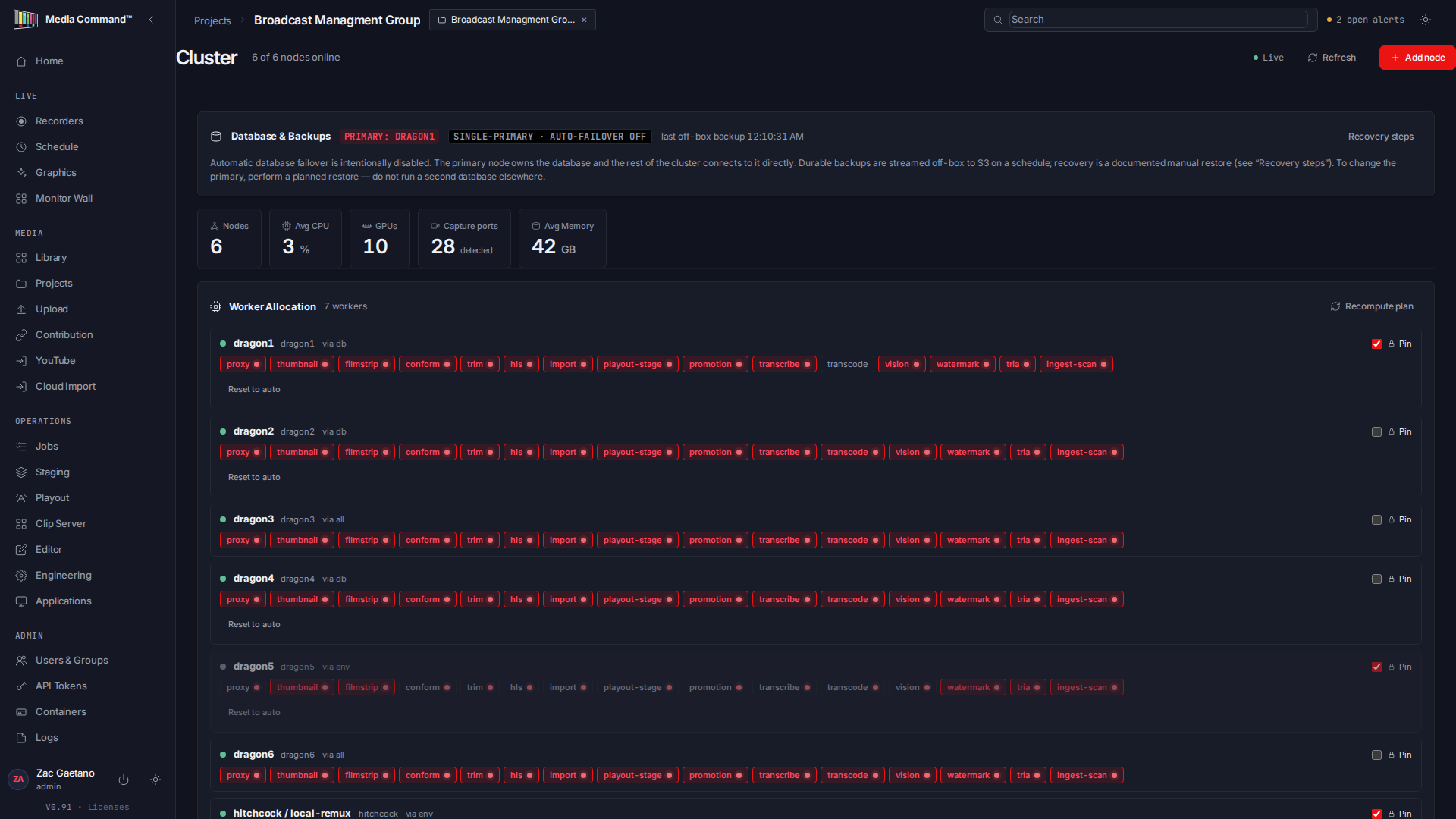
Multi-node cluster topology visualizer with heartbeat and connectivity monitoring.
Alerts
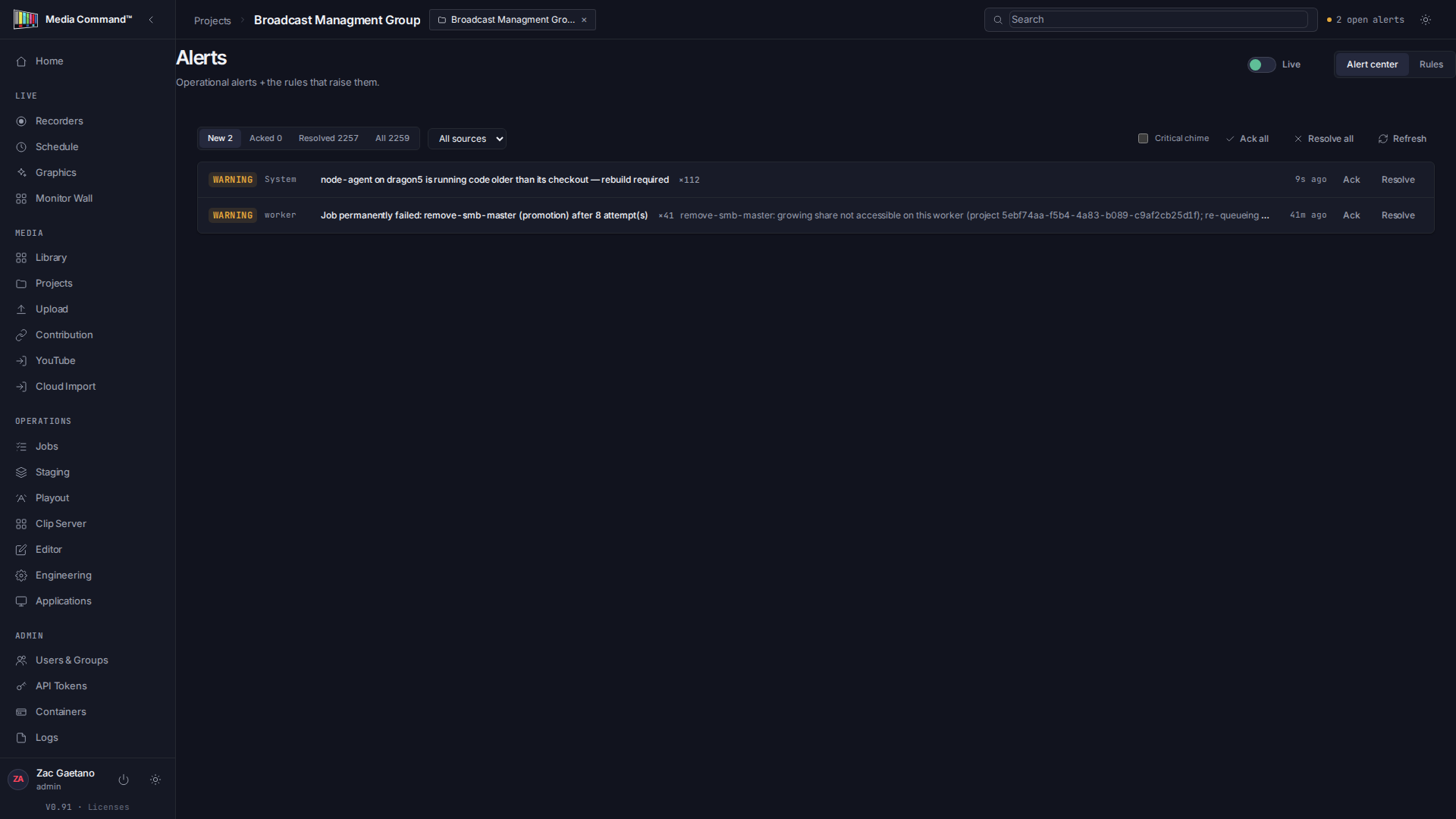
Active operational alerts (storage thresholds, signal loss, worker heartbeat drops). Webhook notifications to Discord, Slack, or email.
Settings
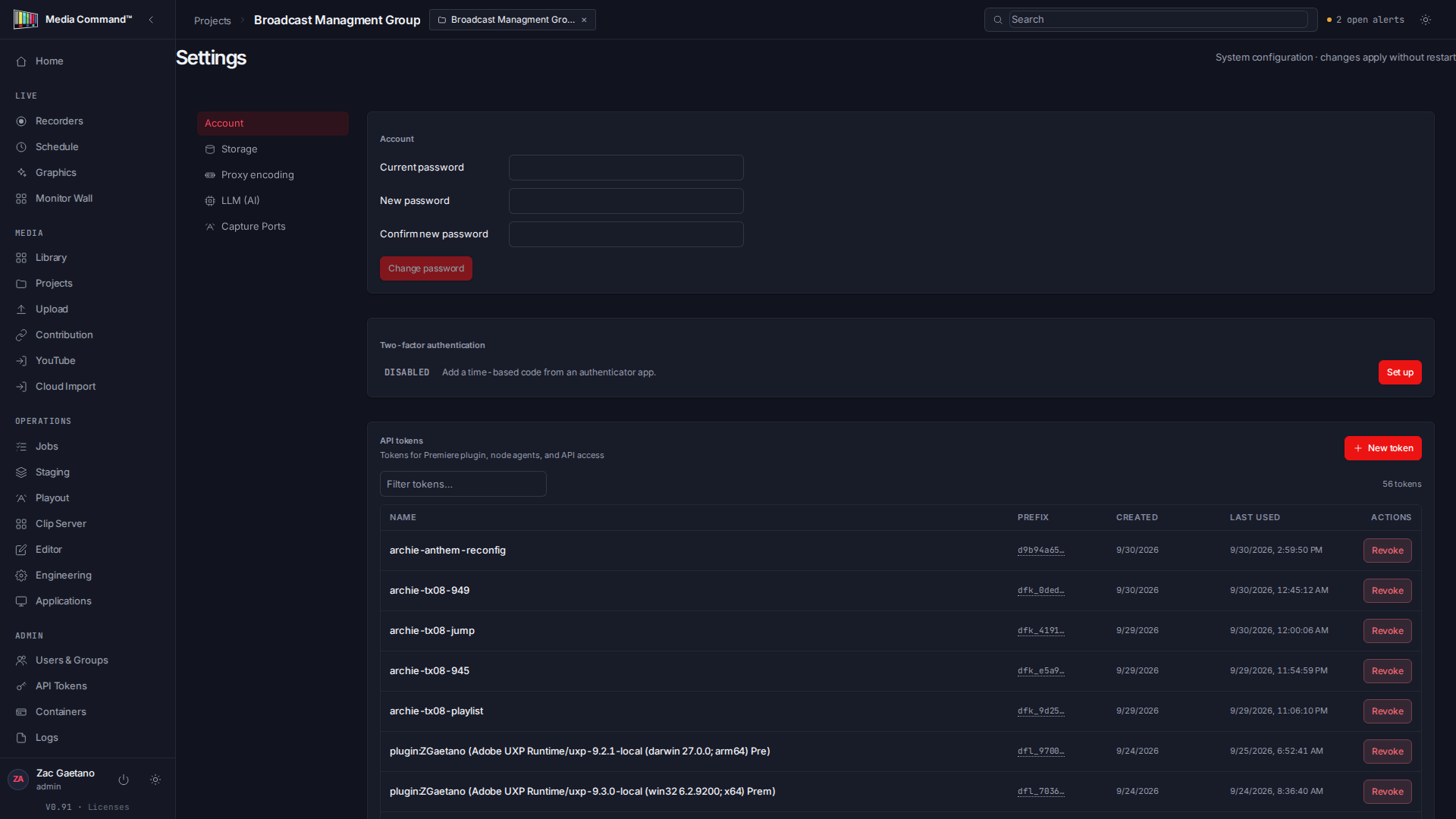
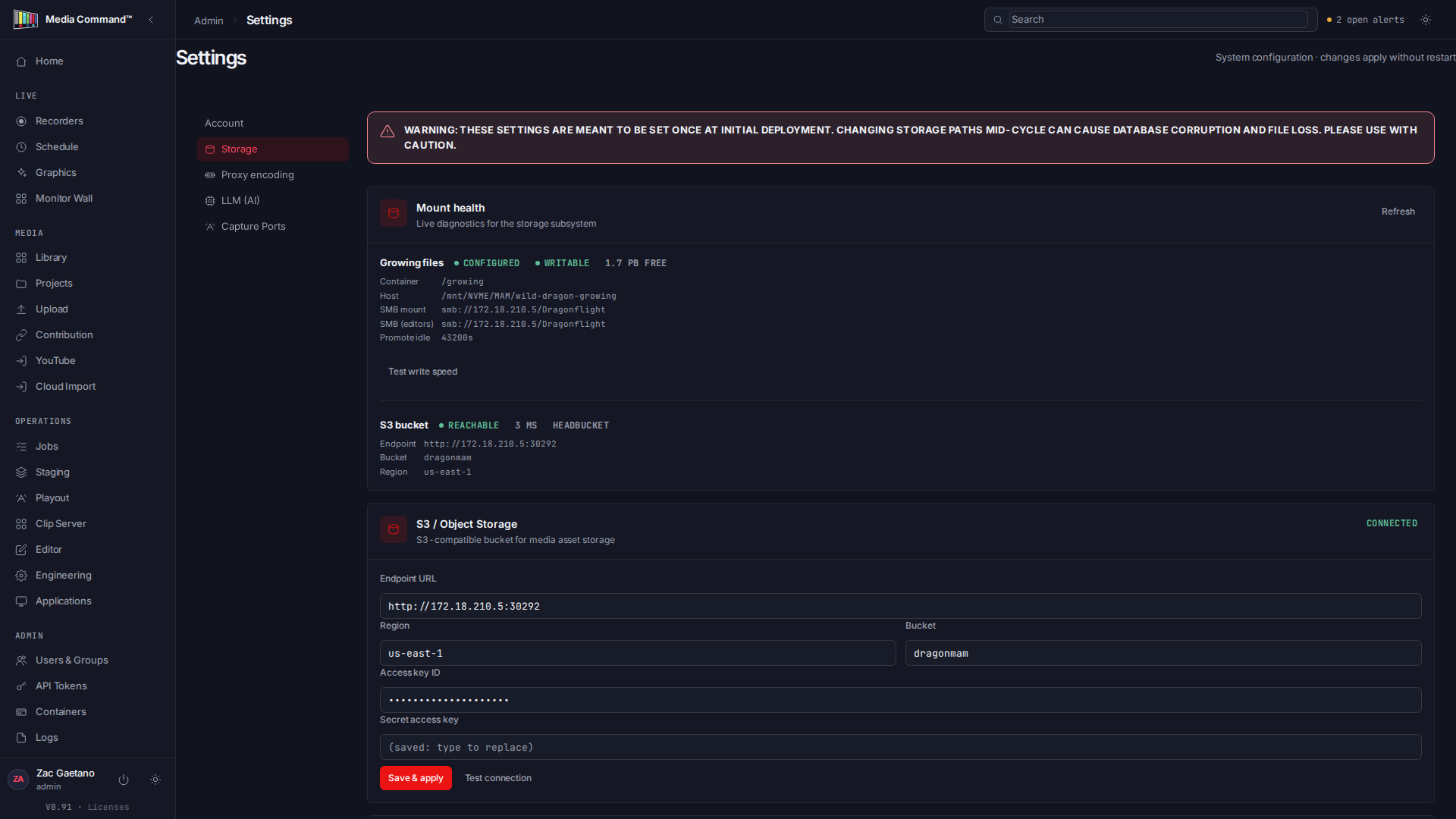
Central configuration for storage paths, S3 endpoints, transcoder profiles, and playout channel topologies.
8. Plugins & Desktop Applications
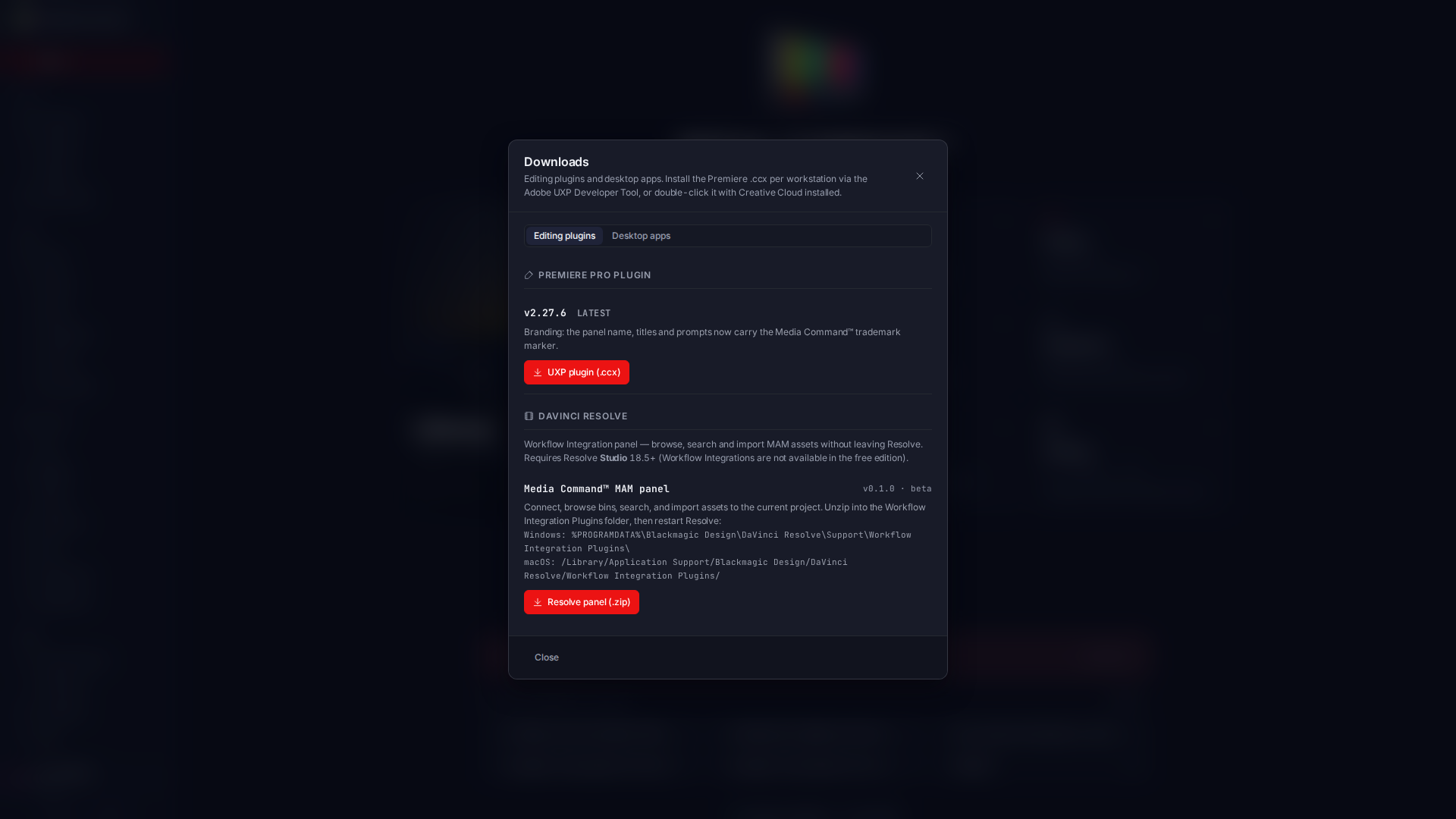
Adobe Premiere Pro UXP Plugin
Package: dragonflight-mam-2.27.6.ccx
Requires: Adobe Premiere Pro 2026 (v26+)
Installation:
- Download the
.ccxfrom the Downloads menu in Media Command. - Double-click to install via Creative Cloud, or use the Adobe UXP Developer Tool.
- In Premiere Pro: Window → Extensions → Media Command™.
Capabilities:
- Browse the MAM library, search assets, and import proxy or hi-res renditions.
- Mount live growing TAMS capture streams for edit-while-record workflows.
- Relink proxy edits to full-resolution masters.
- Export sequences directly to MAM project bins with automatic render dispatch.
DaVinci Resolve Studio Plugin
Package: dragonflight-resolve-0.1.2.zip
Requires: DaVinci Resolve Studio 18.5+
Installation:
- Download and extract to the Workflow Integration Plugins directory:
- macOS:
/Library/Application Support/Blackmagic Design/DaVinci Resolve/Workflow Integration Plugins/ - Windows:
%PROGRAMDATA%\Blackmagic Design\DaVinci Resolve\Support\Workflow Integration Plugins\
- macOS:
- In Resolve Studio: Workspace → Workflow Integrations → Media Command™ MAM.
Capabilities:
- Browse and search the MAM asset catalog.
- Import assets directly into the Resolve Media Pool.
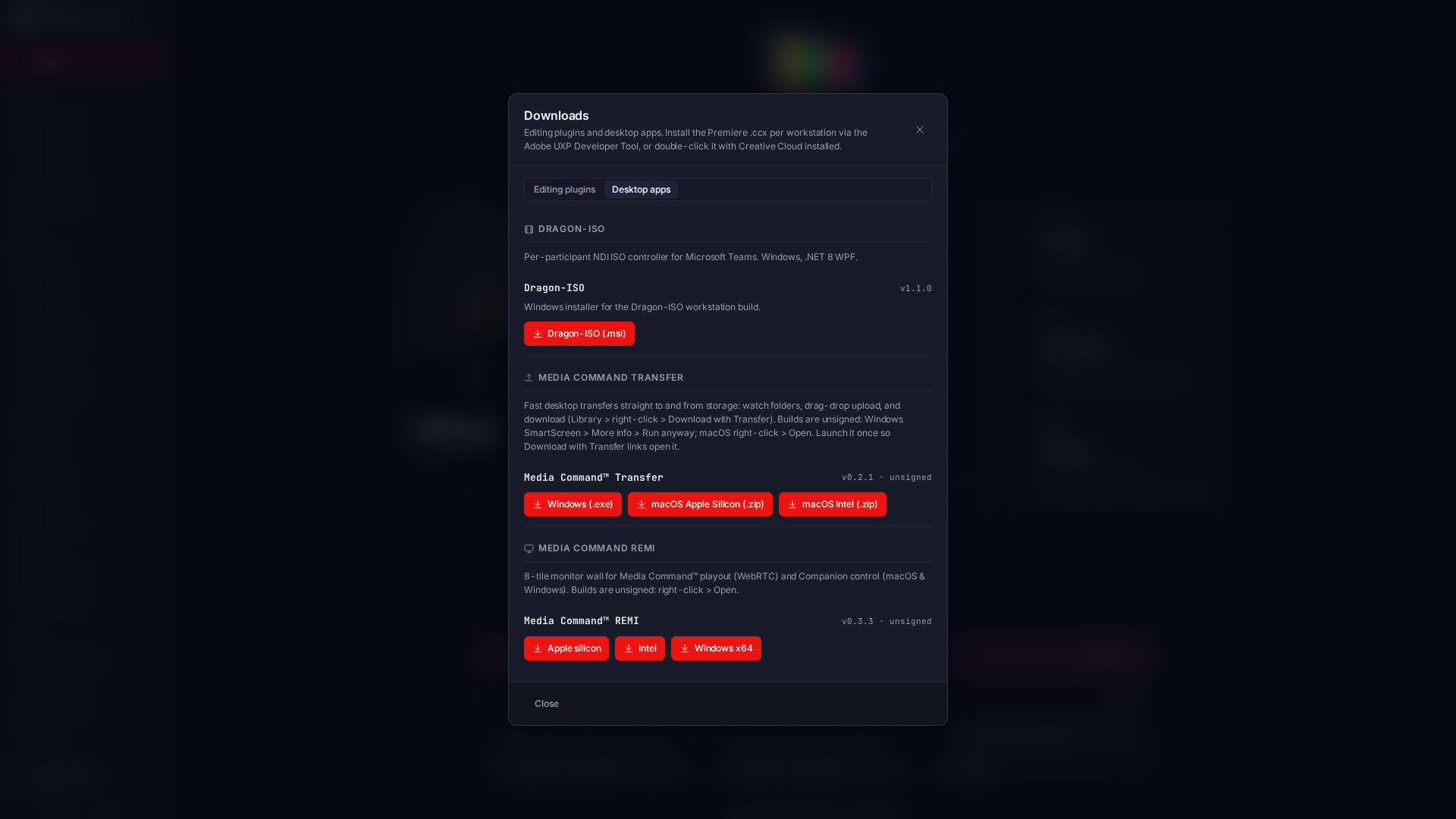
Media Command Transfer
Packages:
| Platform | File |
|---|---|
| macOS Apple Silicon | Media-Command-Transfer-0.2.1-mac-arm64.zip |
| macOS Intel | Media-Command-Transfer-0.2.1-mac-x64.zip |
| Windows x64 | Media-Command-Transfer-0.2.1-win-x64.exe |
High-speed desktop uploader with watch folder automation, drag-and-drop upload, and mediacommand:// deep-link protocol for browser-initiated downloads. Builds are unsigned.
Media Command REMI
Packages:
| Platform | File |
|---|---|
| macOS Apple Silicon | Media-Command-REMI-0.3.3-mac-arm64.zip |
| macOS Intel | Media-Command-REMI-0.3.3-mac-x64.zip |
| Windows x64 | Media-Command-REMI-0.3.3-win-x64.exe |
Low-latency multiviewer for remote production monitoring.
- Up to 8 tiles per window with configurable grid layouts.
- Proxy / QC mode toggle for full-quality NVENC streams.
- Audio metering with channel pair selection, solo, and mute.
- Broadcast OSD overlays (tally, timecode, safe area, crosshairs).
- Multi-window, multi-display support.
- HTTP REST API and WebSocket for Bitfocus Companion / Stream Deck integration.
- Builds are unsigned.
Dragon-ISO
Package: Dragon-ISO-Setup-1.1.0.msi
Platform: Windows 10/11
Microsoft Teams NDI ISO controller. Extracts individual participant streams from Teams NDI feeds, normalizes them to uniform broadcast standards, and re-emits as clean isolated NDI sources with optional direct-to-disk recording.
- REST & WebSocket control on
127.0.0.1:9755. - OSC server on UDP
127.0.0.1:9000for Companion and TouchOSC. - Mobile web controller at
http://localhost:9755/ui.
9. Safety & Runbooks
Media Deletion Protocol
Deleting an asset in the UI moves it to the project's Recycle Bin. Permanent purge requires administrative credentials and confirmation dialogs.
Live Growing File Editing
- In Recorders, select the target port and set codec to H.264 intra or HEVC intra.
- Click Create Recording.
- In the Premiere Pro plugin, locate the active recording (red
LIVEbadge) and click Mount Growing File. - Edit immediately — new segments are recognized dynamically.
Broadcast Management Group — Media Command · October 2026